
Claude Code Windows install guide: native, WSL and desktop app
Claude Code runs natively on Windows 10 (version 1809 or later), Windows 11 and Windows Server 2019 or later. To install it, open PowerShell and run irm https://claude.ai/install.ps1 | iex, then open a new window and type claude. You do not need administrator rights, Node.js or WSL. Git for Windows is optional but recommended, and WSL 2 is the better choice if your projects use Linux tools or you want Claude Code's sandbox. This guide covers every route, step by step, with the fixes for the errors Windows users actually hit.
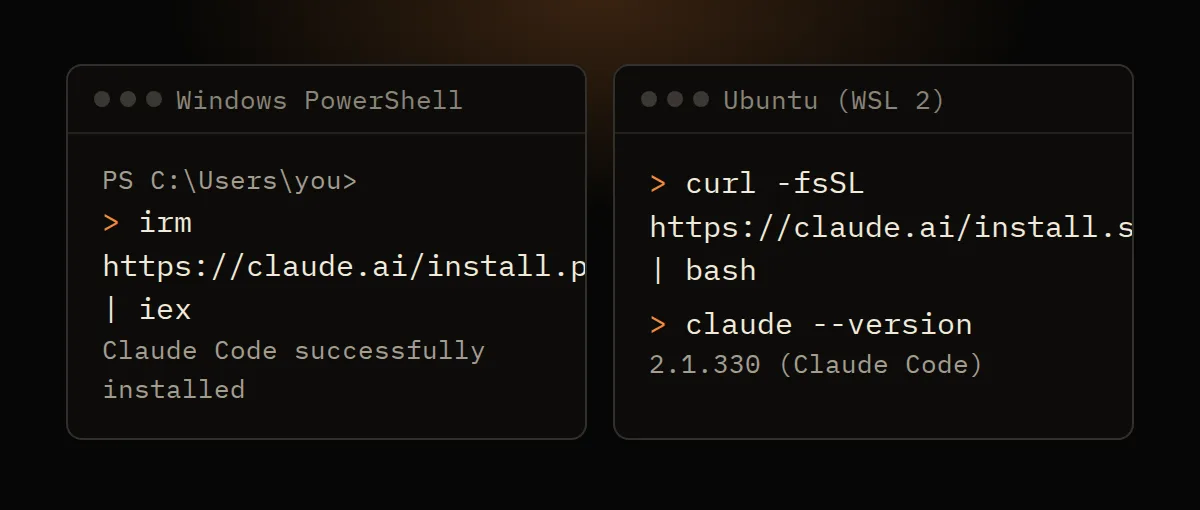
Source: Advanced setup, Claude Code docs
Quick install: Claude Code on Windows in one command
| Where you are | Run this |
|---|---|
| PowerShell (prompt starts with PS C:\) | irm https://claude.ai/install.ps1 | iex |
| Command Prompt, CMD (prompt starts with C:\ without PS) | curl -fsSL https://claude.ai/install.cmd -o install.cmd && install.cmd && del install.cmd |
| WinGet | winget install Anthropic.ClaudeCode |
| Inside WSL (Ubuntu or another distribution) | curl -fsSL https://claude.ai/install.sh | bash |
The installer shows no progress while it downloads, so leave the window open and wait. When it finishes, open a new terminal window and check it worked:
claude --versionA working install prints a version number such as 2.1.211 (Claude Code). Then go to a project folder and run claude to sign in.
Source: Advanced setup, Claude Code docs
Native Windows or WSL: which should you use?
Anthropic offers three ways to run Claude Code on a Windows PC, and the right one depends on where your projects live and which features you need:
| Option | Needs | Sandbox | Best for |
|---|---|---|---|
| Native Windows | Nothing; Git for Windows optional | Not supported | Windows-native projects and tools, such as .NET, PowerShell scripts or Windows builds |
| WSL 2 | WSL 2 turned on | Supported | Linux toolchains, Docker-style workflows, or sandboxed commands |
| WSL 1 | WSL 1 turned on | Not supported | Only if WSL 2 is unavailable |
A simple rule: if your code lives in C:\Users\you\projects and you build it with Windows tools, install natively. If your code lives inside a Linux distribution, or your project expects Bash, make and Linux packages, install inside WSL 2. Many people end up with both, and that is fine; they are separate installs.
There are also two ways to use Claude Code on Windows without a terminal at all: the Claude desktop app, which has Claude Code built into its Code tab, and the Claude Code extension for VS Code. Both are covered further down.
Source: Advanced setup, Claude Code docs
Windows requirements for Claude Code
- Windows 10 version 1809 or later, Windows 11, or Windows Server 2019 or later.
- A 64-bit edition of Windows. 32-bit Windows is not supported.
- An x64 or ARM64 processor and at least 4 GB of memory.
- An internet connection, in a country where Anthropic offers Claude.
- PowerShell or CMD; both are already on every Windows PC.
- A paid Claude plan (Pro, Max, Ultra, Team or Enterprise) or a Claude Console account. The Free plan does not include Claude Code.
Source: Advanced setup, Claude Code docs
Install Claude Code on native Windows, step by step
This is Anthropic's own walkthrough for Windows, written for people who have never used a terminal.
Step 1: Install Git for Windows (optional, recommended)
Git for Windows includes Git Bash, which gives Claude Code its Bash tool. Without it, Claude Code runs commands in PowerShell instead, which works, but many scripts and instructions on the internet assume Bash. You do not need to learn Git yourself.
- Go to git-scm.com/downloads/win and download the installer.
- Run it and click Next on each screen to accept the defaults. There are many screens, but you do not need to change anything.
- If it asks you to choose an editor, keep the default.
- At "Adjusting your PATH environment", keep the recommended option.
Already have Git? Skip this. Not sure? Install it anyway; reinstalling does no harm.
Step 2: Open PowerShell
Press Win + X and choose Windows PowerShell or Terminal. Windows has two command-line programs, PowerShell and CMD, which look similar but take different commands. In PowerShell each line starts with PS C:\Users\YourName>; in CMD it is C:\Users\YourName> without the PS. Make sure you are in PowerShell for the next step. Do not use the entry called Windows PowerShell (x86): it runs as a 32-bit program and the installer will refuse it.
Step 3: Run the installer
Copy this line, paste it into PowerShell with Ctrl + V or a right-click, and press Enter:
irm https://claude.ai/install.ps1 | iexirm downloads the installer script and iex runs it. If you are in CMD instead, use the CMD command from the quick install table. You do not need to run either as Administrator.
Step 4: Start Claude Code
Open a new PowerShell window, go to your project folder with cd, and run claude. The first time, Claude Code asks you to log in; a browser window opens for you to sign in with your Claude account.
cd C:\Users\YourName\projects\my-appclaude
Step 5: Start using it
Claude Code runs entirely in text. Type a message and press Enter. You cannot click in the terminal, so use the arrow keys. Press Esc to interrupt Claude while it works, type /help for the commands, and type exit or press Ctrl + D twice to leave. A good first message is "what does this project do?".
Source: Terminal guide, Claude Code docs
Install with WinGet
If you manage software with WinGet, Windows' built-in package manager, install Claude Code with:
winget install Anthropic.ClaudeCodeThe difference matters later: a WinGet install does not update itself by default, while the PowerShell installer's native install does. Update a WinGet install with winget upgrade Anthropic.ClaudeCode, or set CLAUDE_CODE_PACKAGE_MANAGER_AUTO_UPDATE to 1 so Claude Code runs the upgrade for you. Because Windows locks a running program, that upgrade can fail while Claude Code is open; Claude Code then shows you the manual command instead.
Source: Advanced setup, Claude Code docs
Git Bash or PowerShell: how Claude Code runs commands on Windows
On native Windows, Claude Code needs a shell to run commands, and it picks one automatically:
| Your setup | What Claude Code uses |
|---|---|
| No Git for Windows | The PowerShell tool, turned on automatically |
| Git for Windows installed | Git Bash for its Bash tool, with the PowerShell tool also on by default for claude.ai and Console accounts |
| Amazon Bedrock, Google Cloud or Microsoft Foundry with Git installed | Git Bash; turn the PowerShell tool on with CLAUDE_CODE_USE_POWERSHELL_TOOL=1 |
When the PowerShell tool is on, Claude treats PowerShell as its main shell and keeps Bash available for POSIX scripts. It uses PowerShell 7 (pwsh.exe) if you have it and falls back to the built-in Windows PowerShell 5.1. It starts PowerShell with the execution policy bypassed for that process only, so .ps1 scripts work on a default Windows install without changing your machine's policy; Group Policy still applies. To turn the PowerShell tool off, set CLAUDE_CODE_USE_POWERSHELL_TOOL to 0.
When Claude Code cannot find Git Bash
Claude Code looks for bash.exe in C:\Program Files\Git and C:\Program Files (x86)\Git first, then in the Git installation on your PATH. If Git lives somewhere else, find it with where.exe git in PowerShell, then point Claude Code at that installation's bin\bash.exe in your settings.json file:
{
  "env": {
    "CLAUDE_CODE_GIT_BASH_PATH": "C:\\Program Files\\Git\\bin\\bash.exe"
  }
}
The file must be named bash.exe, sh.exe, bash or sh. If the path is right and Claude Code still ignores it, security software such as AppLocker, Group Policy software restrictions or an endpoint protection agent may be blocking it; ask your IT team to allow claude.exe and the processes it starts.
Source: Tools reference, Claude Code docs
PowerShell 7 or Windows PowerShell 5.1?
Claude Code works with either. It looks for PowerShell 7 (pwsh.exe) first and falls back to Windows PowerShell 5.1, which ships with Windows. PowerShell 7 is a free install from Microsoft and is the one to choose if you have the option. Claude Code also smooths over some old Windows quirks for you: redirecting output with > and >> writes UTF-8 files even on PowerShell 5.1, text piped into a command is sent as UTF-8, error output arrives without colour codes, and a command that waits for keyboard input gets an end-of-file signal instead of hanging the session.
Harmless "Exit code 1" messages in PowerShell
Some Windows commands use exit code 1 to report a normal result, so you may see "Error: Exit code 1" when nothing went wrong. A grep, rg, findstr or git grep search returns 1 when it finds no matches; git diff, fc.exe and diff.exe return 1 when files differ; where.exe returns 1 when it finds nothing; and robocopy uses codes 1 to 7 to report what it copied. You do not need to do anything about these.
Source: Tools reference, Claude Code docs
Install Claude Code in WSL 2
WSL, the Windows Subsystem for Linux, runs a real Linux distribution such as Ubuntu on Windows without a separate virtual machine or dual boot. Claude Code inside WSL behaves exactly as it does on Linux.
Step 1: Install WSL
On Windows 10 version 2004 (build 19041) or later, or Windows 11, open PowerShell as administrator (right-click, Run as administrator) and run:
wsl --installThis turns on the features WSL needs and installs Ubuntu. Restart your PC. The first time you open Ubuntu from the Start menu it unpacks itself and asks you to create a Linux username and password. New installs use WSL 2 by default. If the command just prints help text, WSL is already installed: list distributions with wsl --list --online and install one with wsl --install -d followed by its name.
Source: How to install Linux on Windows with WSL, Microsoft Learn
Step 2: Check you are on WSL 2
wsl -l -vThe VERSION column should say 2. If it says 1, convert the distribution from PowerShell with wsl --set-version Ubuntu 2, replacing Ubuntu with your distribution's name. Claude Code's sandbox needs WSL 2, and WSL 1 has a known problem running Claude Code's program, covered in the troubleshooting section.
Source: How to install Linux on Windows with WSL, Microsoft Learn
Step 3: Install Claude Code inside the distribution
Open your WSL terminal, not PowerShell or CMD, and run the Linux installer:
curl -fsSL https://claude.ai/install.sh | bashThen open a new WSL terminal, run claude --version, go to your project and run claude. You install and launch claude inside WSL; the Windows and WSL installs are separate programs.
Source: Advanced setup, Claude Code docs
Step 4: Sign in from WSL
WSL often has no browser of its own, so signing in can stall: either no browser opens, or the browser signs you in and then shows a connection error for a localhost address. Anthropic's fix works every time:
- At the login prompt, press c to copy the login address, or select it in the terminal.
- Open it in your Windows browser and sign in. The browser shows a code instead of returning to localhost.
- Paste that code into the terminal at the prompt that starts "Paste code here".
If pasting does nothing, try Windows Terminal's other paste shortcuts, right-click or Shift+Insert, or run claude auth login instead. To have Claude Code open your Windows browser automatically next time, set the BROWSER variable in WSL to the browser's path:
export BROWSER="/mnt/c/Program Files/Google/Chrome/Application/chrome.exe"Source: Troubleshoot installation and login, Claude Code docs
Keep your projects inside WSL
If you use WSL, keep your code in the Linux filesystem, such as /home/you/project, rather than under /mnt/c. Anthropic notes that working on files across the Windows and Linux boundary goes through a network filesystem, which is slow and breaks file watching. Tools that watch files for changes, such as dev servers and test runners, work properly when the code and the tools are on the same side.
Source: Claude Code Desktop in WSL, Claude Code docs
Use Claude Code's sandbox on Windows (WSL 2 only)
Claude Code's sandbox limits which files and network addresses its shell commands can reach, so it can work with fewer permission prompts. It runs on macOS, Linux and WSL 2. On native Windows, commands run unsandboxed, so to use the sandbox on a Windows PC, run Claude Code inside WSL 2.
Inside an Ubuntu or Debian distribution, install the two packages it relies on, bubblewrap for file isolation and socat for routing network traffic through its proxy, then restart Claude Code and run /sandbox:
sudo apt-get install bubblewrap socatIf /sandbox says "Sandboxing needs WSL2", your distribution is on WSL 1; convert it with wsl --set-version or run without the sandbox.
Source: Sandboxing, Claude Code docs
Claude Code in the Windows desktop app
Prefer not to use a terminal? The Claude desktop app for Windows includes Claude Code in its Code tab, so you do not need to install the command-line tool separately. Download the x64 installer from Anthropic's desktop quickstart, or the separate ARM64 installer for Windows on Arm PCs, run it, sign in, and click the Code tab. It needs a paid plan.
The desktop app can also run Code sessions inside WSL 2. Start a new session, open the environment selector under the prompt box and pick a distribution; the session's Claude Code process, its tools and Git then run inside Linux with Linux paths. You need WSL 2 (WSL 1 is not supported), at least one distribution such as Ubuntu, and git installed inside it. Parallel sessions, visual diff review, pull request status and worktrees all work there; plugins are not available in WSL sessions, and you view files rather than edit them in the file pane.
Source: Claude Code Desktop in WSL, Claude Code docs
Using Claude Code in the desktop app on Windows
The Code tab runs the same Claude Code engine as the command line, with a graphical interface. You can run both on the same PC, even on the same project, and they share CLAUDE.md files, MCP servers, hooks, skills and settings. Here is how the parts fit together on Windows.
Start a session
Before your first message, use the row under the prompt box to choose four things: the environment (your PC, a WSL distribution, an SSH machine or the cloud), the project folder, the permission mode and the model. Then type your task and press Enter. Each session keeps its own context and changes. Type @ and a filename to add a file, or use the + button or drag and drop to attach images, PDFs and other files, which is handy for screenshots of a bug or a design mockup.
Permission modes in the desktop app
| Mode | What Claude does |
|---|---|
| Manual | Asks before editing files or running commands; you see a diff and accept or reject each change |
| Accept edits | Accepts file edits and simple file commands such as mkdir and mv, still asks before other commands |
| Plan | Explores and proposes a plan without editing your code |
| Auto | Runs without routine prompts while a background check confirms each command matches your request |
| Bypass permissions | No prompts; must be turned on in Settings first on Pro, Max and Ultra |
Anthropic's tip: start complex tasks in Plan, then switch to Accept edits or Manual to carry the plan out. In the desktop app, Shift+Tab does not cycle modes as it does in the terminal; use the mode selector or Ctrl+Shift+M.
Review changes and pull requests
After Claude edits your code, click the line counts, such as +12 -1, in the Changes card to open the diff view and go through it file by file. Hover over a line and click + to leave a comment, add as many as you like, then press Ctrl+Enter on Windows to send them all; Claude makes the changes and shows a new diff. Type /code-review to have Claude review your changes before you commit; the findings arrive as a card you can step through or fix in one click. Once you open a pull request, Auto-fix has Claude fix failing checks and Merge when ready turns on GitHub's auto-merge. Pull request tracking needs the GitHub CLI, gh, installed and signed in.
Preview your app and run commands
Claude can start a dev server and open it in the Browser pane to check its own changes: it takes screenshots, clicks through the page, fills forms and fixes what it finds. Press Ctrl+` to open the built-in terminal alongside the session. Click a file path in the chat to open it, and edit files in the file pane in local sessions; in WSL, SSH and cloud sessions the file pane is view-only.
Run several sessions at once
Press Ctrl+N for a new session and Ctrl+Tab to switch between them. Alt-click a session in the sidebar to open it side by side, or Ctrl-click to open it in its own window. In a Git project, turn on Worktree before you start a session to give it its own isolated copy of the project, so parallel sessions cannot overwrite each other. The app sends a Windows notification when a session finishes while you are looking at another one.
Desktop app keyboard shortcuts on Windows
| Shortcut | Action |
|---|---|
| Ctrl+/ | Show all shortcuts |
| Ctrl+N | New session |
| Ctrl+W | Close session |
| Ctrl+Tab / Ctrl+Shift+Tab | Switch between sessions |
| Esc | Stop Claude's response |
| Ctrl+Shift+D | Show or hide the diff pane |
| Ctrl+Shift+B | Show or hide the Browser pane |
| Ctrl+` | Show or hide the terminal |
| Ctrl+; | Open a side chat |
| Ctrl+Shift+M | Permission mode menu |
| Ctrl+Shift+I | Model menu |
Let Claude use your Windows desktop
Computer use lets Claude open apps and control your screen for tools that have no command line. It works in the Code tab on macOS and Windows on Pro, Max and Ultra plans, not Team or Enterprise, and must be turned on in Settings. Claude tries more precise tools first, such as a connector, a shell command or Claude in Chrome, and uses screen control only when nothing else fits. Unlike sandboxed commands, it runs on your real desktop with whatever access you approve.
Move between the terminal and the desktop app
Run /desktop in a terminal session to save it and reopen it in the desktop app; it works on x64 Windows when you are signed in with a claude.ai subscription. Going the other way, close the terminal session and type /resume in the desktop prompt box to pick up any session you started from the command line on this PC. Use the desktop app to manage parallel sessions and review changes visually; use the command line for scripting and automation, which the desktop app does not do.
If the desktop app shows a blank screen
Restart the app, and let it update; on Windows it updates itself when it starts. On a work network, check the firewall allows Anthropic's download hosts. If it keeps failing, look in Event Viewer under Windows Logs, Application for crash logs. "Failed to load session" usually means the folder no longer exists, the repository needs Git LFS that is not installed, or Windows file permissions block access.
Source: Use Claude Code Desktop, Claude Code docs
Work on a remote machine from Windows over SSH
The desktop app can run Claude Code on another machine, such as a cloud VM, a dev box or a server with specific hardware, while you work in the app on your Windows PC. Claude Code runs on the remote machine; the app is just your window onto it. Desktop installs Claude Code on the remote machine for you the first time you connect.
- Open the environment selector under the prompt box and choose New environment.
- Pick the SSH tab and choose Add SSH connection.
- Enter the SSH host as user@hostname or a Host name from your SSH config. The port defaults to 22; the key is optional if your SSH agent or config already holds it.
- Choose a folder on the remote machine and click Create environment. It is saved for later sessions.
On Windows, Desktop can use your own %USERPROFILE%\.ssh\config, with its HostName, User, IdentityFile and ProxyJump settings, when it connects through Microsoft's OpenSSH client. That needs Claude Desktop 2.2553.0 or later, OpenSSH 9.4 or later, and the app installed from Anthropic's download buttons, because the Microsoft Store version does not connect through the OpenSSH client. Check your client by running ssh -V in PowerShell; it should show OpenSSH_for_Windows_ and 9.4 or later. If not, add the OpenSSH Client optional feature in Windows and install pending updates. Pick keys in OpenSSH format.
A Linux or macOS remote machine needs an x86_64 or arm64 processor, an SSH server with SFTP turned on, a home folder that allows running programs from ~/.claude/remote, a normal shell such as Bash or Zsh, and network access to Anthropic. Before trusting a new machine's host key, compare its fingerprint with the one the machine itself reports, not one shown over the connection you are checking.
Using a Windows PC as the remote machine
The remote machine can itself run Windows, with Claude Desktop 2.31226.0 or later on your side. Use Microsoft's OpenSSH Server on an x64 or ARM64 machine, with cmd.exe, Windows PowerShell 5.1 or Git Bash as its shell. Anthropic says Windows remote machines get less testing than Linux ones, so try your own work there first. Expect some limits: the terminal does not open for a Windows folder path, commands run unsandboxed as on any native Windows install, worktrees always go in the project's .claude\worktrees folder, and processes Claude started can keep running after a session ends, so check for them.
Tasks keep running when your laptop sleeps
On SSH machines, Claude Code runs under a small helper on the remote machine, so if your Windows laptop sleeps, loses its network or you quit the app, the task carries on until it finishes, needs you, or hits a limit. Anthropic warns not to count on overnight runs when you sign in with a Claude account, because the task's sign-in is only renewed while the app is running and connected; the work done so far stays on the remote machine and you continue with a message when you return.
Tools missing from desktop sessions
If a desktop session cannot find a program you installed, such as npm, check your PATH. On Windows the desktop app does not read PowerShell profiles, so set PATH in your user or system environment variables in Windows settings, then quit and reopen the app. Other variables for local sessions go in a saved local environment, created from the environment selector.
Source: Use Claude Code Desktop, Claude Code docs
Connectors, skills and plugins in the Windows desktop app
Connectors are MCP servers with a point-and-click setup. In a local or SSH session signed in with a Claude account, click + next to the prompt box and choose Add connectors to browse the directory; once connected, Claude can read your calendar, send messages, create issues and use your other tools directly. For anything not in the directory, add MCP servers through the settings files, exactly as on the command line.
Skills load automatically when relevant, or you run one by typing / in the prompt box. Local sessions load your personal skills from %USERPROFILE%\.claude\skills, while an SSH session reads them from the remote machine's home folder. Plugins, which bundle skills, agents, hooks and MCP servers, install from the same + menu, scoped to you, one project, or this machine only. Plugins are not available in WSL or cloud sessions.
Run long tasks in the cloud from Windows
For large refactors, test suites or migrations, pick a Cloud environment in the desktop app's environment selector. Cloud sessions run on Anthropic's machines, can work across several repositories, and keep going with your PC off. You can also move a running local session to the cloud from its menu with Open in, Cloud; the conversation carries over as a summary. Cloud sessions need nothing installed on Windows at all, and you can start them on the web at claude.ai/code too.
Source: Use Claude Code Desktop, Claude Code docs
For IT teams: managing Claude Code on Windows PCs
IT teams can manage the desktop app on Windows through group policy, using the registry at SOFTWARE\Policies\Claude. Available policies include turning the Claude Code feature on or off and controlling auto-updates. To restrict sign-in to your company's claude.ai organisation, deploy forceLoginOrgUUID in that policy under HKLM, with your organisation ID from claude.ai admin settings; check the ID carefully first, because a wrong value locks people out of the app.
For the command-line tool, company-wide instructions go in C:\Program Files\ClaudeCode\CLAUDE.md, which loads for every user before their own instructions. Endpoint security tools such as AppLocker, software restriction policies and EDR agents can stop Claude Code from starting its shells, so allow claude.exe and the processes it starts, such as cmd.exe, PowerShell and Git Bash.
Source: Use Claude Code Desktop, Claude Code docs
Source: Troubleshoot installation and login, Claude Code docs
Desktop app or command line on Windows?
| Feature | Command line | Desktop app |
|---|---|---|
| Permission modes | All, including dontAsk | Manual, Accept edits, Plan, Auto; Bypass once enabled |
| Several sessions | Separate terminal tabs | Sidebar, split view and windows |
| Attach files | Paste images | Images and PDFs from the + menu |
| Recurring tasks | Scheduled scripts and CI pipelines | Built-in scheduled tasks |
| Computer use | Not on Windows | App and screen control on Windows |
| Cloud providers | Bedrock, Google Cloud, Foundry | Anthropic's API by default |
| Scripting | claude -p and the Agent SDK | Not available |
Both read the same CLAUDE.md files, MCP servers, hooks, skills and settings, so you can switch whenever you like. The desktop app also loads MCP servers from the Claude chat app's own configuration; the command-line tool does not.
Source: Use Claude Code Desktop, Claude Code docs
Claude Code in VS Code on Windows
The Claude Code extension for VS Code works on Windows too. Open the Extensions view with Ctrl+Shift+X, search for "Claude Code" and install it. The extension bundles its own copy of Claude Code for its chat panel, so it works without the standalone install. To type claude in VS Code's integrated terminal as well, install the command-line tool with the PowerShell command above, because the extension does not add claude to your PATH.
If your project lives in WSL, connect VS Code to the distribution with its Remote WSL support and use Claude Code there, so the tools run on the Linux side. Settings such as custom certificates then belong in ~/.claude/settings.json inside WSL, not on Windows.
Source: Use Claude Code in VS Code, Claude Code docs
Claude Code behind a company proxy on Windows
On a work PC, Claude Code respects the standard proxy settings. Set HTTPS_PROXY (or HTTP_PROXY if your proxy has no HTTPS address), and NO_PROXY for addresses that should skip it. SOCKS proxies are not supported. For a proxy that needs NTLM or Kerberos sign-in, Anthropic suggests an LLM gateway that supports it.
On Windows, the simplest place for these is the env block of your Claude Code settings file, %USERPROFILE%\.claude\settings.json, so they apply however you start Claude Code:
{
  "env": {
    "HTTPS_PROXY": "https://proxy.example.com:8080",
    "NO_PROXY": "localhost,example.com"
  }
}
Claude Code trusts both its own bundled certificates and the Windows certificate store by default, so a company certificate your IT team installed in Windows usually just works with the native installer. If not, point NODE_EXTRA_CA_CERTS at your company's certificate file. For client certificate (mTLS) sign-in, set CLAUDE_CODE_CLIENT_CERT and CLAUDE_CODE_CLIENT_KEY.
Source: Enterprise network configuration, Claude Code docs
Where Claude Code keeps its files on Windows
| What | Where on native Windows |
|---|---|
| The program | %USERPROFILE%\.local\bin\claude.exe |
| Its version files | %USERPROFILE%\.local\share\claude |
| Your settings, history and memory | %USERPROFILE%\.claude |
| Your login and MCP servers | %USERPROFILE%\.claude.json |
| Your instructions for every project | %USERPROFILE%\.claude\CLAUDE.md |
| Company-wide instructions from IT | C:\Program Files\ClaudeCode\CLAUDE.md |
| A project's shared instructions and servers | CLAUDE.md and .mcp.json in the project folder |
Inside WSL, the same files live in your Linux home folder instead, such as ~/.claude, which is why a WSL install and a Windows install keep separate settings and history.
Source: How Claude remembers your project, Claude Code docs
Sign in and start your first session on Windows
Run claude in a project folder and follow the prompts. You can sign in with a Claude plan (Anthropic recommends this), a Claude Console account with prepaid credits, or, at work, Amazon Bedrock, Google Cloud's Agent Platform or Microsoft Foundry. Claude Code stores your login, and in native Windows you can use the same paste-the-code fallback as in WSL if the browser hand-off fails.
Once in, the prompt shows your version, model and folder. Try "what does this project do?", then a small change such as "add a hello world function to the main file". Claude shows each change and asks before making it unless you switch permission modes with Shift+Tab.
Source: Quickstart, Claude Code docs
Windows quick reference
| Task | PowerShell installer | WinGet | WSL |
|---|---|---|---|
| Install | irm https://claude.ai/install.ps1 | iex | winget install Anthropic.ClaudeCode | curl -fsSL https://claude.ai/install.sh | bash |
| Check it works | claude --version | claude --version | claude --version |
| Update | Automatic, or claude update | winget upgrade Anthropic.ClaudeCode | Automatic, or claude update |
| Diagnose | claude doctor | claude doctor | claude doctor |
| Uninstall | Delete claude.exe and .local\share\claude | winget uninstall Anthropic.ClaudeCode | rm ~/.local/bin/claude and ~/.local/share/claude |
Running claude doctor in any of them prints a read-only check of your installation and settings, which is the first thing to run when something looks wrong.
Source: Advanced setup, Claude Code docs
Paste screenshots into Claude Code on Windows
Screenshots are often the quickest way to show Claude a bug or a design. In the terminal, copy an image and paste it with Alt+V on Windows and in WSL (Ctrl+V is the shortcut on other systems), drag the image into the window, or type its path, such as "Analyze this image: C:\Users\you\Pictures\bug.png". In the desktop app and VS Code, paste or drag images straight into the prompt box.
Source: Common workflows, Claude Code docs
Use Windows Terminal
Microsoft recommends Windows Terminal for WSL because it holds PowerShell, Command Prompt and your Linux distributions in tabs and panes side by side. It is also the most comfortable place to run Claude Code on Windows. Two things to know:
- New lines: Enter sends your message. Windows Terminal 1.25 or later supports Shift+Enter for a new line with no setup; on older versions press Ctrl+J, or type \ and then Enter.
- Backspace deleting whole words: if each Backspace erases a whole word, your terminal sends a code Claude Code reads as Ctrl+Backspace. Set CLAUDE_CODE_BS_AS_CTRL_BACKSPACE to 0 and Backspace erases one character again.
Source: Terminal configuration, Claude Code docs
Source: How to install Linux on Windows with WSL, Microsoft Learn
Get a Windows notification when Claude needs you
Long tasks often stop to ask a question or permission while you are in another window. A Notification hook in your settings file can alert you. Anthropic's Windows example shows a dialog box through PowerShell:
{
  "hooks": {
    "Notification": [
      {
        "matcher": "",
        "hooks": [
          {
            "type": "command",
            "command": "powershell.exe -Command \"[System.Reflection.Assembly]::LoadWithPartialName('System.Windows.Forms'); [System.Windows.Forms.MessageBox]::Show('Claude Code needs your attention', 'Claude Code')\""
          }
        ]
      }
    ]
  }
}
It opens a dialog rather than a corner notification, so it can appear behind your terminal; test the command in PowerShell first. Inside WSL it works too, as long as powershell.exe is reachable on your PATH through Windows interop. The empty matcher fires on every notification type. Hooks can also run in PowerShell directly: set "shell": "powershell" on a command hook, and set "defaultShell": "powershell" in settings to send the ! shortcut's commands through PowerShell.
Source: Automate workflows with hooks, Claude Code docs
Source: Tools reference, Claude Code docs
Installing Claude Code with npm on Windows
Anthropic recommends the PowerShell installer, but Claude Code is also an npm package. It needs Node.js 22 or later and installs the same program as the standalone installer, for x64 and ARM64 Windows:
npm install -g @anthropic-ai/claude-code@latestUpgrade by running the same command again rather than npm update -g, which can keep you on an older release. On Windows, npm installs are the ones that hit PowerShell's "running scripts is disabled" error, covered below, which is one more reason to prefer the native installer. Do not install with administrator rights.
Source: Advanced setup, Claude Code docs
Claude Code in JetBrains IDEs on Windows
If you use IntelliJ IDEA, PyCharm, WebStorm or another JetBrains IDE on Windows, install the Claude Code plugin from the JetBrains Marketplace and restart the IDE. Unlike the VS Code extension, the JetBrains plugin needs the Claude Code command-line tool installed separately, so install it with the PowerShell command first. JetBrains terminals do not support Shift+Enter for new lines, so use Ctrl+J or type \ and then Enter.
Source: Claude Code overview, Claude Code docs
Keep Claude Code updated on Windows
An install from the PowerShell or CMD installer updates itself in the background, so you get fixes without doing anything. To update straight away, run claude update. WinGet installs need winget upgrade Anthropic.ClaudeCode, or the auto-update setting described above. Inside WSL, the native install updates itself exactly as on Linux.
claude updateTo check that the program you have is genuine, Windows builds are signed by "Anthropic, PBC". In PowerShell, in the folder that holds claude.exe, run Get-AuthenticodeSignature .\claude.exe and check the signer.
Source: Advanced setup, Claude Code docs
Claude Code Windows errors and how to fix them
Wrong install command for your terminal
| Error | What happened | Fix |
|---|---|---|
| 'irm' is not recognized | You are in CMD, not PowerShell | Open PowerShell, or use the CMD install command |
| The token '&&' is not a valid statement separator | You ran the CMD command in PowerShell | Use irm https://claude.ai/install.ps1 | iex |
| A parameter cannot be found that matches parameter name 'fsSL' | You ran the Mac and Linux command in PowerShell, where curl means something else | Use the PowerShell command |
| 'bash' is not recognized | You ran the Mac and Linux installer on Windows | Use the PowerShell command |
| Script text prints instead of installing | You ran only the download half of the command | Run the whole command, including | iex |
Source: Troubleshoot installation and login, Claude Code docs
'claude' is not recognized after installing
First, open a new terminal window; the one you installed from has the old PATH. If it still fails, check the program is there and its folder is on your PATH. In PowerShell:
Test-Path "$env:USERPROFILE\.local\bin\claude.exe"$env:PATH -split ';' | Select-String '\.local\\bin'
If the first command says False, there is no native install, so run the installer again. If it says True but the second prints nothing, the install folder is missing from your PATH: add C:\Users\you\.local\bin to your User PATH in System Settings, Environment Variables, then open a new terminal. The installer warns about this itself under "Setup notes" when it happens.
Source: Troubleshoot installation and login, Claude Code docs
'claude' is not recognized right after an update
If claude stopped working straight after Claude Code updated, the new claude.exe may be missing while a backup named claude.exe.old followed by a timestamp sits in the same folder. Rename the newest backup back in PowerShell, then run claude --version:
Get-ChildItem "$env:USERPROFILE\.local\bin\claude.exe.old.*" | Sort-Object Name | Select-Object -Last 1 | Rename-Item -NewName claude.exeIf there is no backup, reinstall with the PowerShell command. Versions from 2.1.281 no longer delete the backup while claude.exe is missing.
Source: Troubleshoot installation and login, Claude Code docs
"The process cannot access the file" during install
The installer could not write to its downloads folder, usually because another installer window or an antivirus scan is holding the file. Close other PowerShell windows running the installer, wait for scans to finish, delete the folder and run the installer again:
Remove-Item -Recurse -Force "$env:USERPROFILE\.claude\downloads"irm https://claude.ai/install.ps1 | iex
Source: Troubleshoot installation and login, Claude Code docs
"Could not create SSL/TLS secure channel"
This usually happens on older Windows 10 systems that do not use TLS 1.2 by default. Run this line first in the same PowerShell window, then the installer:
[Net.ServicePointManager]::SecurityProtocol = [Net.SecurityProtocolType]::Tls12irm https://claude.ai/install.ps1 | iex
Source: Terminal guide, Claude Code docs
"Claude Code on Windows requires either Git for Windows (for bash) or PowerShell"
Claude Code found neither shell. Make sure powershell.exe is on your PATH; its default folder is C:\Windows\System32\WindowsPowerShell\v1.0\. Or install PowerShell 7, which provides pwsh, or install Git for Windows with "Add to PATH" selected and restart your terminal. If Git is installed but not found, set CLAUDE_CODE_GIT_BASH_PATH as shown in the Git Bash section.
Source: Troubleshoot installation and login, Claude Code docs
"Claude Code does not support 32-bit Windows"
Check whether your Windows is really 32-bit. In PowerShell, run [Environment]::Is64BitOperatingSystem. If it prints True, your system is fine and you opened Windows PowerShell (x86) by mistake; close it, open Windows PowerShell without x86, and install again. If it prints False, you have a 32-bit edition of Windows, which Claude Code does not support.
Source: Troubleshoot installation and login, Claude Code docs
Typing claude opens the desktop app
An older version of Claude Desktop could register its own Claude.exe that takes priority on your PATH, so claude opens the desktop app instead of the command-line tool. Update Claude Desktop to the latest version to fix it.
"running scripts is disabled on this system"
This appears if you installed Claude Code through npm: PowerShell's execution policy blocks the .ps1 launchers npm creates. Allow locally created scripts for your user with Set-ExecutionPolicy -ExecutionPolicy RemoteSigned -Scope CurrentUser, or run claude.cmd instead of claude, or switch to the PowerShell installer, which installs a program rather than a script.
Source: Troubleshoot installation and login, Claude Code docs
"Exec format error" in WSL
If claude in WSL prints "cannot execute binary file: Exec format error", you are on WSL 1 and hitting a known problem with Claude Code's program. The clean fix is converting the distribution to WSL 2 from PowerShell with wsl --set-version followed by its name and 2. Anthropic also documents a workaround for staying on WSL 1, which runs the program through Linux's dynamic linker from a small function in ~/.bashrc.
Source: Troubleshoot installation and login, Claude Code docs
npm problems inside WSL
These only apply if you installed with npm inside WSL; the native installer avoids them. "exec: node: not found" usually means WSL is picking up the Windows copy of Node.js: if which node shows a path starting with /mnt/c/, install Node inside Linux. If you use nvm in both Windows and WSL, load nvm in your ~/.bashrc so the Linux version wins. Anthropic warns against turning off Windows PATH importing in WSL, because that stops you running Windows programs from Linux.
Source: Troubleshoot installation and login, Claude Code docs
Install or update hangs in claude update or claude doctor
Older versions could hang while scanning shell configuration files. Update to 2.1.214 or later by running the install command again, since claude update itself hangs on the affected versions.
Source: Troubleshoot installation and login, Claude Code docs
Uninstall Claude Code on Windows
For an install from the PowerShell or CMD installer, remove the program and its version files in PowerShell:
Remove-Item -Path "$env:USERPROFILE\.local\bin\claude.exe" -ForceRemove-Item -Path "$env:USERPROFILE\.local\share\claude" -Recurse -Force
For a WinGet install, run winget uninstall Anthropic.ClaudeCode. Inside WSL, remove ~/.local/bin/claude and ~/.local/share/claude as on Linux.
Your settings, MCP servers and conversation history live separately. Removing them deletes all of that, so only do it if you want a clean slate. The VS Code extension, JetBrains plugin and desktop app also write to the same folder and recreate it while installed.
Remove-Item -Path "$env:USERPROFILE\.claude" -Recurse -ForceRemove-Item -Path "$env:USERPROFILE\.claude.json" -Force
Source: Advanced setup, Claude Code docs
Running several Claude Code sessions on Windows
Once Claude Code works on your PC, it is easy to end up with several sessions open across PowerShell tabs and WSL, and lose track of which one is waiting for you. 10u is an AI coding agent dashboard that shows every Claude Code and Codex session side by side, each in its real terminal, marked Needs you, Working, Waiting or Parked, with the one waiting on you on top. It runs on the subscriptions you already have. They do the building. You decide what gets built.

Questions people ask
- Does Claude Code need Node.js on Windows?
- No. The PowerShell, CMD and WinGet installs are a standalone program. Only the optional npm install route needs Node.js, version 22 or later.
- Can I install Claude Code from Command Prompt?
- Yes. In CMD, run the install.cmd command from Anthropic's install instructions, shown in the quick install table above. After that, claude runs from any terminal, including CMD, PowerShell, Windows Terminal and Git Bash.
- Where is Claude Code installed on Windows?
- The native installer puts claude.exe in %USERPROFILE%\.local\bin and its version files in %USERPROFILE%\.local\share\claude. Settings and history live in %USERPROFILE%\.claude.
- How do I sign in to Claude Code from WSL?
- If no browser opens, press c at the login prompt to copy the address, open it in your Windows browser, sign in, and paste the code it shows back into the terminal. Or run claude auth login.
- How do I check whether I am on WSL 1 or WSL 2?
- Run wsl -l -v in PowerShell and read the VERSION column. Convert a distribution with wsl --set-version followed by its name and 2.
- Is Claude Code on Windows as good as on Mac or Linux?
- Native Windows supports the same Claude Code features except the sandbox, which needs WSL 2. With Git for Windows it gets a Bash tool; without it, it runs commands in PowerShell.
- Can I use Claude Code on Windows without a terminal?
- Yes. The Claude desktop app for Windows includes Claude Code in its Code tab, with no separate install, and the VS Code extension bundles its own copy too. Both need a paid Claude plan.
- Can the Claude desktop app on Windows work on a remote server?
- Yes. Add an SSH connection in the New environment dialog and Claude Code runs on the remote machine, which can be Linux, macOS or Windows. Desktop installs Claude Code there the first time you connect.
- Does Claude Code work on Windows?
- Yes. Claude Code runs natively on Windows 10 version 1809 or later, Windows 11 and Windows Server 2019 or later, and also inside WSL. Install it in PowerShell with irm https://claude.ai/install.ps1 | iex.
- Do I need WSL to use Claude Code on Windows?
- No. Native Windows works without WSL. Choose WSL 2 if your projects use Linux tools or you want Claude Code's sandbox, which does not run on native Windows.
- Do I need Git for Windows for Claude Code?
- No, it is optional. Without it Claude Code runs commands in PowerShell. With it, Claude Code gets a Bash tool through Git Bash, which many scripts expect.
- Do I need to run the Claude Code installer as administrator?
- No. The PowerShell and CMD installers install for your user and do not need administrator rights. Installing WSL itself does need an administrator PowerShell.
- Why does 'claude' say not recognized on Windows?
- Open a new terminal window first. If it still fails, the install folder C:\Users\you\.local\bin is not on your PATH; add it in Environment Variables. If it started right after an update, restore claude.exe from its .old backup.
- Does Claude Code support Windows on ARM?
- Yes. Claude Code supports x64 and ARM64 processors, and the desktop app has a separate ARM64 installer for Windows.
- Does Claude Code update itself on Windows?
- An install from the PowerShell or CMD installer does, in the background. WinGet installs do not by default; run winget upgrade Anthropic.ClaudeCode or set CLAUDE_CODE_PACKAGE_MANAGER_AUTO_UPDATE to 1.
- How do I uninstall Claude Code on Windows?
- For a native install, delete claude.exe from %USERPROFILE%\.local\bin and the %USERPROFILE%\.local\share\claude folder. For WinGet, run winget uninstall Anthropic.ClaudeCode.