
Codex CLI update: every way to update Codex, step by step
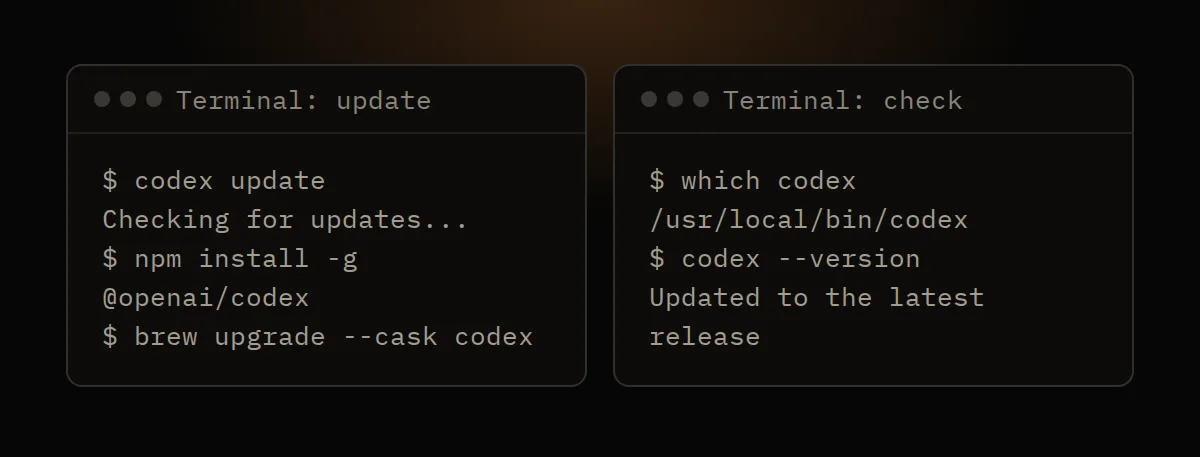
To update the Codex CLI, run codex update, which checks for and applies a new release when your installed build supports self-update. Otherwise, rerun the command you installed with: the standalone installer script on macOS or Linux, the PowerShell installer on Windows, npm install -g @openai/codex for npm, or brew upgrade --cask codex for Homebrew. OpenAI ships new Codex releases often, so knowing which install method you used, and how to check the version afterwards, saves a lot of confusion. This guide covers every Codex CLI update route OpenAI documents, the desktop app and background server, release channels, and what to check when an update does not take.
Source: Codex CLI command reference, OpenAI
Source: Codex CLI: install and update, OpenAI
Codex CLI update commands at a glance
| How you installed Codex | Update command |
|---|---|
| Any release build that supports self-update | codex update |
| Standalone installer, macOS or Linux | curl -fsSL https://chatgpt.com/codex/install.sh | sh |
| Standalone installer, Windows | powershell -ExecutionPolicy ByPass -c "irm https://chatgpt.com/codex/install.ps1 | iex" |
| npm | npm install -g @openai/codex |
| Homebrew | brew upgrade --cask codex |
| A binary from GitHub Releases | Download the newer archive and replace the binary |
| Inside WSL2 | The macOS and Linux installer, run inside your WSL shell |
For the standalone installers and npm, the update command is the same as the install command: running it again replaces the installed Codex with the current release. Homebrew is the exception, with brew upgrade instead of brew install.
Source: Codex CLI: install and update, OpenAI
Before you update Codex
- Let running tasks finish, or stop them. An update that replaces the binary, or a background server restart, can interrupt work in progress.
- Note your current version with codex --version, so you can tell afterwards whether the update took and which release notes apply to you.
- Commit or checkpoint your repository. OpenAI's own advice is to create Git checkpoints before and after a task so you can revert changes, and the first run after a big version jump is a good time to have one.
- Check whether your organisation manages Codex for you. If an administrator deploys approved versions, update through their process rather than on your own.
Source: Codex CLI: install and update, OpenAI
Step 1: find out how Codex was installed
Before you update, find out which copy of Codex your shell runs. A machine can end up with two installs, for example one from npm and one from the standalone installer, and updating the one your shell does not run changes nothing you can see. These commands show where codex lives, which version answers, and whether npm or Homebrew owns a copy:
which codex
codex --version
npm ls -g @openai/codex
brew list --cask codex
If which codex points into a Homebrew folder, update with Homebrew. If npm ls -g lists @openai/codex, npm owns that copy. If neither does, the standalone installer or a manual download probably put it there. On Windows, run where.exe codex in PowerShell for the same answer. Pick one method and stick with it, and remove the others, so there is only one codex on your PATH.
Step 2: update with codex update
Codex has a built-in update command. In OpenAI's words, codex update will "check for and apply a Codex CLI update when the installed release supports self-update." Run it from any terminal:
codex updateIf your build is a debug build, for example one you compiled yourself from the open source repository, codex update prints a message telling you to install a release build instead. In that case, use one of the installers below. If you installed through a package manager, it is usually cleaner to update through that same package manager, so it keeps track of the installed version.
Source: Codex CLI command reference, OpenAI
Update the standalone Codex install on macOS and Linux
The standalone installer is OpenAI's main install route on macOS and Linux. To update, run the same script again:
curl -fsSL https://chatgpt.com/codex/install.sh | shThe standalone installers download from https://releases.openai.com/codex by default and fall back to GitHub Releases if a metadata or asset download is unavailable. If your network blocks the OpenAI release host, or you want the GitHub copy for another reason, set CODEX_INSTALLER_USE_RELEASES_OPENAI_COM to false to force GitHub Releases:
curl -fsSL https://chatgpt.com/codex/install.sh | CODEX_INSTALLER_USE_RELEASES_OPENAI_COM=false shSource: Codex CLI: install and update, OpenAI
Source: openai/codex README, GitHub
Update Codex CLI on Windows
On Windows, open a new PowerShell window and run the Windows installer again:
powershell -ExecutionPolicy ByPass -c "irm https://chatgpt.com/codex/install.ps1 | iex"OpenAI's docs say to start these commands from a new PowerShell window. The same GitHub fallback works on Windows; set the variable first in PowerShell:
$env:CODEX_INSTALLER_USE_RELEASES_OPENAI_COM='false'; irm https://chatgpt.com/codex/install.ps1 | iexRemoving the legacy Windows sandbox
Codex on native Windows runs commands inside a Windows sandbox, and codex sandbox includes a helper to run a command under the same policies Codex uses internally. If you are moving off the legacy Windows sandbox after an update, stop the apps that use it, and the sandbox provisioning service if it is installed, then run codex sandbox uninstall as an administrator. That command removes the machine-wide sandbox accounts and network rules, and keeps your Codex home, including sandbox directories and filesystem permissions.
Source: Codex CLI command reference, OpenAI
If you run Codex inside WSL rather than native Windows, update it inside your WSL shell with the macOS and Linux command instead, as covered below. A Windows install and a WSL install are separate copies, and updating one does not touch the other.
Source: Codex CLI: install and update, OpenAI
Source: openai/codex README, GitHub
Update Codex with npm
If you installed the Codex CLI with npm, update it by installing the package again globally:
npm install -g @openai/codexnpm resolves @openai/codex to the package's latest tag, which points at the current stable release. The package also publishes an alpha tag for pre-release builds; on November 22, 2026, latest pointed at 0.171.0 and alpha at 0.173.0-alpha.4. To pin a specific release, put the version after the package name, for example npm install -g @openai/[email protected]. To move from an alpha back to stable, install @openai/codex@latest.
Source: @openai/codex on npm
An npm global install puts codex in your npm global folder. If that folder needs administrator rights on your machine, the update fails with a permission error; fix the folder's ownership or use a Node version manager rather than running npm with sudo every time.
Update Codex with Homebrew
Homebrew installs Codex as a cask. Update it with:
brew upgrade --cask codexRun brew update first if Homebrew has not refreshed its formula list recently, so it knows a newer Codex exists. brew upgrade on its own, with no name, upgrades every outdated package, Codex included.
Source: Codex CLI: install and update, OpenAI
Update a Codex binary downloaded from GitHub
You can also download Codex straight from the latest GitHub Release. Each release contains many files, but most people want one of these:
| Platform | Archive |
|---|---|
| macOS, Apple Silicon | codex-aarch64-apple-darwin.tar.gz |
| macOS, Intel | codex-x86_64-apple-darwin.tar.gz |
| Linux, x86_64 | codex-x86_64-unknown-linux-musl.tar.gz |
| Linux, arm64 | codex-aarch64-unknown-linux-musl.tar.gz |
Each archive holds a single file with the platform in its name, such as codex-x86_64-unknown-linux-musl, so you will usually rename it to codex after extracting it. To update a manual install, download the newer archive, extract it and replace the old binary in the same place on your PATH. Nothing updates a manual install for you, which is the main reason to prefer the installer or a package manager.
Source: openai/codex README, GitHub
Update Codex in WSL
When you use WSL2, Codex runs inside the Linux environment instead of the native Windows sandbox. Install and update it there with the Linux installer, then run codex inside WSL:
curl -fsSL https://chatgpt.com/codex/install.sh | sh
codex
One version boundary matters here. WSL1 was supported through Codex 0.114. Starting with Codex 0.115, the Linux sandbox moved to bubblewrap, so WSL1 is no longer supported. If you are still on WSL1, updating Codex past 0.114 means converting your distribution to WSL2 first. OpenAI also suggests keeping WSL itself current with wsl --update from Windows.
If VS Code running in WSL cannot find codex after an update, check that the binary exists and is on PATH inside WSL with which codex || echo "codex not found", and reinstall it with the Linux installer if it is missing.
Source: Codex on WSL, OpenAI
Update the Codex background server with /daemon
Newer Codex builds can run a local background server that several chats share. Inside the Codex TUI, type /daemon to review the server connection and its actions. Codex offers to install the latest public stable release or use the current CLI build for the local background server. Confirming an update exits Codex and may interrupt active work, so finish or pause running tasks first. To restart a managed local server, choose Restart background server and confirm; Codex reconnects automatically, though the restart may interrupt active or queued work in other chats. For a remote connection, manage the server on its own host.
Source: Codex CLI command reference, OpenAI
Updating the Codex desktop app
Codex also runs inside the ChatGPT desktop app. On macOS and Windows, the app normally checks for and installs updates on its own, so there is nothing to run. The Linux desktop app is a preview that installs from a signed OpenAI package repository, so you update it with your distribution's package manager. On Ubuntu or Debian:
sudo apt update
sudo apt install --only-upgrade chatgpt
On Fedora, run sudo dnf upgrade --refresh chatgpt. On Arch Linux, the app updates as part of a full system upgrade with sudo pacman -Syu.
Source: ChatGPT desktop app for Linux, OpenAI
Source: Manage app updates, OpenAI
Turning off in-app updates for a company
If your organisation needs to review new releases before people receive them, a Codex administrator can turn off the desktop app's built-in updater and deploy approved versions through device management instead. In Managed configuration, add or open a policy, target it at groups, users or platforms, starting with a small pilot group, then open Raw TOML and add this to the requirements.toml editor:
[features]
in_app_updates = false
If the policy already has a [features] table, add the line to it rather than adding a second table, and do not put the setting in config.toml. Save, then ask affected users to fully quit and reopen the app, since closing the window is not always enough. In the app, Settings, General, In-app updates should then show Managed. OpenAI warns that with in-app updates off, your organisation is responsible for promptly deploying new releases and security fixes, because older versions do not receive separate security patches. Turning the updater off also does not stop the Microsoft Store, Intune, MDM or package managers from installing updates.
Source: Manage app updates, OpenAI
Updating the Codex IDE extension
The Codex extension for VS Code, Cursor, Windsurf and other VS Code-based editors is published on the Visual Studio Marketplace as openai.chatgpt. It updates through your editor's extension updates like any other extension, separately from the Codex CLI. If you use both, update each on its own; the extension does not update the codex command in your terminal.
Source: Codex IDE extension, OpenAI
Xcode and JetBrains IDEs provide their own Codex integrations rather than the VS Code extension, so Codex there updates with the IDE or its AI plugin, on that vendor's schedule.
Source: Codex IDE extension, OpenAI
Updating Codex plugin marketplaces
Plugins have their own update path. codex plugin marketplace manages the marketplace sources Codex can browse and install from, and it has add, list, upgrade and remove commands. Add --json to any of them for machine-readable output; the upgrade output lists the selected marketplaces, the roots it upgraded and any errors. A marketplace can come from GitHub shorthand such as owner/repo or owner/repo@ref, a Git URL or a local folder, and --ref pins a Git ref, so pinned marketplaces stay put until you change the ref.
Source: Codex CLI command reference, OpenAI
What changed in recent Codex releases
Codex moves quickly. Two stable releases landed in three days in November 2026, with alpha builds for the next versions published almost daily. Here are the headline changes from the two most recent stable releases, from OpenAI's release notes on GitHub.
Codex 0.171.0, November 20, 2026
- Added GPT-6.2 Sol and Astra to the model catalogue, with Sol as the default selection.
- Turned on the TUI workspace by default, with searchable document previews, image previews and subagent transcripts beside the main conversation.
- Added configurable undo and redo shortcuts to the prompt composer, including restoring attachments and large pastes.
- Added codex exec --remote <ADDR> to start or resume non-interactive sessions on an existing app server.
- Added /rc and /remote to manage local remote control and show device pairing codes from the TUI.
- Added custom MCP status line selection and authoring through /statusline when tui_extensions_statusline is enabled.
Its fixes kept drafts, queued follow-ups and interrupted input with their original threads when switching or resuming sessions, kept permission profiles intact when changing working directories, stopped late completion events from cancelling approvals for a newer turn, preserved earlier edits in aggregate diffs when steering an active turn, fixed stray characters while scrolling, and fixed enterprise MCP sign-in for identity providers that issue ID tokens without refresh tokens. Source builds moved to Rust 1.99.1.
Other changes in Codex 0.171.0
The full 0.171.0 changelog lists more than 330 merged changes. A few that matter when you update:
- Linux seccomp restrictions are now enforced for x32 system calls, and the Linux network sandbox blocks request_key, tightening the sandbox.
- The Windows sandbox service is now included in release builds.
- Pasted Windows paths are resolved with wslpath when Codex runs in WSL.
- The npm wrapper now passes repeated signals, such as a second Ctrl+C, through to Codex.
- Incremental tools are on by default for Amazon Bedrock.
- Cloud threads can be renamed, and archived threads stay read-only, with unarchiving supported in the TUI.
- SPIFFE JWT-SVID support was added for workload identity authentication.
- Permission profiles are preserved across working directory updates.
Source: openai/codex releases, GitHub
Codex 0.170.0, November 18, 2026
- Added WebRTC negotiation for realtime voice calls in the TUI.
- Added automatically refreshed authentication headers for OpenTelemetry HTTP exporters.
- Added experimental support for identically named MCP servers across environments.
Its fixes made oversized WebSocket requests fall back to HTTP without needless retries, fixed MCP OAuth credential races during cancellation, login and logout, improved automatic reconnection for Cloud conversations, fixed Windows file replacement and sandbox permission preservation, stopped permission updates and child threads from losing existing sandbox restrictions, and removed duplicate file search results.
Source: openai/codex releases, GitHub
Updating Codex in scripts and CI
Codex is not only an interactive tool; you can call codex exec from repeatable workflows and pipelines. In automation, an update you did not plan for can change a default, such as the default model, between one run and the next. Two habits help. First, pin the version your pipeline installs, for example npm install -g @openai/[email protected], and move the pin on purpose after you have tried the new release. Second, print codex --version at the start of each job, so a log always shows which release produced a result. When you do move the pin, read the release notes for every version you skip over, not just the newest one.
Source: Codex CLI: install and update, OpenAI
Source: @openai/codex on npm
Stable or alpha: which Codex release to run
Stable releases carry a plain version number such as 0.171.0 and full release notes. Alpha builds carry a suffix such as 0.173.0-alpha.4 and usually just say Release in their notes. The standalone installers, Homebrew and npm's latest tag give you stable releases. Only choose an alpha if you want to try a fix before it ships and can live with breakage; on npm that is npm install -g @openai/codex@alpha. To go back, install @openai/codex@latest.
To give a sense of pace: between November 18 and November 21, 2026, OpenAI published 0.171.0-alpha.13, 0.172.0-alpha.1 and alpha.2, and 0.173.0-alpha.1 through alpha.4, alongside the 0.170.0 and 0.171.0 stable releases. Following alpha means updating several times a week.
Source: @openai/codex on npm
Source: openai/codex releases, GitHub
After a Codex CLI update
- Check the version: run codex --version and compare it with the latest release on GitHub.
- Restart running sessions. A Codex session that was open before the update keeps running the old binary until you quit it and start codex again.
- Restart the background server if you use one, from /daemon, so it runs the new build too.
- Read the release notes for changes to defaults, such as a new default model or the TUI workspace now being on.
- Run a small task in a test repository before a long unattended run, especially after a big version jump.
Signing in after an update
An update replaces the program, not your account. If Codex asks you to sign in again, run codex and choose Sign in with ChatGPT, or another available sign-in method. OpenAI recommends signing in with your ChatGPT account to use Codex as part of a Plus, Pro, Business, Edu or Enterprise plan. Your sign-in choice is separate from how you installed Codex, so switching from npm to the standalone installer does not change it.
Source: openai/codex README, GitHub
When a Codex update does not work
The version did not change
Almost always, this means there are two copies of Codex and your shell runs the other one. Run which codex, or where.exe codex on Windows, to see which copy answers, then update that copy with its own method or remove it. Open a new terminal afterwards, because some shells remember the old location of a command.
codex update says to install a release build
You are running a debug build, usually one compiled from source. Install a release build with the standalone installer, npm or Homebrew, and remove the self-built binary from your PATH.
Source: Codex CLI command reference, OpenAI
The installer cannot download
The installers fetch from releases.openai.com and fall back to GitHub Releases on their own if a download fails. If your network blocks one of them, force GitHub with CODEX_INSTALLER_USE_RELEASES_OPENAI_COM=false, or download the archive from the GitHub Releases page by hand.
Source: openai/codex README, GitHub
npm says permission denied
Your npm global folder is owned by another user, often root. Fix its ownership or switch to a Node version manager, then run npm install -g @openai/codex again, or move to the standalone installer, which does not need npm.
Codex stopped working on WSL1
Codex 0.115 and later need WSL2, because the Linux sandbox moved to bubblewrap. Convert the distribution to WSL2, or stay on 0.114 until you can.
Source: Codex on WSL, OpenAI
How Claude Code updates, for comparison
If you also run Claude Code, its update story is different. Native installs of Claude Code update automatically in the background, and claude update applies an update by hand. A release channel setting, autoUpdatesChannel, chooses between updates as soon as they ship and a delayed stable schedule. Homebrew and WinGet installs of Claude Code do not update automatically: run brew upgrade claude-code or winget upgrade Anthropic.ClaudeCode. claude doctor shows the result of the last update attempt.
Source: Set up Claude Code, Anthropic
Keeping several Codex sessions on track
Once Codex is current, the next problem is keeping track of everything it is doing. 10u is an AI coding agent dashboard that shows every Codex and Claude Code session side by side, each in its real terminal, marked Needs you, Working, Waiting or Parked. They do the building. You decide what gets built.

Questions people ask
- How do I update Codex CLI?
- Run codex update. If your install does not support self-update, rerun the installer you used: the install.sh or install.ps1 script, npm install -g @openai/codex, or brew upgrade --cask codex.
- How do I check my Codex CLI version?
- Run codex --version in a terminal, and run which codex to see which copy of Codex your shell is using.
- Does Codex CLI update itself?
- Not in the background. codex update checks for and applies an update when you run it. The ChatGPT desktop app on macOS and Windows does update itself unless your organisation turned that off.
- Why does Codex still show the old version after updating?
- Usually there are two installs, such as npm and the standalone installer, and your shell runs the one you did not update. Find it with which codex and update or remove it.
- How do I update Codex on Windows?
- Open a new PowerShell window and rerun powershell -ExecutionPolicy ByPass -c "irm https://chatgpt.com/codex/install.ps1 | iex", or use npm. In WSL, use the Linux installer inside WSL.