
Codex Windows guide: the desktop app, the CLI and WSL2
OpenAI Codex runs natively on Windows. You can use it three ways: in the ChatGPT desktop app for Windows, in the Codex CLI in PowerShell, or in the Codex extension for VS Code. On native Windows, Codex runs its commands in PowerShell inside a Windows sandbox, so you do not need WSL or a virtual machine. If your projects already live in Linux, you can run Codex inside WSL2 instead. Windows 11 is OpenAI's recommended baseline.
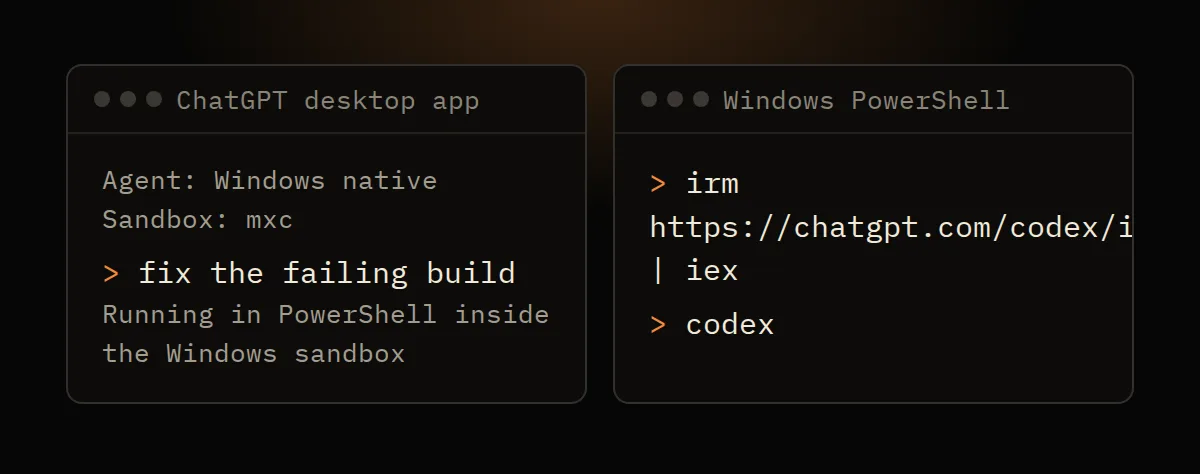
Source: Windows sandbox, OpenAI
Codex on Windows at a glance
| Way to use it | Install | Best for |
|---|---|---|
| ChatGPT desktop app | From the Microsoft Store, or winget install --id 9PLM9XGG6VKS -s msstore | Parallel chats across projects, reviewing changes, scheduled tasks |
| Codex CLI, native | powershell -ExecutionPolicy ByPass -c "irm https://chatgpt.com/codex/install.ps1 | iex" | Working in a terminal on Windows projects |
| Codex CLI in WSL2 | curl -fsSL https://chatgpt.com/codex/install.sh | sh inside WSL | Linux toolchains and repositories in WSL |
| VS Code extension | From the VS Code Extensions view | Working beside your code in the editor |
Source: ChatGPT desktop app for Windows, OpenAI
Which Windows versions does Codex support?
| Windows version | Support | Notes |
|---|---|---|
| Windows 11 | Recommended | The best baseline, and the one to standardise on in a company |
| Recent, fully updated Windows 10 | Best effort | Can work but less reliable; needs modern console support (ConPTY), so version 1809 or newer |
| Older Windows 10 builds | Not recommended | Likely to miss console components and fail in company setups |
OpenAI also expects winget, the Windows Package Manager, to be available; if it is missing, update Windows or install it before setting up Codex. Some company-managed PCs block the setup steps for the older elevated sandbox.
Source: Windows sandbox, OpenAI
Install the ChatGPT desktop app for Codex on Windows
The ChatGPT desktop app for Windows gives you one place to work across projects, run parallel chats and review results. It supports worktrees, scheduled tasks, Git, a built-in browser, file previews, plugins and skills. Download it from the Microsoft Store link in OpenAI's docs, or install it from a terminal:
winget install --id 9PLM9XGG6VKS -s msstoreThen sign in and follow OpenAI's quickstart. By default the app uses the Windows-native Codex agent, which runs commands in PowerShell inside the Windows sandbox.
Set your editor and terminal
In Settings, choose the default app for Open, such as Visual Studio or VS Code; you can override it per project. You can also choose the integrated terminal: PowerShell, Command Prompt, Git Bash or WSL, depending on what is installed. The terminal choice applies to new terminal sessions, so restart the app or start a new chat to see it.
Install the tools Codex works best with
OpenAI recommends having Git (which powers the review panel and lets you inspect or revert changes), Node.js, Python, the .NET SDK for native Windows apps, and the GitHub CLI (which powers GitHub features). Paste this into the integrated terminal, or ask Codex to run it:
winget install --id Git.Gitwinget install --id OpenJS.NodeJS.LTSwinget install --id Python.Python.3.14winget install --id Microsoft.DotNet.SDK.10winget install --id GitHub.cli
After installing the GitHub CLI, run gh auth login to turn on GitHub features in the app. Change the package IDs if you need a different Python or .NET version.
Source: ChatGPT desktop app for Windows, OpenAI
Install the Codex CLI on Windows
For the command line, open a new PowerShell window and run OpenAI's installer:
powershell -ExecutionPolicy ByPass -c "irm https://chatgpt.com/codex/install.ps1 | iex"Open a new PowerShell window, go to your project folder and run codex. The first run asks you to sign in with your ChatGPT account or an API key. You can also install with npm install -g @openai/codex if you already use Node.js. On Windows the CLI uses the same Windows sandbox as the app.
cd C:\Users\you\projects\my-appcodex
Source: Codex CLI, OpenAI
The Codex Windows sandbox
When Codex runs commands on native Windows, the sandbox enforces which files it can read and write and whether it can reach the network, for each command and anything that command starts. Codex has three Windows sandbox types:
| Sandbox | What it is | Setup |
|---|---|---|
| mxc | The recommended sandbox on compatible devices, using Microsoft Execution Containers for native process isolation | No administrator setup, extra Windows accounts or firewall rules |
| elevated | The preferred older fallback, with dedicated lower-privilege sandbox users, permission boundaries and firewall rules | Needs administrator-approved setup; commands still run without admin rights |
| unelevated | An older fallback using a restricted copy of your own Windows token | No admin setup, but weaker network isolation and no denied read paths |
MXC needs capabilities Microsoft is rolling out to Windows 11, introduced in Windows 11 24H2 (build 26100.9278). The desktop app prefers MXC automatically for consumer accounts when the PC supports it. For the CLI, turn it on in config.toml:
[features]
prefer_mxc = true
If MXC is not available, set the fallback with sandbox = "elevated" (or "unelevated") under [windows] in config.toml. With MXC, any child processes still running stop when the foreground command exits, so test workflows that rely on a detached dev server. In Codex CLI 0.162.0 and later you can test MXC for one command with codex -c windows.sandbox=mxc sandbox followed by a test command; it should print MXC_OK.
OpenAI warns that full access mode removes these limits, so Codex is no longer confined to your project folder and could make destructive changes. Keep the sandbox on and use rules for specific exceptions instead.
Source: Windows sandbox, OpenAI
For IT: rolling out the sandbox without admin rights
For employees without local administrator rights, IT can install the CLI and set up the elevated sandbox for them from an elevated deployment process with codex sandbox setup --elevated, passing the employee's Windows identity and Codex home folder. The employee then runs Codex from a normal terminal. Admins can require or block MXC, and limit which older sandboxes are allowed, through requirements.toml.
Source: Windows sandbox, OpenAI
Run Codex in WSL2 on Windows
Choose WSL2 when you need Linux tools, when your repositories and workflow already live in WSL2, or when the Windows sandboxes do not suit you. Inside WSL2, Codex uses the Linux sandbox instead of the Windows one. WSL1 was supported only up to Codex 0.114; from 0.115 the Linux sandbox moved to bubblewrap, which needs WSL2.
wsl --installwsl
Run those from an administrator PowerShell to install a Linux distribution (Ubuntu by default) and open it. Then, in the WSL shell, install and start Codex:
curl -fsSL https://chatgpt.com/codex/install.sh | shcodex
Keep your repositories in your Linux home folder, such as ~/code/my-app, rather than under /mnt/c: Windows-mounted paths are slower and cause more symlink and permission problems. From Windows Explorer, your WSL files are under \\wsl$\Ubuntu\home\ followed by your username. If large repositories still feel slow, give WSL more memory and CPU and update it with wsl --update, then wsl --shutdown.
Source: WSL, OpenAI
Run the desktop app's agent in WSL2
The desktop app can also run its agent inside WSL2. Open Settings, switch the agent from Windows native to WSL, and restart the app; the change only applies after a restart, and your projects stay in place. The terminal is set separately, so you can keep the agent in WSL and still use PowerShell in the terminal. To add a project from the WSL filesystem, choose Add new project or press Ctrl+O and type \\wsl$\ in the File Explorer window. If you keep the Windows-native agent, OpenAI says it is more reliable to store projects on your Windows drive and reach them from WSL through /mnt/c.
Source: ChatGPT desktop app for Windows, OpenAI
Use VS Code with WSL
With the VS Code WSL extension installed, run code . from a WSL terminal in your project. VS Code opens a remote window connected to WSL, and its integrated terminals run in Linux. A green WSL status in the corner, and Linux paths such as /home/... in the terminal, confirm it worked. If VS Code in WSL cannot find codex, run which codex in WSL and install the CLI there if it is missing.
Source: WSL, OpenAI
Share Codex settings between Windows and WSL
The Windows app and the native Windows CLI share one Codex home folder, %USERPROFILE%\.codex, with your configuration, saved sign-in and session history. A CLI inside WSL uses the Linux home folder instead, so it does not see those by default. To share them, point WSL at the Windows folder by adding this line to your ~/.bashrc or ~/.zshrc, with your Windows username:
export CODEX_HOME=/mnt/c/Users/<windows-user>/.codexSource: ChatGPT desktop app for Windows, OpenAI
Codex Windows problems and fixes
"running scripts is disabled on this system"
If you have never run tools like Node.js or npm in PowerShell, or Codex writes PowerShell scripts for you, PowerShell's execution policy can block them with an error such as "npm.ps1 cannot be loaded because running scripts is disabled on this system". A common fix is Set-ExecutionPolicy -ExecutionPolicy RemoteSigned; read Microsoft's execution policy guide before changing it.
Codex needs to run commands as administrator
Start the ChatGPT desktop app itself as administrator: find it in the Start menu and choose Run as administrator. The Codex agent inherits that permission level. Do this only when a task truly needs it.
Git features are missing
Without Git installed natively on Windows, the app cannot use some features. Install it with winget install Git.Git from PowerShell or CMD. If Git is not detected for a project opened from \\wsl$, store the project on your Windows drive and reach it from WSL through /mnt/c instead.
Setup scripts behave differently on Windows
Local environment setup scripts run where the agent runs: in WSL if the agent uses WSL, and in PowerShell otherwise. Cross-platform commands such as npm scripts can share one setup; for Windows-only behaviour, create Windows-specific scripts or actions.
Source: ChatGPT desktop app for Windows, OpenAI
Codex and Claude Code side by side on Windows
Plenty of Windows developers run Codex next to Claude Code, which also runs natively on Windows and in WSL, and switch to whichever is free or better suited to the job. Once several agents are going, it gets hard to see which one is waiting on you. 10u is an AI coding agent dashboard that shows every Codex and Claude Code session side by side, each in its real terminal, marked Needs you, Working, Waiting or Parked. It runs on the subscriptions you already have. They do the building. You decide what gets built.

Questions people ask
- Does Codex work on Windows?
- Yes. The ChatGPT desktop app, the Codex CLI and the VS Code extension all run natively on Windows, with commands running in PowerShell inside a Windows sandbox. You can also run Codex inside WSL2.
- How do I install Codex on Windows?
- For the app, install the ChatGPT desktop app from the Microsoft Store or with winget install --id 9PLM9XGG6VKS -s msstore. For the CLI, run powershell -ExecutionPolicy ByPass -c "irm https://chatgpt.com/codex/install.ps1 | iex" in PowerShell.
- Do I need WSL for Codex on Windows?
- No. Codex runs natively in PowerShell with a Windows sandbox. Use WSL2 only if you need Linux tools or your repositories already live there. WSL1 is no longer supported.
- Which Windows sandbox should Codex use?
- mxc on compatible Windows 11 devices, since it needs no administrator setup. Otherwise elevated, with unelevated as a last fallback.
- Does Codex support Windows 10?
- Recent, fully updated Windows 10 is best effort and needs version 1809 or newer. OpenAI recommends Windows 11.
- Can the Codex app on Windows and Codex in WSL share settings?
- Not by default. Set CODEX_HOME in WSL to /mnt/c/Users/<you>/.codex so both use the Windows Codex folder.