
Claude Code for non coders: build real things without writing a line of code
Claude Code for non coders works because you never have to write code yourself. You describe what you want in plain words, Claude Code works on the files in a folder on your computer, and you review what it did. Since the desktop app added a Code tab, you don't even need the terminal: you pick a folder, type a request, press Enter and watch it work.
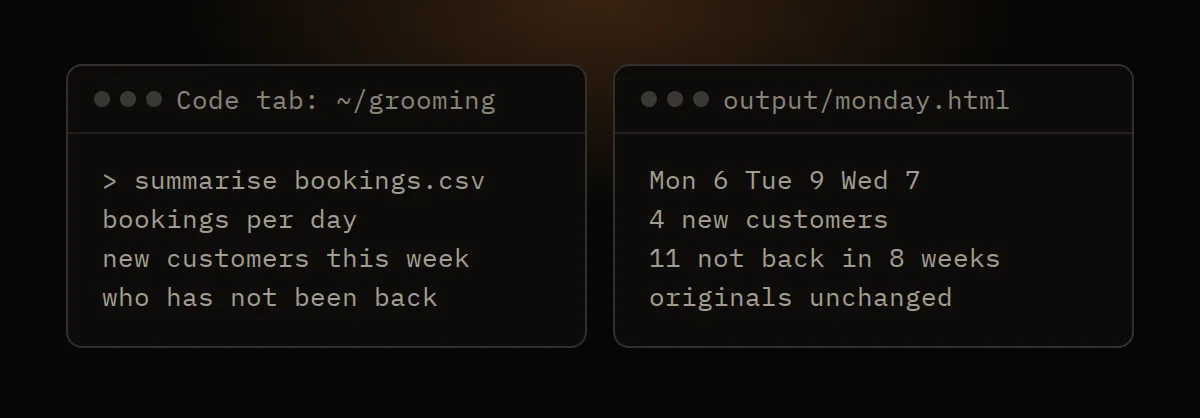
This guide is for people who have never programmed: business owners, writers, researchers, operations staff, teachers and anyone with a repetitive computer job they wish would do itself. It covers what you need, the first session step by step, the projects that suit a non-technical user, how to talk to it, how to stay safe and what to do when it gets stuck. Details come from Anthropic's documentation, read on 23 November 2026.
What Claude Code actually is, if you don't code
You may already use Claude in a browser, at claude.ai. That is a chat: you ask, it answers, and if the answer is a spreadsheet formula or a piece of code, you copy it and paste it somewhere yourself. Claude Code is different. It is an agent that works directly on the files in a folder you choose. It can read them, create new ones, change existing ones and run small programs to check that its work does what you asked.
The difference is a bit like asking a friend for directions versus asking them to drive. In chat, Claude tells you what to do. In Claude Code, Claude does it, then shows you what changed so you can keep it or undo it.
| Claude chat (claude.ai) | Claude Code | |
|---|---|---|
| Where it works | In the conversation | On files in a folder on your computer |
| What you get back | Text you copy and paste | Finished files, already saved |
| Can it check its own work | Only by reasoning | Yes, by running what it built |
| Good for | Questions, drafts, ideas | Tools, reports, sites, file clean-ups |
| How you review | Read the reply | See exactly what changed, then keep or decline |
Despite the name, much of what non coders do with it isn't programming at all. People use it to sort thousands of files, merge spreadsheets, turn research notes into a report, rename photos, or build a small website. It happens to use code to do those jobs, but you only see the result.
What you need before you start
- A paid Claude plan. Anthropic's docs say Claude Code requires a Pro, Max, Ultra, Team or Enterprise subscription. The free plan doesn't include it.
- A Mac, a Windows PC, or a Linux computer running Ubuntu or Debian, where the desktop app is in beta.
- A folder to work in. Start with a new, empty folder or a copy of the files you want help with, never your only copy.
- Fifteen minutes and one small, real job you'd like done.
On 23 November 2026, Pro cost US$17 a month billed annually or US$20 monthly, which is the usual starting point. Max, at US$100 a month, gives five times Pro's usage for people who use it every day. You can start on Pro and move up only if you keep hitting the usage limit.
Source: Claude plans and pricing, Anthropic
Three ways in without the terminal
Most Claude Code tutorials start with typing commands into a black terminal window. You can skip that entirely.
The Code tab in the Claude desktop app
This is the easiest way in for a non-technical user. Install the Claude desktop app, sign in, and click the Code tab at the top of the sidebar. The app includes Claude Code, so there is nothing else to install. You choose a folder with an ordinary folder picker, type in a chat box, and see every change as a clear before and after.
The VS Code extension
VS Code is a free editor many people use for writing and notes, not just code. With the Claude Code extension, Claude Code opens in a panel beside your files and shows proposed edits side by side. It suits people who like to see the files they are working on while Claude works.
Claude Code on the web
At claude.ai/code you can run Claude Code in the cloud, on projects stored on GitHub. Sessions keep going even when you close the browser. It's handy later, but working on files on your own computer is simpler for a first project.
Your first session in the Code tab, step by step
- Download the Claude desktop app for Mac or Windows from Anthropic, install it, open it and sign in with your paid account.
- Click Code at the top of the sidebar. If you see a prompt to upgrade, your account isn't on a paid plan yet.
- In the row under the prompt box, pick the top entry in the Local group as the environment, then pick your project folder.
- Choose a model from the picker at the right of that row. The default is fine to start.
- Check the permission mode in the same row. Choose Manual for your first session so Claude asks before every change.
- Type what you want in plain words and press Enter. For example: look at the files in this folder and tell me what they are. Don't change anything.
- Read the reply. When you ask for a change, Claude shows exactly what will change, with buttons to approve or decline it.
- To steer it mid-task, type a correction and press Enter. You don't have to wait for it to finish, and the stop button halts it immediately.
Source: Get started with the desktop app, Claude Code docs
Projects that suit non coders
The best first projects are useful, small and easy to check by looking at the result. Here are proven ones, roughly from easiest to most ambitious.
- Tidy a messy folder: rename hundreds of photos by date, sort downloads into folders, find duplicates and list them for you to delete.
- Clean a spreadsheet: merge three CSV exports, remove duplicate rows, fix inconsistent names and produce one clean file.
- A weekly report: turn the export from your booking, sales or email app into a one-page summary with the numbers you care about.
- Research into a document: give it a folder of notes, articles and PDFs and ask for a structured report with every claim tied to its source file.
- Convert documents: turn a folder of Word files into web pages, or a long PDF into a clean set of notes.
- A personal or small business website: describe the pages you want and preview it in the desktop app's browser pane before it goes anywhere.
- A small tool: a quote calculator, a habit tracker, a price comparison sheet or a form that saves to a spreadsheet.
- A repeating job: once something works, desktop scheduled tasks can run Claude on a recurring basis, such as a summary every Monday morning.
A worked example: a weekly summary from a spreadsheet
Here is how a non-coder might build a weekly summary for a small business, one request at a time. Each step is small enough to check before moving on, and the order matters more than the exact words.
1. I have bookings.csv from my booking app. Read it and tell me
   what columns it has and what each one seems to mean. Don't change anything.

2. I want a one-page summary each Monday: bookings per day,
   new customers, and anyone who hasn't been back in 8 weeks.
   Plan how you'd do it first and explain it simply.

3. Good. Build it. Put it in tools/ and save the summary to output/.

4. Open the summary in the browser pane so I can check it.

5. The 'not back in 8 weeks' list includes cancelled bookings.
   Leave those out, then run it again.
Notice the pattern. Step 1 only reads and explains, so nothing can go wrong. Step 2 asks for a plan before any building. Step 3 builds it in a separate folder. Step 4 checks the result by looking at it. Step 5 fixes one specific thing. That loop of explain, plan, build, check and fix is the whole skill, and it works for almost every project.
How to talk to Claude Code
You don't need special words. You need to be clear about the outcome, the way you'd brief a capable new assistant who doesn't know your business yet.
- Describe the result, not the method. Say I want a list of customers who haven't booked in two months, not write a script.
- Give an example. Show one row of the spreadsheet or one finished line of the report you want.
- Say what must not change. Never edit the originals is the single most useful sentence you can write.
- Ask for a plan first on anything bigger than a small change, and ask it to explain the plan simply.
- Ask questions freely. What does this file do, why did that fail and what are my options are all good requests.
- Ask it to show you. Open it so I can see it, or tell me how to run this, saves a lot of confusion.
- Change one thing at a time once it works, and check after each change.
Plan mode: think first, change nothing
Plan mode is the most useful setting for non coders. In plan mode Claude reads your files and proposes an approach without editing anything. You read the plan, ask questions, push back on anything that sounds wrong, and only then switch modes and let it build. Anthropic's docs describe it as useful before any large change, and for a beginner almost every new project counts as large.
Permission modes, in plain words
The permission mode sets how much Claude can do without asking you first. In the desktop app you change it from the mode selector under the prompt box.
| Mode | What it means | When to use it |
|---|---|---|
| Manual | Claude asks before editing files or running commands | Your first sessions, and anything you care about |
| Accept edits | Claude changes files without asking, and you review afterwards | Once you trust it on a project and have a backup |
| Plan | Claude proposes an approach and edits nothing | The start of every new project or big change |
| Auto | A classifier reviews actions in the background and blocks the risky ones | Longer jobs where you don't want to approve every step |
Source: Permission modes, Claude Code docs
CLAUDE.md: tell it about you once
Claude Code starts every session fresh. A file called CLAUDE.md in your folder fixes that: Claude reads it at the start of each session, so anything you put there, it already knows. For a non-coder the most useful things to include are who you are, that you don't code, what is in the folder and the rules it must follow. You can ask Claude to write the first version for you, then edit it.
# CLAUDE.md

## About me
I run a small dog grooming business. I don't write code.
Explain what you are doing in plain words, no jargon.

## This folder
quotes/      one PDF per customer quote
bookings.csv exported from my booking app every Monday
tools/       anything you build for me lives here

## Rules
- Never delete or overwrite anything in quotes/ or bookings.csv.
- Work on copies. Save new files in tools/ or output/.
- Ask me before installing anything.
- When you finish, tell me how to open or run what you made.
Keep it short and specific. A dozen clear lines beat three pages, and every time Claude does something you didn't want, add one line that stops it happening again.
Source: Memory and CLAUDE.md, Claude Code docs
Skills: save a job you do often
Once a request works well, you can turn it into a skill: a saved set of instructions Claude follows whenever you ask for that job. Type a forward slash in the prompt box, or click the plus button and choose Slash commands, to browse built-in commands and skills. You can ask Claude to write a skill from the conversation you just had, such as a skill for making the Monday summary, and from then on you only need to ask for it by name.
Source: Skills, Claude Code docs
Staying safe as a non-technical user
- Work on copies. Point Claude at a folder of copies, not your only files, until you are confident.
- Keep originals read only in your CLAUDE.md rules, and say so in your first request.
- Ask Claude to set up version history. It can use git, a tool that keeps every saved version so any change can be undone, and it will explain how in plain words.
- Never paste passwords, bank details or other people's private information into a prompt. If a tool needs a login, ask how to keep it out of the files.
- Stay in Manual mode for anything that touches the internet, sends messages or deletes files.
- Read the before and after view. If a change looks bigger than you asked for, decline it and ask why.
- Nothing goes public until you've checked it. A website or tool built on your computer stays there until you choose to publish it.
When it gets stuck
Sometimes Claude goes in circles, misunderstands, or produces something that doesn't work. That is normal, and the fixes are simple.
- Tell it exactly what you see. Copy the error message or describe what happens when you open the result.
- Ask it to explain the problem in plain words before it tries another fix.
- Ask for a smaller step. Make just the first page work, then we'll add the rest.
- Start a fresh session if a conversation has grown long and muddled. Your files and CLAUDE.md carry over.
- Ask what it would need from you, such as an example file, a clearer rule or a decision only you can make.
Non coders running several sessions at once
After a few weeks, many non coders find they have several jobs on the go: the website in one session, the weekly report in another, a folder clean-up in a third. The desktop app lets you open parallel sessions from the sidebar. The catch is keeping track of which one finished, which one is waiting for your approval and which one hit a problem an hour ago.
That is what 10u is for. It shows every Claude Code session side by side under the goal it is working toward, marks the ones waiting on you, and lets you answer them from one screen on your laptop or your phone. You keep using Claude Code exactly as you do now; 10u just shows you where everything is up to.
Common mistakes non coders make
- Starting with a huge project, like a whole app, instead of one small job that proves the idea.
- Asking for code instead of describing the result you want.
- Letting it work on the only copy of important files.
- Accepting changes without looking at the before and after.
- Keeping one session going for days until it forgets the early details. Fresh sessions are fine.
- Not writing a CLAUDE.md, then repeating the same instructions every time.
Your first week
- Day 1: install the desktop app, open the Code tab and ask it to describe a folder of copies without changing anything.
- Day 2: pick one small, real job and do it with plan mode first, then Manual mode.
- Day 3: ask it to write a CLAUDE.md for that folder and edit it until it sounds like you.
- Day 4: ask it to set up version history and show you how to undo a change.
- Day 5: build something slightly bigger, such as a weekly report or a one-page website, and preview it in the browser pane.
- Day 6: turn your most useful request into a skill.
- Day 7: look back at what took longest and ask Claude how to make it faster next time.

Questions people ask
- Can I use Claude Code if I can't code?
- Yes. You describe what you want in plain words, Claude Code does the work on files in a folder you choose, and you review each change before keeping it. The desktop app's Code tab means you don't need the terminal either.
- Do I need to install anything technical?
- No. The Claude desktop app includes Claude Code, so you don't need Node.js or the command line. Install the app, sign in with a paid plan and open the Code tab.
- Is Claude Code free for non coders?
- No. Claude Code needs a Pro, Max, Ultra, Team or Enterprise plan. On 23 November 2026 Pro was US$17 a month billed annually or US$20 monthly.
- What can a non coder build with Claude Code?
- Spreadsheet clean-ups, weekly reports from app exports, research documents, renamed and sorted files, personal websites, quote calculators, trackers and other small tools.
- Can Claude Code break my computer or delete my files?
- In Manual mode it asks before every change, and you can decline. Work on copies, keep originals off-limits in CLAUDE.md, and ask it to set up version history so any change can be undone.
- What is the difference between Claude and Claude Code?
- Claude in the browser is a chat that gives you answers to copy. Claude Code works directly on files in a folder, runs what it builds to check it, and shows you exactly what changed.