
Codex VS Code extension: install it and use Codex in your editor
Codex runs inside VS Code through OpenAI's Codex IDE extension, listed on the Visual Studio Marketplace as openai.chatgpt. It puts a Codex chat in a sidebar beside your code, so you can add open files and selections to the prompt, review Codex's edits as diffs next to the source, and hand longer work to Codex in the cloud without leaving the editor. The same extension works in Cursor, Windsurf and VS Code Insiders. This guide covers installing it, the commands and slash commands, and every editor setting OpenAI documents.
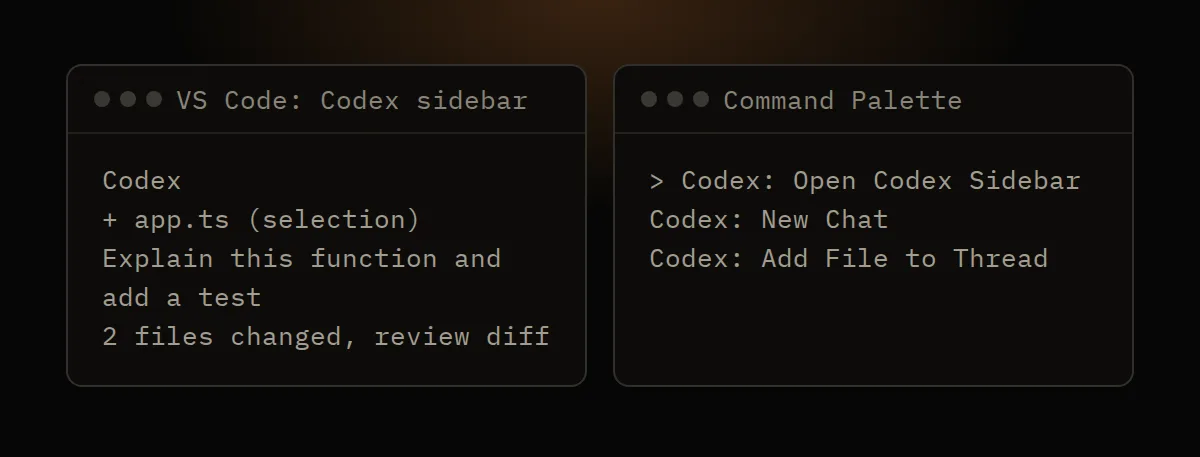
Source: Codex IDE extension, OpenAI docs
Install the Codex extension in VS Code
- Open the Extensions view in VS Code and search for Codex, or open the openai.chatgpt page on the Visual Studio Marketplace and choose Install.
- Choose the Codex icon in the activity bar. If you cannot see it, open the Command Palette (Cmd+Shift+P on macOS, Ctrl+Shift+P on Windows and Linux) and run Codex: Open Codex Sidebar.
- Sign in when the extension asks, for example with your ChatGPT account.
- Open a project and start a chat: ask Codex to explain the codebase, make a focused change, or help debug an issue.
OpenAI's advice for the first task is the same as in the CLI: create Git checkpoints before and after a task so you can revert Codex's changes if you do not want them.
Source: Codex IDE extension, OpenAI docs
Other editors
| Editor | How you get Codex |
|---|---|
| Visual Studio Code | The Codex extension, openai.chatgpt |
| VS Code Insiders | The same extension from the Marketplace |
| Cursor | The same extension, installed from Cursor's extension view |
| Windsurf | The same extension, installed from Windsurf's extension view |
| Xcode | Apple's own coding assistant: start a new chat and choose Codex as the agent |
| JetBrains IDEs | JetBrains AI Chat: select Codex |
Source: Codex IDE extension, OpenAI docs
What Codex does inside VS Code
- Uses the context already open: add an open file, a selection or a recent chat to the composer, so Codex starts with the code you are looking at instead of you restating the problem.
- Reviews changes beside your code: read a short summary and the changed lines, keep the edits you want, and ask for a follow-up in the same chat.
- Delegates when a task grows: keep quick iterations local, or connect Codex web and send a longer task to the cloud, then come back to a reviewable result in the editor.
OpenAI suggests the extension for focused edits where the relevant files and Codex should share one view, for learning unfamiliar code by asking about the files and symbols already open, for reviewing changes in place, and for starting cloud work from the editor.
Source: Codex IDE extension, OpenAI docs
Codex extension commands and key bindings
These commands run from the VS Code Command Palette, and each can be bound to a keyboard shortcut:
| Command ID | Default key binding | What it does |
|---|---|---|
| chatgpt.addToThread | None | Add the selected text as context for the current chat |
| chatgpt.addFileToThread | None | Add the whole file as context for the current chat |
| chatgpt.newChat | Cmd+N on macOS, Ctrl+N on Windows and Linux | Create a new chat |
| chatgpt.newCodexPanel | None | Create a new Codex panel |
| chatgpt.openCommandMenu | None | Open the Codex command menu |
| chatgpt.openSidebar | None | Open the Codex sidebar panel |
To set a shortcut, open the Command Palette, run Preferences: Open Keyboard Shortcuts, search for Codex or a command ID such as chatgpt.addToThread, select the pencil icon and press the keys you want. Binding chatgpt.addToThread is the quickest way to send a selection to Codex.
Source: Codex IDE extension commands, OpenAI docs
Slash commands in the Codex VS Code extension
Type / in the Codex composer, pick a command or keep typing to filter, and press Enter.
| Slash command | What it does |
|---|---|
| /approve | Approve one retry of a recent automatic-review denial |
| /cloud | Run the chat in the cloud, when cloud execution is available |
| /cloud-environment | Choose the cloud environment for the chat |
| /compact | Compact the chat's context |
| /fast | Turn a Fast service tier on or off, when available |
| /feedback | Send feedback, optionally with logs |
| /fork | Copy a local chat into a new local chat |
| /goal | Set a persistent goal for Codex to work toward |
| /ide-context | Turn automatic IDE context on or off |
| /init | Generate an AGENTS.md scaffold for the project |
| /local | Run the chat in your local workspace |
| /mcp | Show connected MCP servers |
| /memories | Choose whether the chat can use or create memories |
| /model | Choose the model for the chat |
| /plan | Toggle plan mode for multi-step planning |
| /project | Choose a project for new chats |
| /reasoning | Choose the reasoning effort |
| /review | Review uncommitted changes or compare against a base branch |
| /side | Start a temporary side chat without interrupting the main one |
| /status | Show the chat ID, context usage and rate limits |
| /worktree | Run the chat in a new Git worktree |
Source: Codex IDE extension commands, OpenAI docs
Codex VS Code settings
The extension has two layers of settings. Codex settings control agent behaviour it shares with the Codex CLI, such as the model, reasoning effort, permissions, sandbox, MCP servers and personalisation, and are read from config.toml. Open them from the gear icon in the Codex sidebar, then Codex Settings, or choose Open config.toml to edit the file. Editor settings control how the extension behaves inside VS Code and use chatgpt.* keys: open your editor settings and search for @ext:openai.chatgpt.
| Editor setting | Default | What it does |
|---|---|---|
| chatgpt.commentCodeLensEnabled | true | Shows a CodeLens above TODO comments so Codex can address them |
| chatgpt.openOnStartup | false | Focuses the Codex sidebar when the extension starts |
| chatgpt.followUpQueueMode | queue | Messages sent during a run wait for the next run (queue) or steer the current one (steer) |
| chatgpt.composerEnterBehavior | enter | Enter always sends, Cmd or Ctrl+Enter sends multiline prompts, or the modifier is always required |
| chatgpt.reviewDelivery | inline | Runs /review in the current chat (inline) or a separate review chat (detached) |
| chatgpt.localeOverride | Auto | Sets the language of the Codex UI |
| chatgpt.runCodexInWindowsSubsystemForLinux | false | Windows only: runs Codex in WSL; changing it reloads VS Code |
| chatgpt.cliExecutable | Unset | Development only: a path to a Codex CLI build; overriding it can break parts of the extension |
| chat.fontSize | Editor default | Size of chat text and the composer |
| chat.editor.fontSize | Editor default | Size of code snippets and diffs in chats |
The chatgpt.* keys belong to the extension and do not go in config.toml; anything you set in config.toml, such as the default model or sandbox, applies to the CLI and the extension alike.
Source: Codex IDE extension settings, OpenAI docs
Codex in VS Code on Windows
If your repositories and tools live in WSL2, or you need Linux-native tooling, turn on chatgpt.runCodexInWindowsSubsystemForLinux. The extension then runs Codex inside WSL when WSL is available, and VS Code reloads when you change the setting.
Source: Codex IDE extension settings, OpenAI docs
Codex VS Code extension or the Codex CLI?
They share the same agent and the same config.toml, so the choice is about where you work. The extension suits focused edits with files open and diffs reviewed in place. The CLI suits terminal-first work, scripting with codex exec and running several sessions at once. You can use both on the same repository.
Source: Codex IDE extension, OpenAI docs
Several Codex chats at once
Once you run more than one Codex chat, across editor windows and terminals, it is easy to miss the one waiting on you. 10u is an AI coding agent dashboard that shows every Codex and Claude Code session side by side, each in its real terminal, marked Needs you, Working, Waiting or Parked. They do the building. You decide what gets built.

Questions people ask
- Is there a Codex extension for VS Code?
- Yes. OpenAI's Codex IDE extension is on the Visual Studio Marketplace as openai.chatgpt, and also works in Cursor, Windsurf and VS Code Insiders.
- How do I open Codex in VS Code?
- Choose the Codex icon in the activity bar, or run Codex: Open Codex Sidebar from the Command Palette.
- How do I add a file to a Codex chat?
- Run chatgpt.addFileToThread for the whole file or chatgpt.addToThread for a selection, or bind either to a keyboard shortcut.
- Where are the Codex VS Code settings?
- Agent settings are in config.toml, opened from the gear icon then Codex Settings. Editor settings use chatgpt.* keys; search @ext:openai.chatgpt in your editor settings.
- Can Codex in VS Code run in WSL?
- Yes. Turn on chatgpt.runCodexInWindowsSubsystemForLinux and the extension runs Codex inside WSL when it is available.