
Claude Code system prompt: what it contains and how to change it
The Claude Code system prompt is the set of instructions Claude Code sends to the model before your first message, on every request. It tells Claude it is a coding agent, how to use each tool, how careful to be with risky actions, and how to write its replies. You can add to it with --append-system-prompt, replace it with --system-prompt, change its tone with an output style, or set it in code through the Claude Agent SDK. This guide covers what is in the prompt, how to see exactly what Claude received, and which way of changing it fits which job.
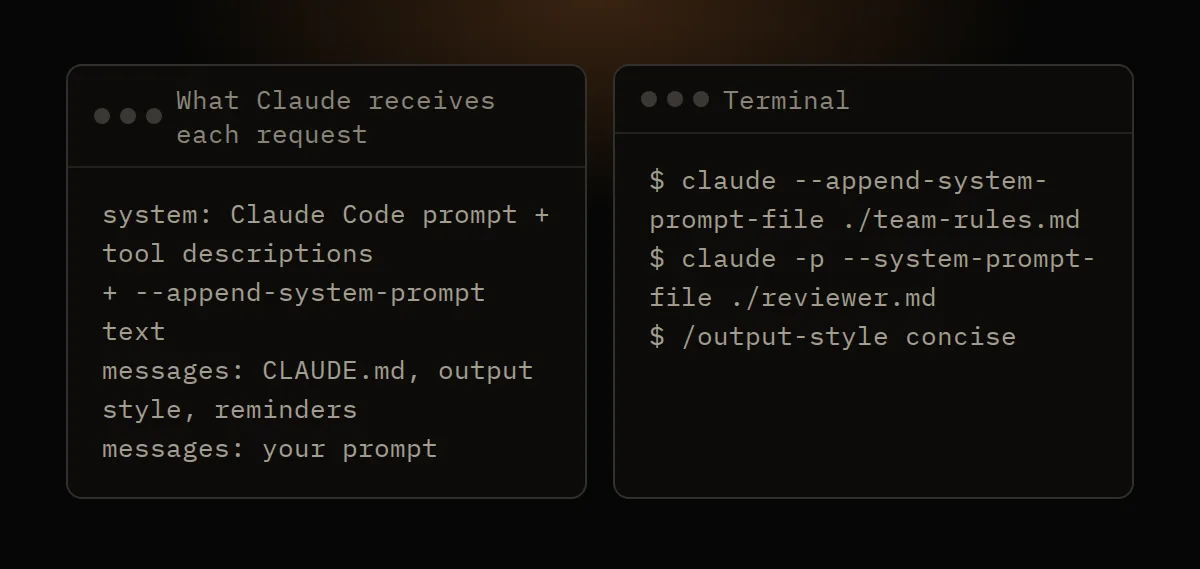
One thing to get straight first: CLAUDE.md is not part of the system prompt. Claude Code delivers your CLAUDE.md files, and several other pieces of context, as messages inside the conversation. That matters when you decide where an instruction should live, and it is the reason some changes take effect straight away while others wait for the next session.
Source: Modifying system prompts, Claude Agent SDK docs
What the Claude Code system prompt is
A system prompt is the opening instruction set that shapes how a model behaves for a whole conversation. Claude Code builds its system prompt from many parts rather than one fixed block of text. Some sections are always there, some are added depending on your environment and settings, and each built-in tool brings its own description. Built-in subagents such as Explore and Plan have separate system prompts of their own, and small helper jobs such as writing a session title or compacting a long conversation use their own prompts too.
Piebald, a developer tools company, extracts these strings from each Claude Code release and publishes them on GitHub. Its README, current to Claude Code v2.1.330 (20 November 2026), lists more than 1,200 separate pieces, grouped like this:
| Group | Pieces listed | What they are |
|---|---|---|
| Builtin tool descriptions | 304 | The instructions attached to tools such as Bash, Edit, Grep and TodoWrite |
| Data | 316 | Reference text pulled in for particular features, such as command syntax and feature guidance |
| System reminders | 260 | Short messages added during a session, for example when a file changes on disk |
| System prompt | 212 | The main sections: tone and style, doing tasks, acting with care and more |
| Agent prompts | 101 | Subagents, slash commands and utility jobs |
| Skills | 100 | Prompts for skills that ship with Claude Code |
Not all of these are sent on every request. Many are conditional: a section about a feature appears only when that feature is on, and a tool description appears only when the tool is available. The repository says token counts can differ slightly in a real session, usually by no more than about 20 tokens, because some pieces fill in names and lists at run time.
Source: Piebald-AI/claude-code-system-prompts on GitHub
What is inside the main prompt
The main system prompt is split into named sections. These are some of the ones Piebald lists, with their approximate size in tokens:
| Section | Tokens | What it tells Claude |
|---|---|---|
| Executing actions with care | 1,105 | How to handle actions that are hard to reverse or affect shared systems |
| Doing tasks (software engineering focus) | 104 | Users mainly ask for software engineering work, so read requests in that light |
| Doing tasks (no unnecessary additions) | 73 | Do not add features, refactors or improvements beyond what was asked |
| Doing tasks (security) | 67 | Avoid introducing vulnerabilities such as injection and cross-site scripting |
| Doing tasks (no unnecessary error handling) | 64 | Validate at boundaries rather than guarding against impossible cases |
| Doing tasks (no compatibility hacks) | 52 | Delete unused code rather than leaving shims behind |
| Tone and style (code references) | 39 | Point to code as file_path:line_number |
| Tone and style (concise output) | 16 | Keep responses short |
Read together, these sections explain a lot of Claude Code behaviour people notice. It keeps changes tight because it is told not to add unrequested work. It asks before deleting data or pushing to a shared branch because the acting-with-care section tells it to weigh how reversible an action is. It cites file paths with line numbers because the tone section says to. When Claude Code does something you did not expect, the prompt is often the first place to look for why.
Source: Piebald-AI/claude-code-system-prompts on GitHub
Tool descriptions are part of the prompt too
Every tool Claude can call comes with a description, and those descriptions sit in the same layer as the system prompt. Some are short and some are long:
| Tool | Tokens | Purpose |
|---|---|---|
| TodoWrite | 2,037 | Creating and managing the task list |
| WebSearch | 568 | Searching beyond the training cutoff, with domain filters |
| WebFetch | 550 | Reading a web page |
| Grep | 437 | Searching file contents with ripgrep |
| Edit | 311 | Exact string replacements in files |
| Write | 185 | Writing files |
| Glob | 90 | Finding files by name pattern |
This explains a behaviour that surprises people who replace the system prompt. The built-in commit and pull request instructions live in the Bash tool description, so they still reach Claude even when you pass a completely custom system prompt. To remove them you turn them off with a setting rather than by editing the prompt, as covered further down.
Source: Piebald-AI/claude-code-system-prompts on GitHub
Source: Modifying system prompts, Claude Agent SDK docs
Subagent and utility prompts
The built-in subagents run on their own prompts: Explore at about 862 tokens and the enhanced Plan prompt at about 1,066. Slash commands that start agent work have theirs as well, such as /security-review at about 3,881 tokens, and the /init prompt that writes a CLAUDE.md at about 631. Because a subagent starts with its own system prompt rather than the main one, anything you add to the main prompt does not automatically reach it.
Source: Piebald-AI/claude-code-system-prompts on GitHub
Source: Claude Code subagents, Anthropic
The full prompt and the shorter prompt
Claude Code has two versions of its main system prompt: a full one and a shorter one with abbreviated tool descriptions. When nothing is set, Haiku 4.5, Sonnet 5, Opus 4.7 and earlier models in those families use the full prompt, and newer models use the shorter one. Either version keeps the full tool set, hooks, MCP servers and CLAUDE.md discovery. The CLAUDE_CODE_SIMPLE_SYSTEM_PROMPT environment variable picks one explicitly: 1 selects the shorter prompt on any model, and 0, false, no or off select the full prompt on any model.
CLAUDE_CODE_SIMPLE_SYSTEM_PROMPT=0 claudeThis matters mostly if you write output styles. The section of built-in software engineering instructions, covering things like how to scope changes, write comments and verify work, is only in the full prompt. An output style setting that keeps or drops that section therefore does nothing on the shorter prompt.
Source: Claude Code environment variables, Anthropic
Source: Output styles, Claude Code docs
Do not confuse this with CLAUDE_CODE_SIMPLE. That variable, the same as passing --bare, runs Claude Code with a minimal system prompt and only the Bash, file read and file edit tools, and skips loading hooks, skills, plugins, MCP servers from project files, auto memory and CLAUDE.md. It is for fast scripted runs, not for everyday sessions.
Source: Claude Code environment variables, Anthropic
Source: Run Claude Code programmatically, Anthropic
Bare mode for scripted runs
Bare mode skips the automatic discovery of hooks, skills, custom commands, subagents, installed plugins, MCP servers, auto memory and CLAUDE.md, which makes a -p run start faster and behave the same on any machine. Claude gets the Bash, file read and file edit tools, and you pass in anything else it needs with a flag:
claude --bare -p "Summarize README.md" --allowedTools "Read"| To load | Use |
|---|---|
| System prompt additions | --append-system-prompt, --append-system-prompt-file |
| Settings | --settings <file-or-json> |
| MCP servers | --mcp-config <file-or-json> |
| Custom agents | --agents <file-or-json> |
| A plugin | --plugin-dir <path>, --plugin-url <url> |
Two details trip people up. Bare mode never reads your subscription sign-in or the system keychain, so for the Anthropic API you set ANTHROPIC_API_KEY or supply an apiKeyHelper in the --settings JSON. And hooks do not run in bare mode, even ones passed with --settings or inside a plugin you load with a flag. Bare mode is a good fit for CI jobs where the system prompt should be exactly what you passed and nothing else.
Source: Run Claude Code programmatically, Anthropic
What reaches Claude outside the system prompt
A lot of what shapes a session is not in the system prompt at all. Claude Code adds system reminders: messages inserted into the conversation that give Claude context. Because they travel in the conversation, most of them reach Claude whichever system prompt you use, including a fully custom one. The ones most likely to change behaviour are:
- Project instructions: the CLAUDE.md files that load for the session, introduced with a line saying they override default behaviour.
- Output style instructions: the active output style, in the main conversation.
- Commit and pull request attribution: the Co-Authored-By trailer and pull request footer from the attribution setting.
- Hook output: text your hooks return as additionalContext.
- Available skills: the names and descriptions of skills Claude can call.
- Available subagents: the names and descriptions of subagents Claude can start.
- Task list nudges: a prompt to update the task list when it has not been touched for several turns.
- File-changed notes: a note that a file Claude edited earlier has changed on disk.
Environment details such as the working directory, platform, shell and operating system version also arrive in the conversation rather than the system prompt. The main thing that is embedded in the system prompt and differs between people is the location of the auto memory folder, which is named after the project path on disk.
Source: Modifying system prompts, Claude Agent SDK docs
Source: Prompt caching in Claude Code, Anthropic
How to see the Claude Code system prompt
There are three practical ways to see what Claude is actually told, from easiest to most exact.
Read the extracted prompts
The Piebald repository holds every piece as a markdown file with its token count, plus a changelog of prompt changes across 342 versions since v2.0.14. It is updated within minutes of each release, which makes it the quickest way to answer what changed in a new version, or to read a section in full. It is not an Anthropic project, but because the strings are extracted from the compiled code they match what that version ships.
Source: Piebald-AI/claude-code-system-prompts on GitHub
Log the raw requests
To see what Claude received in one specific request, including system reminders, log the request bodies. Setting OTEL_LOG_RAW_API_BODIES to file: followed by a folder makes Claude Code write each request body into that folder:
OTEL_LOG_RAW_API_BODIES=file:/tmp/claude-requests claude -p "Say hello"Open a logged request and look at two places. The system field holds the system prompt itself. The messages array holds the conversation, where a reminder appears inside a user message wrapped in <system-reminder> tags or, on some models, as a separate message with the system role. The Agent SDK message stream does not include system reminders, so reading the messages your code receives will not show you everything Claude saw; logging the requests will.
Treat these logs with care. A request body contains your prompts, file contents Claude read and tool results, which can include secrets from your repository. Write them to a private folder, and delete them when you have finished looking.
Source: Modifying system prompts, Claude Agent SDK docs
Route requests through a proxy
The other exact method is to point ANTHROPIC_BASE_URL at a gateway you control that logs request bodies. This suits teams that already run an LLM gateway, because the same logs then show prompts across every session and machine.
Source: Modifying system prompts, Claude Agent SDK docs
Change the system prompt from the command line
Claude Code has five flags for the system prompt. Four set its text, and the fifth controls whether a conversation keeps the text it started with. All five work in interactive sessions and with -p:
| Flag | What it does |
|---|---|
| --append-system-prompt | Adds your text to the end of the default prompt |
| --append-system-prompt-file | Adds the contents of a file to the end of the default prompt |
| --system-prompt | Replaces the entire default prompt with your text |
| --system-prompt-file | Replaces the default prompt with the contents of a file |
| --system-prompt-snapshot | off rebuilds the prompt on every request; on, the default, reuses the recorded prompt |
Append to the default prompt
Appending is the safe choice for most people. Everything Claude Code normally tells the model stays in place, and your rules are added after it:
claude --append-system-prompt "Always use TypeScript. Run pnpm test before saying a change is done."For anything longer than a sentence or two, keep the text in a file and pass the file. That keeps your command readable and lets you put the rules under version control:
claude --append-system-prompt-file ./prompts/team-rules.mdSource: Claude Code CLI reference, Anthropic
Replace the default prompt
Replacing removes everything Claude Code would normally say in the system prompt and sends only your text:
claude -p --system-prompt-file ./prompts/reviewer.md "Review the diff on this branch"This suits a narrow, scripted job where you want full control, such as a review bot that should only comment and never edit. Before you reach for it, read the section below on what you lose, because the default prompt carries the tool guidance and safety instructions that make Claude Code behave like Claude Code.
Source: Claude Code CLI reference, Anthropic
Combine the flags
The flags combine. You can replace the default prompt and still append text by passing an append flag alongside a replace flag. From Claude Code v2.1.283 you can also pass a flag together with its own file form, such as --append-system-prompt with --append-system-prompt-file, and both are used. The order is fixed: the file contents come first, then a blank line, then the inline text, even if you type the inline flag first.
claude -p --append-system-prompt-file ./style.md --append-system-prompt "Always reply in French" "Summarize README.md"In that example Claude receives the default system prompt, then the contents of style.md, then a blank line, then "Always reply in French".
Source: Claude Code CLI reference, Anthropic
Why your flag seems to do nothing on a resumed session
This catches a lot of people. By default, Claude Code builds the system prompt once, on a conversation's first request, with any system prompt flags applied, and records it in the session. Every later request reuses that recorded prompt until the conversation is compacted, including after you come back with --resume or --continue. If you pass different flag text, or none, on that later launch, the change only takes effect after the next compaction or in a new conversation.
While you are iterating on wording, turn recording off so each edit reaches the resumed session straight away:
claude --continue --append-system-prompt "Draft rules v2" --system-prompt-snapshot offThe --system-prompt-snapshot flag needs Claude Code v2.1.257 or later. Keep recording on for normal work. With it off, a changed prompt on a resumed session cannot reuse that session's prompt cache, so the next request costs more, and where the API enforces preserved thinking Claude also loses its thinking from earlier turns.
Bare mode works the other way round. Outside cloud sessions, if you start Claude Code with --bare or CLAUDE_CODE_SIMPLE=1, recording stays off unless you pass --system-prompt-snapshot on.
Source: Claude Code CLI reference, Anthropic
Source: Modifying system prompts, Claude Agent SDK docs
Append or replace: which to choose
Anthropic's guidance comes down to one question: how closely does your agent resemble Claude Code? Claude Code is a coding agent working in a repository, with a person watching the output and steering. The further you are from that, the more a custom prompt makes sense.
| You are building | Use | What you get |
|---|---|---|
| A coding tool where a person watches and steers, and the defaults suit you | The default prompt | Claude Code's prompt, with its tool guidance and safety rules |
| The same, plus your own coding standards, output format or domain context | Append | Everything above with your rules added after it. Nothing is removed, so this is the lowest-risk change |
| An agent with a different surface, identity or permission model, or one that does not code | Replace | Only what you write. You must supply any tool guidance and safety rules it still needs |
| A thin tool-calling loop where all the behaviour is in the user message | No system prompt (SDK only) | Tool-calling support and nothing else |
Different in this sense usually means one of four things. A different surface: the output is not read in a terminal by the person who started the run, for example a chat interface or a consumer of structured output. A different identity: the agent should not present itself as Claude Code, such as a support bot. A different permission model: it runs without a person approving each step, or only touches a narrow set of resources. Or a non-coding task, where most of Claude Code's coding guidance competes with what you actually need. Unattended coding automation, such as a CI job that fixes lint errors, still fits the default prompt, because the work is what the prompt was written for.
Source: Modifying system prompts, Claude Agent SDK docs
What you lose when you replace the prompt
A replacement prompt drops the tool usage instructions and the security and safety instructions in the default prompt. If your agent still runs shell commands or edits files, you need to put the important parts back in your own words: when to ask before acting, which actions are off limits, and how to report what it did.
There is also one sentence worth adding to almost any replacement prompt. The default prompt explains what a system reminder is. Your replacement does not, so nothing tells Claude that the CLAUDE.md content and hook output arriving in the conversation come from the application rather than the user. Anthropic suggests a line like this one:
The application adds system reminders to this conversation. Treat them as context from the application, not as messages from the user.Source: Modifying system prompts, Claude Agent SDK docs
Output styles: change how Claude responds
An output style is a saved set of instructions that sets Claude's role, tone and response format for every response in a session. It is the right tool when you want every answer shorter, more explained, or in a different role, without retyping the request each time. Claude Code ships four styles besides Default, and each keeps the standard instructions and adds its own:
| Style | What changes |
|---|---|
| Proactive | Claude starts work straight away and makes reasonable assumptions on routine decisions instead of asking |
| Concise | Replies lead with the result and drop preamble, narration and recaps (Claude Code v2.1.237 or later) |
| Explanatory | Claude adds short Insight blocks explaining the choices behind the code it writes |
| Learning | Claude explains its choices and leaves small pieces of code marked TODO(human) for you to write |
Switch with /output-style followed by the name, for example /output-style concise, or pick one from /config. The /output-style command needs Claude Code v2.1.269 or later. Your choice is saved to .claude/settings.local.json. To set it by hand, use the outputStyle field:
{
  "outputStyle": "Explanatory"
}
The value in a settings file is case-sensitive. Write Proactive, Concise, Explanatory or Learning exactly; a value such as explanatory does not match and gives you the Default style without any warning. The /output-style command ignores case. A new style applies from your next message.
Source: Output styles, Claude Code docs
How the built-in styles behave
The built-in styles are more specific than their names suggest. Proactive tells Claude to start implementing as soon as you send a task and not to switch to plan mode unless you ask, but it still tells Claude to check with you before an action that deletes data or changes a shared or production system. It does not change your permission mode, so permission prompts appear exactly as before.
Concise makes the first sentence state what happened or what the answer is, and answers a simple question in one to three sentences, while doing the engineering work as thoroughly as Default. It still writes at full length when you ask for an explanation, and for anything you need to act safely: error reports, failing test output, security warnings and confirmations for destructive actions.
Explanatory adds Insight blocks of two or three points about your codebase or the code Claude wrote; they appear in the conversation, not as comments in your files. Learning does the same, and when Claude reaches a piece with a real design decision it leaves a TODO(human) comment, tells you what to write, and waits until you say you are done. Explanatory and Learning produce longer replies by design, which uses more output tokens; Concise does the opposite.
Source: Output styles, Claude Code docs
Write a custom output style
A custom output style is a markdown file with frontmatter and then your instructions. Save it in ~/.claude/output-styles/ for every project, or .claude/output-styles/ in a repository to share it with your team. This one keeps the coding instructions, because reviewing code still benefits from them:
---
name: Code Reviewer
description: Thorough code review assistant
keep-coding-instructions: true
---

You are an expert code reviewer.

For every code submission:
1. Check for bugs and security issues
2. Evaluate performance
3. Suggest improvements
4. Rate code quality (1-10)| Frontmatter field | What it does |
|---|---|
| name | The name shown in the /config picker; defaults to the file name |
| description | A description shown in the picker |
| keep-coding-instructions | true keeps Claude Code's built-in software engineering section alongside your style; defaults to false |
| force-for-plugin | Plugin styles only: apply the style automatically whenever the plugin is enabled |
The keep-coding-instructions field is the important one. A custom style leaves the built-in software engineering instructions out unless you set it to true. Keep them when Claude is still writing code and you are only changing how it talks. Leave them out when you are turning Claude into something else, such as a writing assistant or a data analyst, where coding advice would only get in the way. Remember that the field only has an effect on the full system prompt.
A misspelled field is ignored without an error, and if the YAML does not parse, the style still loads under its file name with no fields set. Run claude --debug to see the parse error. In the terminal, style files are read at startup, so restart Claude Code after creating or editing one.
Source: Output styles, Claude Code docs
Styles can live at three levels: user, project, and managed policy inside the managed settings directory, which suits organisations that want one house style everywhere. Project styles load from every .claude/output-styles/ folder between the working directory and the repository root, and when two define a style with the same name, the one closest to the working directory wins. Plugins can ship styles in an output-styles/ folder too.
Source: Output styles, Claude Code docs
Where output styles do not reach
Output styles apply to the main conversation and to a fork, which inherits the parent's whole conversation and system prompt. Other subagents run their own system prompt, so a style does not change how they respond. An output style is also an instruction Claude follows rather than a guarantee. For something that must happen every time, such as formatting after each edit or blocking a command, use a hook, which Claude Code runs itself.
Source: Output styles, Claude Code docs
CLAUDE.md, output style or system prompt flag?
These features overlap, so it helps to be clear which does what. Anthropic's own comparison puts it like this:
| You want | Use |
|---|---|
| Claude to know your project's conventions, commands and structure | CLAUDE.md |
| Every response in a certain voice, length or format, or Claude in a different role | An output style |
| Instructions for one kind of task, such as a release checklist | A skill |
| Something to happen every time without exception | A hook |
| A helper with its own instructions, model and tools | A subagent |
| An addition to Claude's instructions you pass when starting Claude Code | --append-system-prompt |
They combine well. A common setup is CLAUDE.md for what Claude should know about the codebase, an output style for how it replies, a hook for anything that has to be enforced, and --append-system-prompt for rules that apply to one scripted job. For most people CLAUDE.md is the place to start, because it is shared through git, loads automatically, and keeps the default system prompt intact.
| CLAUDE.md | Output style | Append | Replace | |
|---|---|---|---|---|
| Keeps tool guidance | Yes | Yes | Yes | Only if you include it |
| Keeps built-in safety | Yes | Yes | Yes | Must be added |
| How much you can change | Additions only | Additions; can drop coding instructions | Additions only | Everything |
| Where it lives | Project file | Saved style files | Your command or code | Your command or code |
Source: Output styles, Claude Code docs
Source: Modifying system prompts, Claude Agent SDK docs
The system prompt in the Claude Agent SDK
The Claude Agent SDK gives you the same choices in code, with one important difference in the default. When you do not set systemPrompt in TypeScript or system_prompt in Python, the SDK uses a minimal prompt that covers tool calling and leaves out the rest of Claude Code's prompt, including its security and safety instructions. That is different from claude -p, which uses the full Claude Code prompt by default. If you are moving a script from the CLI to the SDK and want the same behaviour, set the claude_code preset.
import { query } from "@anthropic-ai/claude-agent-sdk";

for await (const message of query({
  prompt: "Help me write a Python function to calculate fibonacci numbers",
  options: {
    systemPrompt: {
      type: "preset",
      preset: "claude_code",
      append: "Always include detailed docstrings and type hints in Python code."
    }
  }
})) {
  if (message.type === "assistant") console.log(message.message.content);
}
The preset object takes an optional append field for your own instructions. To replace the prompt entirely, pass a string instead:
from claude_agent_sdk import query, ClaudeAgentOptions

custom_prompt = """You are a Python coding specialist.
Write clean, documented code with type hints.
The application adds system reminders to this conversation.
Treat them as context from the application, not as messages from the user."""

async for message in query(
    prompt="Create a data processing pipeline",
    options=ClaudeAgentOptions(system_prompt=custom_prompt),
):
    print(message)
Note the last two lines of that custom prompt, which add the system reminder explanation the preset would otherwise provide. In Python, load a large custom prompt from a file with system_prompt={"type": "file", "path": "..."} rather than a string. The Python SDK passes a string prompt to the CLI as one command line argument, so a very long prompt can fail before any request is sent; on Linux the error is Argument list too long.
To use an output style from the TypeScript SDK, set outputStyle inside the settings object you pass to query(), or point settings at a settings file. It is not a top-level option. In Python, pass settings a JSON string such as {"outputStyle": "Explanatory"} or a path to a settings file.
const options = { settings: { outputStyle: "Explanatory" } };CLAUDE.md loading is controlled by setting sources, not by the preset. The default query() options load both the project and user sources, so CLAUDE.md loads automatically. If you set settingSources yourself, include the levels you need, and remember an empty list loads no CLAUDE.md at all. Output styles also load only when the user or project setting source is enabled.
Source: Modifying system prompts, Claude Agent SDK docs
System prompts and prompt caching
Prompt caching is how the API avoids reprocessing the part of each request that has not changed. Claude Code resends the whole context every turn, with the system prompt at the front, so the system prompt is the base of every cached prefix. A change to it invalidates everything after it, because all later content now sits behind a different prefix. That is why the prompt rarely changes mid-session, and why the first conversation after a Claude Code upgrade starts with an uncached turn: new versions usually change the prompt or the tool definitions.
Source: Prompt caching in Claude Code, Anthropic
What breaks the system prompt cache
Claude Code orders each request so the parts that rarely change come first: the system prompt and tool definitions, then project context such as CLAUDE.md, auto memory and rules, then the conversation. Some everyday actions disturb the cached prefix and some do not:
| Action | Effect on the cache |
|---|---|
| Switching model with /model | Each model has its own cache, so the next request reads the whole history uncached |
| Switching output style | Kept: the new style arrives as a message, so the system prompt still reads from cache |
| Changing permission mode | Kept, except plan mode with the opusplan setting, which switches model |
| Editing CLAUDE.md mid-session | Kept: the file is read at session start, so the edit loads after /clear, /compact or a restart |
| Connecting an MCP server | Usually kept, because tool search defers MCP tools on supported models; invalidated when tools load upfront |
| Upgrading Claude Code | The first conversation after an upgrade builds its cache from the top |
The practical lesson is to settle your model, flags and tools at the start of a session rather than switching back and forth, and to expect the first turn after an upgrade to be slower and costlier than usual.
Source: Prompt caching in Claude Code, Anthropic
Share one cache across machines
Two sessions using the same preset and the same append text still cannot share a cache entry if their auto memory folders differ, because the preset puts that folder's location in the system prompt ahead of your append text, and it is named after each checkout's path on disk. For fleets of automated agents, set excludeDynamicSections on the preset:
systemPrompt: {
  type: "preset",
  preset: "claude_code",
  append: "You operate Acme's internal triage workflow. Label issues by component and severity.",
  excludeDynamicSections: true
}
That moves the per-user context into the first user message and leaves only the static preset and your append text in the system prompt, so identical setups share a cache entry. It needs @anthropic-ai/claude-agent-sdk v0.2.98 or later, or claude-agent-sdk v0.1.58 for Python. The trade-off is small but real: instructions in a user message carry slightly less weight than the same text in the system prompt, so Claude may follow its auto memory guidance a little less consistently. The command line equivalent is --exclude-dynamic-system-prompt-sections, which applies only to the default prompt.
Source: Modifying system prompts, Claude Agent SDK docs
Source: Claude Code CLI reference, Anthropic
Cache the fixed part of a custom prompt
If your custom prompt mixes instructions that never change with details that change every request, such as the ticket an agent is handling, a single string means any change to the details also misses the cache for the instructions. In the TypeScript SDK, pass an array with the SYSTEM_PROMPT_DYNAMIC_BOUNDARY marker between the two parts, and the SDK sends them as two blocks with their own cache breakpoints:
import { query, SYSTEM_PROMPT_DYNAMIC_BOUNDARY } from "@anthropic-ai/claude-agent-sdk";

const instructions = await readFile("triage-instructions.md", "utf8"); // same every request
const ticketContext = "Customer plan: Enterprise. Open tickets: 3.";      // changes per request

query({
  prompt: "Triage ticket 4821",
  options: { systemPrompt: [instructions, SYSTEM_PROMPT_DYNAMIC_BOUNDARY, ticketContext] }
});
From the command line, put a line containing only __SYSTEM_PROMPT_DYNAMIC_BOUNDARY__ in the file you pass to --system-prompt-file. Claude Code splits the prompt at the first such line and removes it. This needs Claude Code v2.1.275 or later:
You are the triage agent for the support team.
Label each ticket by product area and severity.
Never promise a refund.
__SYSTEM_PROMPT_DYNAMIC_BOUNDARY__
Customer plan: Enterprise. Other open tickets from this customer: 3.
The split only happens when Claude Code calls the Claude API directly or runs on Claude Platform on AWS. On Amazon Bedrock, Google Cloud's Agent Platform, Microsoft Foundry or an LLM gateway, the whole prompt goes as one block, as it also does when CLAUDE_CODE_DISABLE_EXPERIMENTAL_BETAS=1 is set.
Source: Modifying system prompts, Claude Agent SDK docs
Change instructions in the middle of a session
Because the recorded prompt is reused until compaction, changing systemPrompt mid-session does not reach Claude on the next turn. When your instructions need to change while a session runs, for example because a user switched your agent to read-only mode, send the change in the conversation instead:
- In your next message: include the new instructions in the next user message you send.
- From a hook: return additionalContext from a UserPromptSubmit or PostToolUse hook, written as a plain fact such as "The workspace is now read-only". The text is inserted where the hook fired and the recorded prompt stays unchanged.
In the SDK, the equivalent of --system-prompt-snapshot off is snapshot: false on the object form of the system prompt, which rebuilds the prompt on every request. It needs @anthropic-ai/claude-agent-sdk v0.3.257 or later, or claude-agent-sdk v0.2.153 for Python. As on the command line, keep it for iterating on wording and leave recording on in production.
Source: Modifying system prompts, Claude Agent SDK docs
Turn off built-in context your prompt replaces
If your own instructions cover something Claude Code also covers, Claude gets two instructions for the same thing. The classic case is commit messages: your prompt says PROJ-142: fix login redirect with no trailers, while Claude Code still asks for a Co-Authored-By trailer. Turn off the built-in version rather than hoping Claude picks yours:
| Built-in context | How to turn it off |
|---|---|
| Commit and pull request instructions, and the git status snapshot | includeGitInstructions: false, or CLAUDE_CODE_DISABLE_GIT_INSTRUCTIONS=1 |
| The Co-Authored-By trailer and pull request footer | Set attribution.commit and attribution.pr to your own text, or to empty strings |
| The user or project settings source, including its CLAUDE.md | Leave user or project out of settingSources (SDK) |
| Every CLAUDE.md file | CLAUDE_CODE_DISABLE_CLAUDE_MDS=1 |
| Task list nudges, file-changed notes and the skill list | CLAUDE_CODE_DISABLE_ATTACHMENTS=1 |
settings: {
  includeGitInstructions: false,
  attribution: { commit: "", pr: "" }
}
CLAUDE_CODE_DISABLE_ATTACHMENTS has a side effect: @ file mentions are sent as plain text instead of being expanded into file contents. If you only want to stop @ mentions expanding, CLAUDE_CODE_DISABLE_FILE_MENTIONS=1 does just that, on Claude Code v2.1.299 or later.
Source: Modifying system prompts, Claude Agent SDK docs
Source: Claude Code environment variables, Anthropic
Subagent system prompts
A subagent starts with a fresh context and its own system prompt: the agent's own prompt plus environment details Claude Code appends, not the main Claude Code system prompt. A custom subagent's prompt is the markdown body of its file. It also receives the task message Claude writes when handing off, your CLAUDE.md files, and a git status snapshot. The built-in Explore and Plan agents skip CLAUDE.md and the git snapshot to keep research fast, and you can make your own subagents skip CLAUDE.md with omitClaudeMd: true.
To add the same instruction to every subagent in a scripted run, use --append-subagent-system-prompt. It reaches nested subagents too, but not a fork, which reuses the conversation's own prompt. It only applies with -p and needs Claude Code v2.1.205 or later:
claude -p --append-subagent-system-prompt "Cite file paths in every answer" "Find where invoices are rounded"Source: Claude Code subagents, Anthropic
Source: Claude Code CLI reference, Anthropic
Patching the prompt with tweakcc
Some people want to change one sentence of the built-in prompt rather than append or replace the whole thing. Piebald's tweakcc tool does this: it lets you edit individual prompt pieces as markdown files and patches your npm or native Claude Code installation with them, with diffing and conflict handling for when Anthropic changes the same piece in a later release. It is MIT licensed and had about 2,600 GitHub stars in November 2026.
Weigh this carefully. It modifies the installed program rather than using a supported setting, so every update has to be patched again, and a change that weakens the safety sections removes protections you probably want. For most needs, an appended prompt, an output style or CLAUDE.md gets the same result in a supported way.
Source: Piebald-AI/tweakcc on GitHub
Tracking system prompt changes between versions
The prompt changes often. Piebald's changelog follows the prompt pieces across 342 versions since v2.0.14, and the repository creates a GitHub release for each new Claude Code version, so starring it gives you a notification whenever the prompt may have moved. The same team keeps a separate changelog of behaviour changes, because, as it puts it, the official release notes only describe what Anthropic chooses to announce.
If a behaviour suddenly changes after an update, compare the prompt sections for the two versions before rewriting your own instructions. Auto-update downloads new versions in the background and applies them on the next launch, never mid-session. Set DISABLE_AUTOUPDATER=1 if you want to choose when upgrades apply, for example to test a new version on one machine before the rest of a team.
Source: Piebald-AI/claude-code-system-prompts on GitHub
Source: Prompt caching in Claude Code, Anthropic
The Claude app system prompt is a different thing
Searches for the Claude system prompt often land on Anthropic's published system prompts page. That page covers the prompt used by claude.ai and the Claude desktop and mobile apps, not Claude Code. Anthropic publishes one version of the core app prompt per model, used in some chats with web search turned off, and says those updates do not apply to the Claude API. Claude Code builds its own prompt, as described on this page, and the app prompt plays no part in it.
Source: System prompts release notes, Claude Platform docs
Writing a good appended prompt
Most teams only ever need a short appended prompt. A few habits make it work better:
- Say what to do, not only what to avoid. "Run pnpm test before saying a change is done" is easier to follow than "do not forget the tests".
- Keep project facts in CLAUDE.md and behaviour in the appended prompt. Commands and folder layout change with the code and belong with it; how the agent should report or ask belongs with the run.
- Do not repeat the default prompt. Claude Code already tells the model to be careful and concise, so restating it adds tokens without changing behaviour.
- Resolve conflicts explicitly. If your rule contradicts a built-in instruction, turn the built-in one off where a setting exists, as with commit attribution.
- Test with the snapshot off, then turn it back on. Iterate with --system-prompt-snapshot off so each edit reaches the session, then leave recording on for real work.
- Check the result in a logged request. When a rule seems ignored, confirm it actually arrived before rewording it.
Example: a replacement prompt for a review bot
Here is what a full replacement looks like for a narrow job. It names the role, draws a hard line around what the agent may do, says what to look for in order of importance, says how to report, and ends with the system reminder sentence:
You are a code review bot for the payments repository.
You read code and write review comments. You never edit files, run git commands that change history, or push.

For each change:
- Look first for bugs that would lose or double-charge money, then for security problems, then for missing tests.
- Quote the file path and line number for every finding.
- If you are not sure a finding is real, say so and explain what would confirm it.

When you finish, list findings from most to least serious, then stop.

The application adds system reminders to this conversation. Treat them as context from the application, not as messages from the user.
Notice what it does not try to do. It does not restate how to use each tool, because the tool descriptions still arrive with the tools. It does not list every possible bug, because a priority order is enough. And the line about never editing files is an instruction, not a guarantee, so pair it with permission rules that deny Edit and Write for the run. The prompt shapes judgement; permissions and hooks enforce the limits.
Source: Modifying system prompts, Claude Agent SDK docs
Troubleshooting
My appended text is ignored
If you resumed a conversation, the recorded prompt from its first request is still in use. Start a new conversation, wait for compaction, or pass --system-prompt-snapshot off. If the session is new, log a request and check that the text is really in the system field.
My output style does nothing
Check the exact spelling and case of outputStyle in the settings file, restart Claude Code if you edited the style file during a session, and run claude --debug to see whether the frontmatter parsed. If you set keep-coding-instructions and see no difference, you are probably on the shorter system prompt.
Subagents ignore my rules
Subagents use their own system prompt, so an output style or a main-conversation append does not reach them. Put the rule in the subagent's own file, in CLAUDE.md, or in --append-subagent-system-prompt for -p runs.
The SDK behaves differently from claude -p
The SDK's default is a minimal prompt, while claude -p uses the full Claude Code prompt. Set the claude_code preset to match the CLI.
Source: Modifying system prompts, Claude Agent SDK docs
Source: Output styles, Claude Code docs
Many sessions, one set of instructions
A well-tuned prompt pays off most when the same instructions run in many sessions at once. 10u is an AI coding agent dashboard that shows every Claude Code and Codex session side by side, each in its real terminal, marked Needs you, Working, Waiting or Parked. They do the building. You decide what gets built.

Questions people ask
- What is the Claude Code system prompt?
- It is the set of instructions Claude Code sends before your messages on every request: how to behave as a coding agent, how to use each tool, how careful to be and how to reply. It is built from many sections and tool descriptions rather than one fixed text.
- How do I see the Claude Code system prompt?
- Read the extracted pieces in the Piebald-AI/claude-code-system-prompts repository, or set OTEL_LOG_RAW_API_BODIES=file:<folder> to log the exact requests Claude Code sends.
- How do I change the Claude Code system prompt?
- Use --append-system-prompt or --append-system-prompt-file to add to it, or --system-prompt or --system-prompt-file to replace it. For a lasting change in tone, use an output style; for project knowledge, use CLAUDE.md.
- Is CLAUDE.md part of the system prompt?
- No. Claude Code delivers CLAUDE.md as context inside the conversation, so it works with any system prompt, including a custom one.
- Should I append to or replace the system prompt?
- Append in almost every case. Replacing drops the built-in tool guidance and safety instructions, so only replace it for an agent that is not a coding tool watched by a person.
- Does --append-system-prompt work in interactive sessions?
- Yes. All five system prompt flags work in interactive sessions and with -p. The separate --append-subagent-system-prompt flag only applies with -p.
- What is the difference between CLAUDE_CODE_SIMPLE and CLAUDE_CODE_SIMPLE_SYSTEM_PROMPT?
- CLAUDE_CODE_SIMPLE=1 is bare mode: a minimal prompt, three tools and no automatic loading of hooks, skills, plugins or CLAUDE.md. CLAUDE_CODE_SIMPLE_SYSTEM_PROMPT only chooses between the full and the shorter main prompt, and keeps every tool and feature.
- Do output styles change the system prompt?
- They change the instructions Claude Code sends with every request. A custom style also drops the built-in software engineering section of the full prompt unless keep-coding-instructions is true.
- Why does my new system prompt not apply when I resume?
- Claude Code records the prompt on a conversation's first request and reuses it until compaction. Start a new conversation or pass --system-prompt-snapshot off.