
Codex sandbox and approvals: what Codex can do on its own
The Codex sandbox is the boundary that lets Codex work on its own without full access to your computer. By default Codex runs in workspace-write mode: it can read files, edit inside your project and run routine commands there, with the network off, and it asks before going further. You change that with --sandbox and --ask-for-approval, the /permissions command, or sandbox_mode and approval_policy in config.toml.
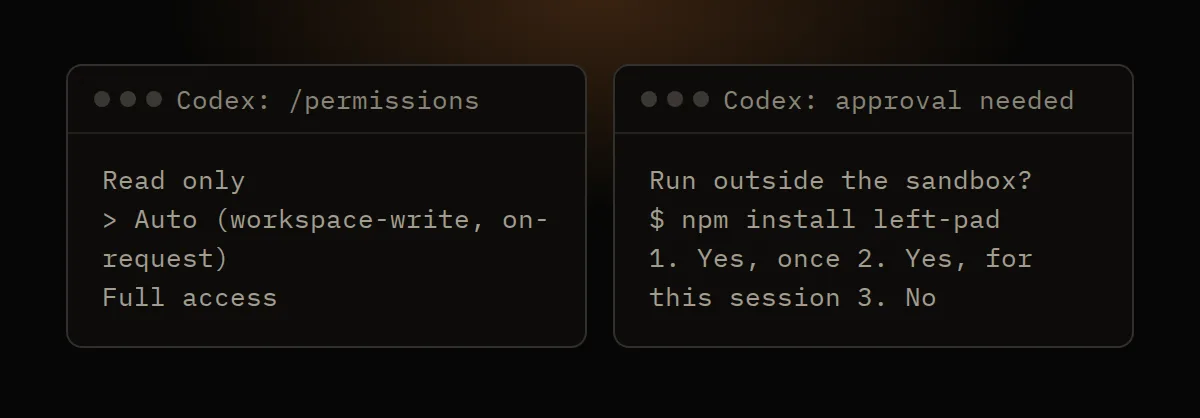
Sandbox and approvals: two controls that work together
Codex separates two questions. The sandbox decides what is technically possible: which files commands can change, and whether they can reach the network. The approval policy decides when Codex must stop and ask you before crossing that boundary. When a task stays inside the sandbox, Codex keeps moving without asking. When it needs to step outside, the approval flow takes over.
The sandbox covers every command Codex starts, not only its own file edits. If Codex runs git, a package manager or your test runner, those programs get the same limits. That is what makes it safe to let Codex run routine commands without a prompt for each one, and why OpenAI describes the sandbox as a cure for approval fatigue.
Source: Codex sandbox, OpenAI
The three Codex sandbox modes
| Mode | What Codex can do | When to use it |
|---|---|---|
| read-only | Read files and run commands inside a read-only sandbox; no edits without approval | Exploring a codebase, reviews, untrusted repositories |
| workspace-write | Read files, edit inside the workspace and run local commands there; network off by default | Everyday local work: the default |
| danger-full-access | Run with no sandbox at all: no file or network limits | Only inside a container or machine you can throw away |
The workspace is your current folder plus temporary folders such as /tmp. Run /status inside Codex to see exactly which folders are in it. When you start Codex in a folder under version control, it uses the Auto preset, workspace-write with on-request approvals. In a folder that is not under version control it starts read-only, and depending on your setup it may stay read-only until you trust the folder.
Source: Agent approvals and security, OpenAI
Codex approval policies
- on-request: Codex works inside the sandbox and asks when it needs to go beyond it. This is the usual choice.
- never: Codex never stops to ask. It does its best within the sandbox you chose, and anything outside it simply fails.
- granular: keep some kinds of prompt interactive and reject others automatically, covering sandbox approvals, rule prompts, MCP prompts, permission requests and skill scripts.
The old untrusted policy is no longer selectable in Codex. If an older config file still uses it, change it to one of the policies above.
You can also choose who answers approval requests with approvals_reviewer. The default, user, sends them to you. auto_review sends eligible requests to a reviewer agent instead, which uses extra model calls and so adds to your usage. Automatic review does not move the sandbox boundary; it only answers requests at it.
Source: Codex sandbox, OpenAI
Common sandbox and approval settings
| Goal | Command or setting | What happens |
|---|---|---|
| Auto, the default | codex --sandbox workspace-write --ask-for-approval on-request | Edits and commands inside the workspace run freely; anything outside asks |
| Safe read-only browsing | codex --sandbox read-only --ask-for-approval on-request | Codex reads and runs read-only commands, and asks for anything more |
| Read-only in CI | --sandbox read-only --ask-for-approval never | Codex reads and reports, never asks, never changes anything |
| Automatic review | approvals_reviewer = "auto_review" | Same boundary, but a reviewer agent answers eligible prompts |
| Full access (yolo) | --dangerously-bypass-approvals-and-sandbox, or --yolo | No sandbox and no approvals: not recommended |
codex --sandbox workspace-write --ask-for-approval on-requestFor non-interactive runs, pass the same flags to codex exec:
codex exec --sandbox read-only --ask-for-approval never "Summarize the failing tests"Inside an interactive session, type /permissions to open the picker and switch profile. In the ChatGPT desktop app and the IDE extension, the permissions control below the composer offers Ask for approval, Approve for me for eligible requests, Full access, and any named profiles.
Source: Agent approvals and security, OpenAI
Codex yolo mode
codex --yoloYolo mode is the nickname for --dangerously-bypass-approvals-and-sandbox, and --yolo is its official short alias. It turns off both the sandbox and every approval prompt, so Codex can read, write and reach the network anywhere your user account can, with no chance to stop it. OpenAI marks it as not recommended. The same full access comes from sandbox_mode = "danger-full-access" with approval_policy = "never" in config.toml.
If you want fewer prompts rather than no limits, there are safer steps first: approve a command for the whole session instead of once, add rules that allow specific command prefixes, add writable roots for the other folders you need, or turn on network access only. If you do need full access, run Codex inside a dev container or a disposable machine, and only on repositories you trust. Inside a container with full access, a malicious project can still take anything in that container, including your Codex credentials.
Source: Agent approvals and security, OpenAI
Configure the Codex sandbox in config.toml
To start with the same behaviour every time, set your defaults in ~/.codex/config.toml:
approval_policy = "on-request"
sandbox_mode = "workspace-write"

[sandbox_workspace_write]
network_access = true
writable_roots = ["/home/you/shared-lib"]- sandbox_mode: read-only, workspace-write or danger-full-access.
- approval_policy: on-request, never or a granular policy.
- sandbox_workspace_write.network_access: true lets commands reach the network in workspace-write mode. It is off by default.
- sandbox_workspace_write.writable_roots: extra folders Codex may write to, so you can work across more than one folder without dropping the sandbox.
- approvals_reviewer: user or auto_review.
When one workflow needs a specific exception, rules are usually a better fit than widening access for everything: they let you allow, prompt for or forbid particular command prefixes outside the sandbox. Keep the project folder as the boundary, and use separate projects or worktrees instead of opening access across unrelated repositories.
Source: Codex sandbox, OpenAI
Source: Codex configuration reference, OpenAI
Command rules: allow, prompt or forbid specific commands
Rules decide what happens when Codex wants to run a particular command outside the sandbox. They are written in a small Python-like language in a .rules file inside a rules folder next to your config, such as ~/.codex/rules/default.rules. Each rule names a command prefix and a decision. OpenAI marks rules as experimental, so details may change.
# ~/.codex/rules/default.rules
prefix_rule(
    pattern = ["gh", "pr", "view"],
    decision = "prompt",
    justification = "Viewing PRs is allowed with approval",
    match = ["gh pr view 7888"],
    not_match = ["gh pr --repo openai/codex view 7888"],
)- allow runs a matching command outside the sandbox without asking.
- prompt asks before each matching command.
- forbidden blocks it without asking. Put a safer alternative in the justification, so Codex knows what to do instead.
When several rules match, the strictest wins: forbidden beats prompt, and prompt beats allow. The match and not_match lists are small tests that Codex checks when it loads the file, so a typo in a pattern shows up straight away rather than at the worst moment. When you choose to always allow a command from an approval prompt, Codex writes the rule to ~/.codex/rules/default.rules for you, and with Smart approvals on, the default, it may suggest a rule during a request. Read a suggested prefix carefully before you accept it.
Rules also see through command chains. A shell line such as bash -lc "git add . && rm -rf /" is split into its separate commands and each one is checked, so allowing git add never lets rm -rf / slip through beside it. Lines that use redirection, substitutions, variables, wildcards or control flow are not split, and are treated as one command that has to pass on its own.
Source: Codex command rules, OpenAI
Auto-review: let a reviewer agent answer approval requests
Auto-review sends approval requests to a separate reviewer agent instead of stopping for you. It only works when approvals are interactive: with approval_policy = "never" there is nothing to review. In the desktop app, choose Approve for me from the permissions control. In the CLI or config, set approvals_reviewer = "auto_review" alongside approval_policy = "on-request"; changing the approval policy alone does not select the reviewer.
- The main agent proposes an action, such as running a command.
- If the action needs approval, Codex creates a request.
- The request goes to the reviewer agent rather than to you.
- The reviewer decides whether the action should run and explains why.
- If it is denied, the main agent is told to find a materially safer way or stop and ask you, and not to reach the same result by a workaround.
It reviews requests to leave the sandbox, commands matching a prompt rule, network requests that need approval, edits outside your writable roots, and MCP or app tool calls that need approval. It is designed to block sending private data or credentials to untrusted places, probing for tokens or cookies, broad weakening of security, and destructive actions that are hard to undo. The reviewer sees a compact transcript and the exact request, and can run read-only checks, such as listing a folder before approving its deletion.
Source: Codex Auto-review, OpenAI
Permission profiles
If you switch between setups often, save them as permission profiles. Codex ships with three built-in profiles, :read-only, :workspace and :danger-full-access, and you can define your own in [permissions.name] tables, then pick one as your default with default_permissions. /permissions in the CLI and the permissions control in the app list your profiles next to the built-in modes.
Source: Codex basic configuration, OpenAI
Folders Codex protects even in workspace-write
Some folders inside your workspace stay read-only even when Codex can write everywhere else, and the protection covers everything under them:
- .git, whether it is a folder or a pointer file, plus the real Git folder a pointer file names.
- .agents, when it exists as a folder.
- .codex, so Codex cannot rewrite its own project settings.
- .aws, so cloud credentials stay out of reach.
This is why Codex asks before a commit in workspace-write mode: writing to .git is outside its boundary.
Source: Agent approvals and security, OpenAI
Network access in the Codex sandbox
In workspace-write mode, commands cannot use the network unless you turn it on with network_access = true. Once it is on, you can narrow it with the network proxy feature, which limits outbound traffic from scripts and the programs they start to the domains you allow:
[features.network_proxy]
enabled = true
domains = { "api.openai.com" = "allow", "example.com" = "deny" }| network_access | network_proxy | Result |
|---|---|---|
| off | on | Network stays off; the proxy does nothing |
| on | off | Network on with unrestricted outbound access |
| on | on | Network on, limited to the domains your policy allows |
Web search is controlled separately. By default Codex uses a cached search index that OpenAI maintains, so searching does not give your commands network access.
Source: Agent approvals and security, OpenAI
How the Codex sandbox works on each system
Codex uses the security features built into each operating system, so the details differ but the idea is the same.
macOS
The sandbox works out of the box, using the Seatbelt framework built into macOS.
Linux and WSL2
Install bubblewrap first. Codex uses the first bwrap program on your PATH, and falls back to a bundled helper that needs unprivileged user namespaces if there is none:
sudo apt install bubblewrapsudo dnf install bubblewrapOn Ubuntu 24.04, Codex may still warn that it cannot create a user namespace after you install bubblewrap. Load the extra AppArmor profile, which takes effect without a reboot:
sudo apt install apparmor-profiles apparmor-utilssudo install -m 0644 /usr/share/apparmor/extra-profiles/bwrap-userns-restrict /etc/apparmor.d/bwrap-userns-restrictsudo apparmor_parser -r /etc/apparmor.d/bwrap-userns-restrict
On Ubuntu 25.04, the bubblewrap package from Ubuntu works without that step. In Docker, the sandbox can fail if the container blocks namespaces, setuid bwrap or seccomp. In that case let the container be the boundary, and run Codex with full access inside it, on trusted code only.
Windows
In PowerShell, Codex uses its native Windows sandbox. Inside WSL2 it uses the Linux sandbox instead. WSL1 is not supported since Codex 0.115, when the Linux sandbox moved to bubblewrap.
Source: Codex sandbox, OpenAI
Source: Codex Windows sandbox, OpenAI
Dev containers
If your machine cannot run the Linux sandbox directly, or your team already develops in containers, run Codex in a dev container and let Docker be the outer boundary. This works with Visual Studio Code Dev Containers and compatible tools. A container gives strong protection but not complete protection: with full access inside it, a malicious project can still read anything in the container, including your Codex sign-in. Keep this pattern for repositories you trust, and watch what Codex does as you would on any machine with elevated access.
Source: Agent approvals and security, OpenAI
When the Codex sandbox gets in the way
Commands fail with network errors
Network is off in workspace-write mode by default. Turn on network_access for your workspace, or approve the command when Codex asks to run it outside the sandbox.
Codex cannot write to a second folder
Add the folder to sandbox_workspace_write.writable_roots, rather than switching to full access.
Codex warns that bwrap is missing
Install bubblewrap with your package manager. On Ubuntu 24.04, also load the bwrap-userns-restrict AppArmor profile.
Too many approval prompts
Approve recurring commands for the session, add rules for safe command prefixes, or try automatic review, before reaching for yolo mode.
Source: Agent approvals and security, OpenAI
The Codex sandbox and the Claude Code sandbox
Claude Code takes a similar approach: its sandbox isolates Bash commands with filesystem and network limits, using Seatbelt on macOS and bubblewrap on Linux and WSL2, and its permission modes decide when it asks. If you run both agents, giving each the narrowest boundary that lets the task finish is the same rule in both.
Source: Claude Code sandboxing, Anthropic
Approvals across many sessions
A sandbox only saves time if you notice the prompts it raises. With several Codex sessions running, an approval request can wait unseen in a terminal you are not watching. 10u is an AI coding agent dashboard that shows every Codex and Claude Code session side by side, each in its real terminal, marked Needs you, Working, Waiting or Parked. They do the building. You decide what gets built.

Questions people ask
- What is the Codex sandbox?
- The boundary that limits which files Codex commands can change and whether they can use the network, so Codex can work without asking about every routine command.
- What is Codex yolo mode?
- Running Codex with --yolo, the alias for --dangerously-bypass-approvals-and-sandbox. It removes the sandbox and all approval prompts, and OpenAI does not recommend it.
- What is the default Codex sandbox mode?
- workspace-write with on-request approvals in a version-controlled folder, and read-only in a folder that is not under version control.
- How do I give Codex network access?
- Set network_access = true under [sandbox_workspace_write] in config.toml, or approve a command when Codex asks to go outside the sandbox.
- Does Codex need bubblewrap on Linux?
- Yes. Install it with apt or dnf. Codex can fall back to a bundled helper, but the package is more reliable.