
Claude Code for beginners: from install to your first real change
Claude Code is Anthropic's AI coding agent. You describe what you want in plain English, and it reads your project, runs commands and edits files to do it, asking your permission along the way. This Claude Code for beginners guide takes you from nothing installed to a first real change you understand, in about half an hour. You don't need to be an experienced developer, but you do need a project folder to work in and a paid Claude plan.
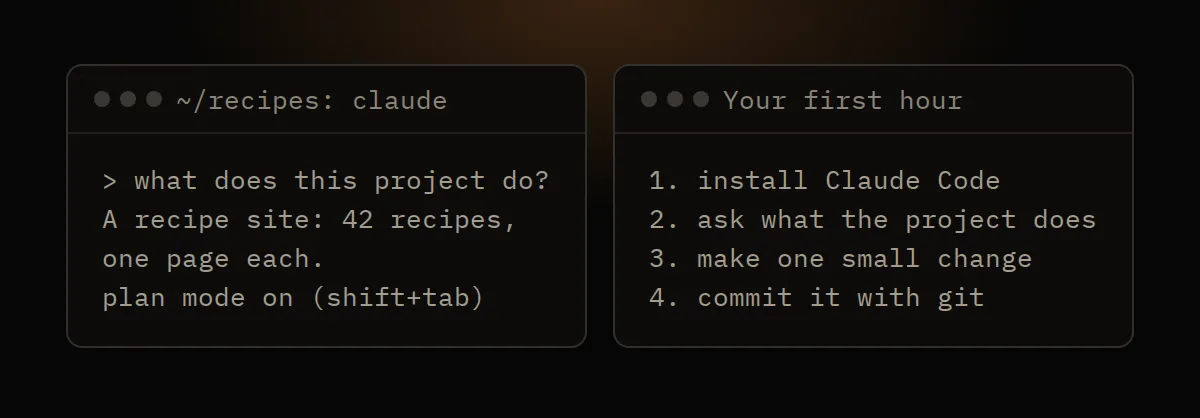
Everything here comes from Anthropic's own quickstart, permission and cost documentation and its pricing page, checked on 23 November 2026. Claude Code updates often, so where a detail depends on the version, the guide says so.
What Claude Code is, in plain words
A chatbot answers questions. Claude Code does the work. When you ask it to add a page to a website, it opens the relevant files, works out how the site is built, writes the change, and can run the site to check it works. That is what people mean by an agentic coding tool: it takes several steps on its own toward a goal you set.
It runs in several places, all with the same engine underneath:
- The terminal, the text window on your computer where you type commands. This is the original and most complete version.
- Claude Desktop, in its Code tab, for people who would rather click than type commands.
- VS Code and JetBrains editors, through an extension that shows changes side by side.
- The web at claude.ai/code, where sessions run in the cloud on a copy of your GitHub repository.
This guide uses the terminal because that is where most tutorials and answers online assume you are, but every idea carries over to the other versions.
What you need before you start
Three things: a computer running macOS, Windows or Linux, a folder with some code in it, and an account that includes Claude Code. The free Claude plan does not include Claude Code, so a beginner's choice is between these:
| Plan | Price on 23 Nov 2026 | Good for |
|---|---|---|
| Pro | US$17 a month billed annually (US$200 up front), or US$20 monthly | Learning and side projects; the usual starting point |
| Max | US$100 a month | Daily coding with 5x the usage of Pro |
| Ultra | US$200 a month | All-day work, 10x Pro's weekly usage and no 5-hour limit for verified accounts |
| Claude Console | Pay per use with prepaid API credits | People who would rather pay per token than a subscription |
Start on Pro. You can move up later if you keep hitting the usage limits, and you'll know by then how much you use it. A Team or Enterprise seat from work also includes Claude Code.
If you have never used a terminal, Anthropic has a short terminal guide written for exactly this. It's worth ten minutes before you install anything. And if you don't have a project yet, make an empty folder and ask Claude Code to build something small in it, such as a one-page website about a hobby.
Source: Claude plans and pricing, Anthropic
Source: Terminal guide for Claude Code, Anthropic
Install Claude Code
The native installer is the recommended way and keeps itself up to date. On a Mac, on Linux, or in WSL on Windows, open the terminal and run:
curl -fsSL https://claude.ai/install.sh | bashOn Windows, open PowerShell and run:
irm https://claude.ai/install.ps1 | iexIf you already use a package manager, you can install with Homebrew on a Mac or WinGet on Windows instead. Neither updates itself, so you will need to upgrade by hand from time to time:
brew install --cask claude-codewinget install Anthropic.ClaudeCodeTo check it worked, run the command below. It should print a version number followed by (Claude Code). If it says the command isn't found, close the terminal, open a new one and try again.
claude --versionSource: Claude Code quickstart, Anthropic
Prefer not to use the terminal?
You can skip the install commands entirely. Download Claude Desktop, sign in, and open the Code tab: Claude Code is built in and uses the account you signed in with. You pick a folder with a normal file picker, type requests in a chat box, and review each change as a visual before and after. Everything in this guide, including plan mode, permission prompts and CLAUDE.md, works the same way there.
If you already write code in VS Code or a JetBrains editor such as PyCharm, install the Claude Code extension instead. It opens Claude Code in a panel beside your files and shows proposed edits as a side-by-side comparison you accept or reject, which many beginners find easier to follow than terminal output.
The terminal is still worth learning eventually. Most guides, forum answers and examples assume it, and a handful of features arrive there first. But nothing stops you starting in the app and moving across once you're comfortable.
Start your first session
Move into your project folder and start Claude Code. Replace the path with your own folder:
cd /path/to/your/projectclaude
The first time, Claude Code asks you to log in. Pick your Claude account, finish the sign-in in the browser that opens, and come back to the terminal. Claude Code remembers the login. When the prompt appears, you'll see the version, the model it's using and the folder it's working in. Type /help at any time to see what you can do.
Claude Code may also ask whether you trust the files in this folder. Say yes only for folders you created or know, because a project can contain settings that change what Claude Code does.
Your first prompts: ask before you change anything
The best first move is to let Claude Code explore. Ask it what the project is:
what does this project do?It reads the files and gives you a summary. Then ask the question you actually need answered before making a change:
where is the main entry point, and which files would I change to add a new page?This does two things. You learn how the project fits together, and Claude Code now has the relevant files in its working memory, so the change you ask for next is more likely to land in the right place.
Make your first change
Now ask for something small and specific. A precise request gets a precise result; fix the bug gets a guess. Compare these:
add a "Back to top" link at the bottom of the about page, matching the style of the other linksClaude Code will show you the edit it wants to make and ask for permission. Read it, then accept. Open the page in your browser to see the result. If you don't like it, say so in plain words, such as make the link smaller and grey, and it will change it.
Save your work with git
Git is the tool developers use to save versions of a project so they can go back if something breaks. You don't need to learn its commands to start. Ask Claude Code to do it:
commit my changes with a short message that says what changedIt will run the git commands and show you each one before it does. If your folder isn't a git project yet, ask Claude Code to set one up. Saving after every change that works is the single best habit a beginner can build, because it means no mistake is ever permanent.
How Claude Code asks for permission
By default Claude Code reads files freely but asks before it edits a file or runs a command. Each prompt offers yes, no, or yes and don't ask again for that kind of action. Early on, read each request. It is the fastest way to learn what the tool is doing and why.
Press Shift+Tab to cycle through permission modes. The bar under the prompt shows which one is on:
| Mode | What runs without asking | When to use it |
|---|---|---|
| Manual (default) | File reads and other safe actions | Unfamiliar code, and your first weeks |
| Accept edits | Reads, file edits and simple file commands such as mkdir and mv | When you're reviewing the changes as they appear |
| Plan | Reading only, no changes | Before any bigger change, to get a plan first |
| Auto | Everything, with background safety checks | Long tasks once you trust your setup |
There is also a bypass permissions mode that skips every check. It is meant for isolated containers and virtual machines. Leave it alone on your own computer.
Source: Claude Code permission modes, Anthropic
Plan mode: the beginner's best friend
Plan mode is where Claude Code looks and thinks but doesn't touch anything. Use it for anything bigger than a one-line change. Press Shift+Tab until the bar says plan mode on, then describe the goal:
I want visitors to be able to sign up for a newsletter on the home page.Do not write code yet. Look at how the site is built and give me a step-by-step plan.
You get a step-by-step plan you can read, question and correct before a single file changes. When it looks right, approve it and Claude Code switches out of plan mode to do the work. For a beginner this solves the biggest problem with AI coding: changes that work but that you don't understand.
Teach it your project with CLAUDE.md
Claude Code starts every session fresh. A file called CLAUDE.md in your project folder is how it remembers the basics. Claude Code reads it at the start of every session, so anything you would otherwise repeat goes there. Type /init and Claude Code writes a first version by looking at your project. Then trim it down to what matters:
# CLAUDE.md## About this projectA personal recipe site built with Astro.## Commands- Start the site: npm run dev- Check for problems: npm run build## Rules- Explain what you are about to change before you change it.- Keep the existing colours and fonts.- Never delete files without asking.
Keep it short: Anthropic suggests under 200 lines, because every line loads into every session. Add a rule the moment you catch yourself repeating an instruction. Rules about how you like to work, such as explain before you change, are as useful as technical ones.
Source: Claude Code memory and CLAUDE.md, Anthropic
Commands every beginner should know
| Command | Where | What it does |
|---|---|---|
| claude | Terminal | Start Claude Code in the current folder |
| claude "task" | Terminal | Start with a first request already typed |
| claude -c | Terminal | Continue the most recent conversation in this folder |
| claude -r | Terminal | Pick an older conversation to resume |
| /help | Inside Claude Code | Show the commands available to you |
| /init | Inside Claude Code | Write a starting CLAUDE.md for this project |
| /clear | Inside Claude Code | Start a fresh conversation; /resume brings the old one back |
| /model | Inside Claude Code | Switch the model Claude Code uses |
| /usage | Inside Claude Code | See how much of your plan's usage you have left |
| /exit | Inside Claude Code | Leave Claude Code (or press Ctrl+D twice) |
Type / on its own to see every command and skill you can run, and press the up arrow to bring back something you typed earlier.
Context, usage limits and cost for beginners
Claude Code works within a context window: everything in the current conversation, including files it has read. As a conversation grows, it gets slower and uses more of your allowance, and older details can get summarized away. The fix is simple: run /clear when you start an unrelated task. One task per conversation is a good rule.
On Pro, Max and Ultra, usage resets on a rolling five-hour window and a weekly window. How fast you reach a limit depends on the model, how long the conversation is and how big the files are. Run /usage to see where you stand. When you hit a limit, the message tells you when it resets; you can wait, switch model with /model if only one model family is used up, or turn on usage credits to keep going.
The cheapest habits are also the best ones: clear between tasks, ask for specific changes, and don't paste huge files when Claude Code can read them itself. On a pay-per-use Console account, run /usage to see the session's estimated cost, which resets when /clear starts a new session.
Source: Manage costs effectively, Claude Code docs
Mistakes beginners make with Claude Code
- Vague requests. Make it better gives Claude Code nothing to aim at. Say what, where and how you'll know it worked.
- Accepting changes without reading them. Even a quick skim of each edit teaches you the project and catches surprises.
- Never saving with git. Without saved versions, one bad change can cost an afternoon. Commit every time something works.
- One endless conversation. Long sessions get slow and expensive. Clear between tasks.
- Skipping plan mode on big jobs. A five-minute plan you agree with beats an hour of changes you don't.
- Fixing errors by hand first. Paste the error message to Claude Code and ask it to explain and fix it. You learn more that way.
- Turning on bypass permissions to stop the prompts. Use accept edits mode or allow specific commands instead.
A first-week practice plan
- Day 1: install, log in, and ask Claude Code to explain a project you already have, or to build a one-page site in an empty folder.
- Day 2: make three small changes, reading every edit, and commit each one with git.
- Day 3: run /init, trim the CLAUDE.md, and add two rules about how you like to work.
- Day 4: use plan mode for one bigger feature, question the plan, then let it build.
- Day 5: break something on purpose, paste the error, and have Claude Code explain and fix it.
- Day 6: try the same task in the Desktop Code tab or the VS Code extension and see which you prefer.
- Day 7: review your git history and write down the prompts that worked best.
Where to learn more
Anthropic runs two free self-paced courses on Claude Academy, Claude Code 101 and Claude Code in Action, which go further than this guide. The official quickstart covers the same first steps with more options, and the best practices page is the natural next read once the basics feel easy.
Source: Claude Code 101, Claude Academy
Source: Claude Code quickstart, Anthropic
When one session becomes several
Most people start with one Claude Code session. Within a few weeks many run two or three at once, one per task, and lose track of which one is waiting for an answer. 10u is an AI coding agent dashboard that shows every Claude Code and Codex session side by side, each in its real terminal, marked Needs you, Working, Waiting or Parked. They do the building. You decide what gets built.

Questions people ask
- Is Claude Code good for beginners?
- Yes, if you take it slowly. Read each change before you accept it, use plan mode for bigger jobs and save with git often. It explains code as well as it writes it.
- Do I need to know how to code to use Claude Code?
- No, but it helps to learn as you go. Claude Code writes and explains the code, and asking it why it made a change is one of the fastest ways to learn.
- Is Claude Code free?
- No. The free Claude plan doesn't include Claude Code. The cheapest way in is the Pro plan, or a Claude Console account that you pay for per use.
- How do I install Claude Code?
- On macOS, Linux or WSL run curl -fsSL https://claude.ai/install.sh | bash. On Windows PowerShell run irm https://claude.ai/install.ps1 | iex. Then run claude in your project folder.
- What is plan mode in Claude Code?
- A permission mode where Claude Code reads and plans but changes nothing. Press Shift+Tab until the bar says plan mode on, describe the goal, and approve the plan before any file changes.
- What should a beginner put in CLAUDE.md?
- How to run the project, any rules you want followed and things it must never do. Run /init to get a first draft, then keep it short.