
OpenAI Codex CLI: a practical guide to the commands and settings
The Codex CLI is OpenAI's coding agent for your terminal. You start it in a project folder with the codex command, describe what you want, and it reads your files, makes edits and runs the tools already installed on your computer, asking before it does anything outside the limits you set. The same agent also runs in the ChatGPT desktop app and the Codex IDE extension, and codex exec runs it inside scripts and CI.
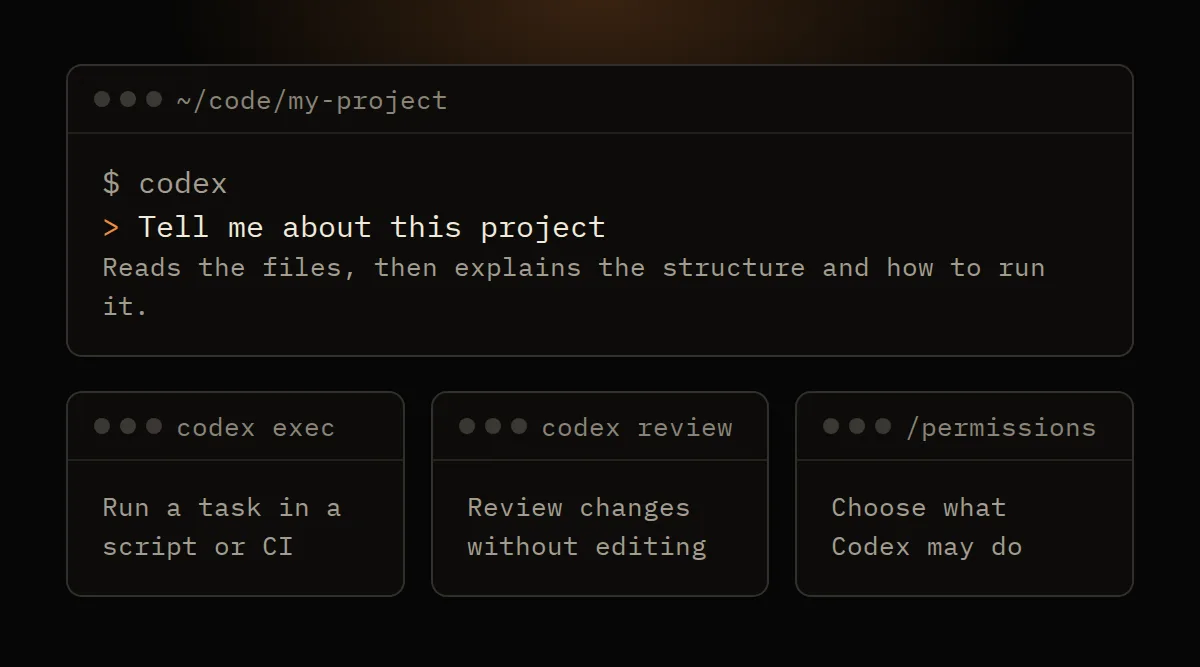
What the Codex CLI does
- Works on your local repository: it inspects files, edits them and runs your own build, test and lint commands.
- Keeps you in control: you choose the model, how hard it reasons, what it may do without asking and which commands it can run.
- Fits into scripts and CI: codex exec runs a task without the interactive screen and prints the result.
- Reviews code: codex review checks uncommitted changes, a commit or a branch and reports findings without changing your files.
- Hands work to the cloud: codex cloud sends a task to Codex Cloud and brings the result back to your repository.
- Connects to other tools through MCP servers, skills and plugins.
Source: Codex CLI, OpenAI
Install the Codex CLI
OpenAI offers four ways to install it. Running the same install command again updates it.
| System | Install command |
|---|---|
| macOS and Linux | curl -fsSL https://chatgpt.com/codex/install.sh | sh |
| Windows (new PowerShell window) | powershell -ExecutionPolicy ByPass -c "irm https://chatgpt.com/codex/install.ps1 | iex" |
| npm, any system | npm install -g @openai/codex |
| Homebrew | brew install --cask codex |
Then open a project folder and run codex. The first time, choose Sign in with ChatGPT or another sign-in method. Our guide to installing the Codex CLI covers each system step by step, including WSL on Windows and signing in on a server without a browser.
cd ~/code/my-projectcodex
Source: Codex CLI, OpenAI
Which plans include the Codex CLI
You can sign in with a ChatGPT plan or an API key. ChatGPT Plus lists Codex on the web, in the CLI, in the IDE extension and on iOS; Pro, Business, and Enterprise and Edu plans include it with more usage and admin controls. Free and Go plans list Codex in the desktop app with GPT-6 Luna, subject to rollout. With an API key, you pay OpenAI's API prices for what you use, model availability follows your key, and cloud features such as GitHub code review and Slack are not available. Codex Cloud requires signing in with ChatGPT.
Source: Pricing, OpenAI
Your first Codex CLI session
- Make a Git checkpoint first, so you can undo the change: commit or stash what you have.
- Run codex in the project folder. In a folder under Git, Codex suggests the Auto preset; in a folder without Git it suggests read-only.
- Ask something small to start, such as "Tell me about this project".
- Ask for one focused change, then watch the commands and diffs as they appear.
- Run /diff to review the edits, including new files Git does not track yet.
- Run /review for Codex to review its own work, then commit.
Source: Codex CLI, OpenAI
Codex CLI commands
Running codex with no subcommand opens the interactive terminal screen. These subcommands cover most other jobs:
| Command | What it does |
|---|---|
| codex | Start an interactive session in the current folder |
| codex exec "task" | Run a task without the interactive screen, for scripts and CI |
| codex review | Review uncommitted changes, a base branch or a commit, without editing |
| codex resume | Continue a session by ID, or the most recent one with --last |
| codex fork | Copy a previous session into a new chat to try another approach |
| codex login / codex logout | Sign in with ChatGPT, an API key or an access token; or remove saved credentials |
| codex mcp | Add, sign in to and list MCP servers |
| codex plugin | Manage plugins and plugin marketplaces |
| codex cloud | Browse cloud chats, send work to a cloud environment and apply results locally |
| codex apply | Apply the changes from a cloud task to your local files |
| codex doctor | Write a diagnostic report on installation, sign-in, Git and terminal health |
| codex update | Check for and apply an update, when your install supports self-update |
| codex completion | Generate shell completions |
| codex sandbox | Run a command under the same sandbox Codex uses |
codex login status exits with 0 when credentials are present, which is handy in scripts. codex resume looks only at sessions from the current folder unless you add --all.
Source: Developer commands, OpenAI
Codex CLI slash commands
Inside a session, type / to see slash commands. The ones you will use most:
| Slash command | What it does |
|---|---|
| /permissions | Set what Codex can do without asking first |
| /model | Choose the model and, where available, reasoning effort |
| /plan | Switch to plan mode to get a plan before any edits |
| /diff | Show the Git diff, including untracked files |
| /review | Ask Codex to review your working tree |
| /status | Show the model, approval policy, writable folders and token use |
| /usage | See your account usage by day, week or in total |
| /compact | Summarise the conversation to free up context |
| /new and /clear | Start a fresh chat; /clear also clears the screen |
| /resume and /fork | Reopen a saved chat, or branch the current one |
| /init | Create an AGENTS.md file with instructions for the project |
| /mcp, /skills, /plugins | See connected tools, skills and plugins |
| /goal | Give Codex a target to work towards and track |
| /import | Bring in your Claude Code or Cursor setup, projects and chats |
| /app | Continue the session in the ChatGPT desktop app |
| /exit or /quit | Leave the CLI |
Source: Developer commands, OpenAI
Keyboard shortcuts worth knowing
- Type @ to search for a file and add its path to your prompt.
- Start a line with ! to run a shell command under the current permissions.
- Press Tab while Codex is working to queue a follow-up for the next turn, or Enter to add instructions to the current one.
- Press Escape twice with an empty box to edit your previous message and fork the chat from there.
- Ctrl+R searches your prompt history, Ctrl+O copies the latest response, and Ctrl+C or /exit closes the session.
Permissions: sandbox and approvals
Two settings decide how much freedom Codex has. The sandbox mode is what it can technically do, such as where it may write and whether it can reach the network. The approval policy is when it must ask you first. In the CLI, your operating system enforces the sandbox, and by default Codex has no network access and can write only inside the current folder and temporary folders. Even inside that folder, .git, .codex, .agents and .aws stay read-only.
| Setting | Flags | What Codex can do |
|---|---|---|
| Auto (the default in a Git folder) | --sandbox workspace-write --ask-for-approval on-request | Read, edit and run commands in the folder; asks before going outside it or using the network |
| Read-only | --sandbox read-only --ask-for-approval on-request | Read and run read-only commands; good for planning and questions |
| Read-only for CI | --sandbox read-only --ask-for-approval never | Never asks; stays read-only |
| Auto-review | approvals_reviewer = "auto_review" | Same limits as Auto, but eligible requests are reviewed automatically |
| Full access | --dangerously-bypass-approvals-and-sandbox (--yolo) | No sandbox and no approvals; OpenAI does not recommend it |
OpenAI's advice: use workspace-write for unattended local work, give access to extra folders with --add-dir instead of turning on full access, and keep --yolo for a dedicated sandbox machine. Change permissions in a session with /permissions, and check the current ones with /status.
Source: Agent approvals and security, OpenAI
Signing in: ChatGPT or an API key
Run codex login to sign in with ChatGPT through your browser; this is the default when you have no valid session. To use an API key instead, pipe it in so it never appears in your shell history:
printenv OPENAI_API_KEY | codex login --with-api-keyOn a remote server or anywhere the browser sign-in cannot reach back to the CLI, use device code sign-in: run codex login --device-auth, open the link on any device, sign in and type the one-time code. You first enable device code login in your ChatGPT security settings, or your workspace admin does. Your sign-in method also decides which data rules apply: ChatGPT sign-in follows your workspace's settings, and an API key follows your API organisation's.
Source: Authentication, OpenAI
Scripting with codex exec
codex exec runs Codex without the interactive screen. It streams progress to stderr and prints only the final message to stdout, so you can pipe the answer into a file or another tool. It runs read-only by default; add --sandbox workspace-write to let it edit. --json prints machine-readable events, and codex exec resume --last continues the previous run for a two-step job.
codex exec "generate release notes for the last 10 commits" | tee release-notes.mdSource: Non-interactive mode, OpenAI
Codex CLI, desktop app or IDE extension?
| Surface | Best for |
|---|---|
| Codex CLI | Terminal work, speed, scripts and CI |
| ChatGPT desktop app | Several Codex chats in parallel, worktrees, scheduled tasks and a built-in browser |
| Codex IDE extension | Working beside your open files and diffs in VS Code, Cursor and other editors |
They share your sign-in and usage. From the CLI, /app moves the current session into the desktop app when you want a bigger view.
Codex CLI tips
- Make a Git commit before and after each task so any change is easy to undo.
- Run /init once per project, then keep AGENTS.md short with the commands to build and test.
- Use /plan for anything risky, so you approve the approach before edits start.
- Add --search when a task depends on current documentation; web search otherwise uses a cached mode.
- Pass a screenshot of an error with --image, or paste an image into the prompt.
- Run codex doctor before filing a bug; it checks installation, sign-in, Git and terminal health in one report.
Running several Codex CLI sessions
The Codex CLI gets more useful when you run several sessions at once, each in its own Git worktree so their edits do not clash. The catch is attention: a session finishes or asks for approval in a terminal you are not watching, and waits. 10u is an AI coding agent dashboard that shows every Codex and Claude Code session side by side, each in its real terminal, marked Needs you, Working, Waiting or Parked, with the one waiting on you on top. It runs on the subscriptions you already have. They do the building. You decide what gets built.

Questions people ask
- What is the Codex CLI?
- The Codex CLI is OpenAI's coding agent for the terminal. It reads your project, edits files and runs commands on your computer, within the sandbox and approval settings you choose.
- Is the Codex CLI free?
- It is free to install. Using it needs a ChatGPT plan that includes Codex in the CLI, such as Plus, Pro, Business or Enterprise, or an API key billed at OpenAI's API prices.
- How do I update the Codex CLI?
- Run your install command again, use npm install -g @openai/codex or brew upgrade --cask codex, or run codex update where your install supports self-update.
- How do I let Codex run without asking for approval?
- Use --ask-for-approval never with a sandbox mode such as workspace-write. The --yolo flag removes the sandbox and approvals entirely, and OpenAI recommends it only inside a dedicated sandbox machine.
- Can the Codex CLI use my Claude Code setup?
- Yes. The /import slash command brings in Claude Code or Cursor setup, projects and chats. Codex reads AGENTS.md for project instructions.