
Claude Code VSCode extension: install it, set it up and use it well
The Claude Code extension for VS Code puts Claude Code in a panel beside your code. Install it from the Extensions view by searching for "Claude Code", click the Spark icon at the top right of the editor, sign in with your Claude plan or Console account, and ask for what you want. You review Claude's plans and edits inside VS Code, point it at files with @-mentions, and keep several conversations open in tabs. Anthropic calls the extension the recommended way to use Claude Code in VS Code.
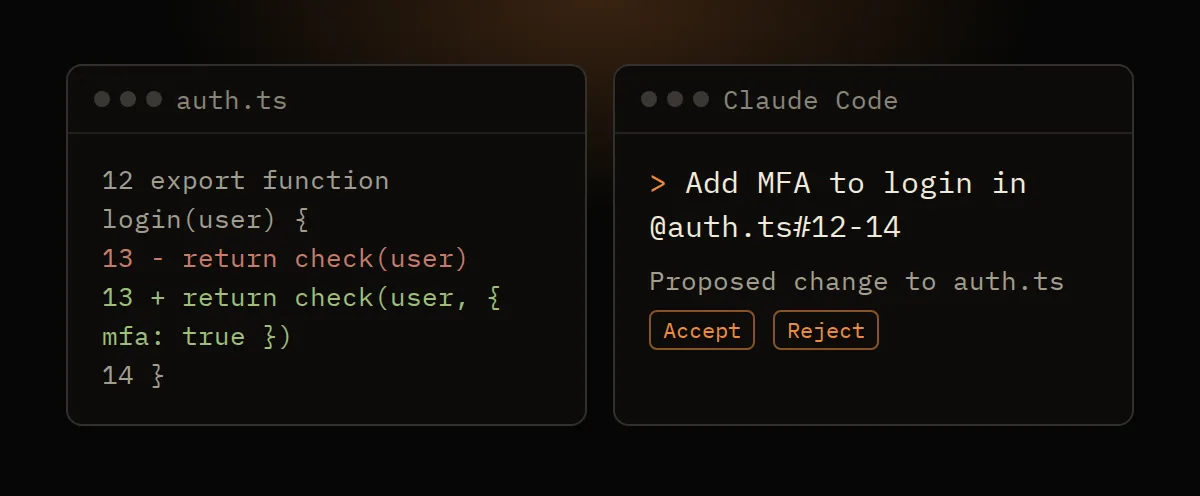
What the Claude Code VS Code extension does
- Shows each proposed edit as a side-by-side comparison you can accept, reject or change, or lets Claude edit automatically.
- Opens plans as a full Markdown document you can comment on before Claude starts.
- Sees your selected code and open file automatically, and takes @-mentions of files, folders, line ranges and terminal output.
- Keeps your conversation history, with search, rename, archive and groups.
- Runs several conversations at once in tabs or windows, each with its own context.
- Rewinds code and conversation to any earlier message with checkpoints.
- Works with Git: commits, pull requests and worktrees.
Source: Use Claude Code in VS Code, Claude Code docs
What you need first
- VS Code 1.94.0 or later.
- A paid Claude plan (Pro, Max, Ultra, Team or Enterprise) or a Claude Console account. No API key is needed; you sign in with the account.
- Nothing else: the extension bundles its own copy of Claude Code for the chat panel. To type claude in VS Code's terminal as well, install the command-line tool separately.
How to install the Claude Code extension in VS Code
- Open the Extensions view with Cmd+Shift+X on Mac or Ctrl+Shift+X on Windows and Linux.
- Search for "Claude Code" and click Install on the extension by Anthropic.
- If it does not appear afterwards, restart VS Code or run Developer: Reload Window from the Command Palette.
- Open a file, then click the Spark icon in the editor toolbar at the top right.
- Click Sign in and finish in your browser.
The extension is published to the Visual Studio Marketplace and the Open VSX Registry. Its version number is the Claude Code version it bundles, so a feature that needs Claude Code 2.1.286 needs extension version 2.1.286 or later. It also installs in VS Code forks such as Cursor, Kiro and Devin Desktop: search for "Claude Code" in that editor's Extensions view, or install from Open VSX. In an editor that cannot install it, run the command-line tool in its terminal instead.
Source: Use Claude Code in VS Code, Claude Code docs
Open Claude Code in VS Code
| Where | How |
|---|---|
| Editor toolbar | Click the Spark icon at the top right; it shows only when a file is open |
| Activity Bar | Click the Spark icon on the left to see your sessions list; always visible |
| Command Palette | Cmd+Shift+P or Ctrl+Shift+P, type "Claude Code", pick an option such as Open in New Tab |
| Status Bar | Click ✻ Claude Code at the bottom right; works with no file open |
| Keyboard | Cmd+Esc or Ctrl+Esc moves focus between the editor and Claude |
After you sign in, a Learn Claude Code checklist walks you through the basics; click Show me on each item or close it. If you set ANTHROPIC_API_KEY in your shell but still get the sign-in screen, VS Code did not inherit your shell's settings. Start VS Code from a terminal with code . so it does, or sign in with your Claude account.
Source: Use Claude Code in VS Code, Claude Code docs
Your first prompt and reviewing changes
Select some code and Claude sees it automatically; the footer of the prompt box shows how many lines are selected. Press Option+K on Mac or Alt+K on Windows and Linux to insert a reference like @file.ts#5-10 into the prompt. Then ask a question or for a change.
What happens next depends on the permission mode shown at the bottom of the prompt box. In Manual mode, each edit opens as a side-by-side comparison of the original and the proposed change, and you accept, reject or tell Claude what to do instead. In Auto or Edit automatically mode, Claude edits most files in your workspace without asking, and you review afterwards.
Permission modes in the extension
| Mode | What Claude does |
|---|---|
| Auto | A classifier reviews most actions instead of asking you; the built-in starting mode from Claude Code 2.1.283 |
| Manual | Asks before file edits and most shell commands |
| Plan | Describes what it will do and waits; the plan opens as a Markdown document you can comment on |
| Edit automatically | Makes edits without asking |
Click the mode to switch, or type /plan to enter plan mode; /plan fix the auth bug enters plan mode and starts planning that task. The initialPermissionMode setting chooses the mode new conversations start in.
Source: Use Claude Code in VS Code, Claude Code docs
Give Claude the right context
| To include | Do this |
|---|---|
| A file or folder | Type @ and a name; fuzzy matching finds @auth as auth.js or AuthService.ts. End folders with a slash, such as @src/components/ |
| Files from the Explorer | Right-click and choose Claude Code: Add to Chat |
| Terminal output | Type @terminal: and the terminal's name, so Claude sees errors and logs without copy and paste |
| An image | Paste it into the prompt box |
| Other files | Hold Shift while dragging them into the prompt box |
| Pages of a large PDF | Ask for a page or a range, such as pages 1 to 10 |
Claude also sees which file you have open, even with nothing selected. To keep a sensitive file such as .env out of your messages, add a Read deny rule for its path; the attachOpenFile and attachSelection settings turn the automatic context off altogether.
Source: Use Claude Code in VS Code, Claude Code docs
Useful features in the prompt box
- Type / for the command menu: switch models, attach files, and open Customize for MCP servers, hooks, permissions, memory, CLAUDE.md instructions and plugins.
- Click the model name to change model and, where supported, effort level.
- Type /usage for the Account & usage dialog: your plan's usage bars, what is using them, and suggested fixes.
- Type /btw and a question to ask something without adding it to the conversation.
- A context indicator appears once you have used more than half the context window, and a clock icon counts down until the prompt cache expires, after which the next reply is slower and costs more.
- When Claude runs subagents, an agent count opens the agent map, showing each one's status, time and tokens.
- Shift+Enter adds a new line without sending.
- Focus view, Ctrl+Option+F or Ctrl+Alt+F, hides tool calls so you see just the conversation.
Source: Use Claude Code in VS Code, Claude Code docs
Checkpoints: undo Claude's changes
The extension tracks Claude's file edits so you can go back. Hover over any message and click the rewind button for three choices: fork the conversation from there and keep the code, rewind the code to there and keep the conversation, or do both. Type /fork after a reply to branch from the latest message. Checkpoints are handy, but commit to Git too; they track Claude's edits, not everything that changes in your folder.
Source: Use Claude Code in VS Code, Claude Code docs
Run several Claude Code conversations in VS Code
Use Open in New Tab (Cmd+Shift+Esc or Ctrl+Shift+Esc) or Open in New Window from the Command Palette to start more conversations. Each keeps its own history and context, so you can work on different tasks at the same time. On tabs, a coloured dot on the Spark icon shows status: blue means a permission request is waiting, orange means Claude finished while the tab was hidden.
The sessions list in the Activity Bar helps once you have many. Group related sessions into named folders, filter to only those that need input, are working or are unread, and let sessions with no activity for 14 days archive themselves. Sessions get titles from your first message, and you can rename them.
Source: Use Claude Code in VS Code, Claude Code docs
Use the Claude Code CLI inside VS Code
Some features are only in the command-line tool: every command and skill, the ! shortcut for shell commands, and tab completion. To use it without leaving VS Code, open the integrated terminal with Ctrl+` (Cmd+` on Mac) and run claude, after installing the command-line tool; installing the extension does not put claude on your PATH.
| Feature | CLI | VS Code extension |
|---|---|---|
| Commands and skills | All | A subset; type / to see them |
| MCP server setup | Yes | Yes, with /mcp in the panel |
| Checkpoints | Yes | Yes |
| ! shell shortcut | Yes | No |
| Tab completion | Yes | No |
With the extension installed, the CLI in the integrated terminal connects to it automatically, so its diffs open in VS Code's diff viewer and it sees your selection. From an external terminal, run /ide inside Claude Code to connect. Both share the same history: run claude --resume in the terminal to pick up a conversation you started in the panel. If you prefer the terminal look inside the panel itself, turn on the Use Terminal setting.
Source: Use Claude Code in VS Code, Claude Code docs
Git, commits and pull requests
Ask Claude in plain words: "commit my changes with a descriptive message", "create a pr for this feature" or "summarize the changes I've made to the auth module". It stages changes, writes commit messages and writes pull request descriptions from the actual code changes. For work you want kept apart, ask Claude to start in a Git worktree, which gives the conversation its own copy of the files and its own branch.
Source: Use Claude Code in VS Code, Claude Code docs
Connect MCP servers in VS Code
MCP servers give Claude access to outside tools, databases and APIs, such as GitHub or your issue tracker. Type /mcp in the chat panel to add and remove servers, turn them on and off, reconnect, and handle sign-ins. You can also run claude mcp add in the integrated terminal; both save to the same configuration. Anthropic's example adds GitHub's MCP server:
claude mcp add --transport http github https://api.githubcopilot.com/mcp/ --header "Authorization: Bearer YOUR_GITHUB_PAT"Replace YOUR_GITHUB_PAT with your personal access token. The command saves the settings without checking the token, so a wrong value only shows up later when the server fails to connect. Once it works, ask in plain words, such as "Review PR #456".
Source: Use Claude Code in VS Code, Claude Code docs
Install and manage plugins
Type /plugins to open Manage plugins. The Plugins tab shows installed plugins with on and off switches, and available plugins from your marketplaces below, with a search box. When you install one, choose who gets it: Install for you (all your projects), Install for this project (shared with collaborators through the project settings), or Install locally (only you, only this repository). A form then asks for any settings the plugin needs, with secret fields masked. The Marketplaces tab adds and refreshes plugin sources.
Test web apps with Claude in Chrome
With the Claude in Chrome browser extension installed, Claude can drive your Chrome browser from VS Code to test web apps, read console logs and automate browser steps. Type @browser and the task, for example "@browser go to localhost:3000 and check the console for errors". Claude opens new tabs and shares your browser's login state, so it can reach any site you are already signed in to; treat that with the same care as giving someone your browser.
Jupyter notebooks
Claude edits notebooks cell by cell. When it replaces a code cell, it rewrites the cell and clears its saved output, without restarting your kernel, so re-run that cell and any cells that depend on it. Save the notebook before you ask for an edit, because the extension's autosave does not run before notebook edits. If Claude wants to run code in your notebook, VS Code always asks you to Execute or Cancel first.
Run long work in the background
When a command or a subagent keeps Claude waiting, click Run in background under it. Claude carries on with the turn while the command keeps running and tells Claude when it finishes. Type /tasks to open the agent map, where you can see each background task, a dev server's latest output, or a subagent's tool calls, and stop any of them. When you stop Claude, the current turn ends, but background agents keep running until they finish or you stop them from the map.
Resume cloud sessions from claude.ai
If you start Claude Code sessions on the web at claude.ai, you can continue them in VS Code. Sign in with your Claude.ai subscription rather than a Console account, click Session history at the top of the panel, choose the Web tab, and pick a session to continue it on your computer.
Use Amazon Bedrock, Google Cloud or Microsoft Foundry
If your company reaches Claude through a cloud provider, turn on the Disable Login Prompt setting, then follow Anthropic's setup guide for Bedrock, Google Cloud's Agent Platform or Microsoft Foundry. Those guides put the settings in ~/.claude/settings.json, so the extension and the command-line tool share them. On a cloud provider, features that need a claude.ai account, such as plan usage bars, voice dictation and the Web tab, are not offered.
Source: Use Claude Code in VS Code, Claude Code docs
Resume past conversations
Click Session history at the top of the Claude Code panel to search your past conversations by keyword or browse them by time, then click one to pick it up. Hover over a session to rename it or archive it. After you reload the window or restart VS Code, a conversation open in an editor tab comes back with its tab; one in the sidebar comes back if you used it in the last 10 minutes. If the reload interrupted Claude mid-step, Claude carries on with that step when the conversation returns, and a notice in the chat says so; turn off the Continue After Reload setting if you would rather it waited.
If a conversation failed to open twice in a row, for example because the panel crashed while loading it, the extension leaves it closed and opens a new chat with a notice instead, so one bad conversation cannot keep freezing the panel. The conversation is unchanged: click Open it anyway, or pick it from Session history.
Source: Use Claude Code in VS Code, Claude Code docs
Open a Claude Code tab from other tools
The extension answers a special address, vscode://anthropic.claude-code/open, which opens a new Claude Code tab. Anything that can open a link can use it: a shell alias, a browser bookmark or a script. On a Mac, run open with that address; on Linux, xdg-open. You can also bind a key to open the sidebar with a prompt already filled in, such as "Review this file".
open "vscode://anthropic.claude-code/open"Use the extension with a screen reader
The chat panel works with screen readers without any setup. It announces each reply once it is complete rather than while it streams, reads code blocks as a line-count summary, and announces permission requests (naming the tool Claude wants to use), questions, errors and status changes such as Claude starting work or becoming ready. Each turn starts with a hidden heading, so heading navigation jumps between turns, and messages are announced as "You", "Claude" or "Claude, Bash" for a tool step.
Source: Use Claude Code in VS Code, Claude Code docs
Claude sees VS Code's Problems panel
While the extension is running, Claude can read the errors and warnings in VS Code's Problems panel, the same language-server diagnostics you see as red and yellow squiggles, optionally for just one file. That lets you say "fix the errors in this file" without pasting them, and lets Claude check its own edits compiled cleanly. The command-line tool gets the same access through a small local server the extension runs, which only listens on your own computer and needs a fresh random token each time VS Code starts.
If your company wants Claude kept away from diagnostics, a deny rule in settings.json blocks both routes by name: mcp__ide__getDiagnostics for the CLI and mcp__claude-vscode__getDiagnostics for the chat panel. A normal Read deny rule covers neither, so name them both.
{
  "permissions": {
    "deny": [
      "mcp__ide__getDiagnostics",
      "mcp__claude-vscode__getDiagnostics"
    ]
  }
}
Source: Use Claude Code in VS Code, Claude Code docs
Settings worth changing
| Setting | Default | What it does |
|---|---|---|
| preferredLocation | panel | Open Claude in the sidebar on the right, or as a new tab |
| initialPermissionMode | Not set | The permission mode new conversations start in |
| useCtrlEnterToSend | Off | Send with Ctrl or Cmd+Enter instead of Enter |
| autosave | On | Save files before Claude reads or edits them |
| attachSelection / attachOpenFile | On | Add your selection and open file to messages automatically |
| archiveInactiveSessions | 14 | Days without activity before a session archives itself; 0 turns it off |
| escapeStopsClaude | On | Stop Claude mid-turn with Esc |
| useTerminal | Off | Use the terminal-style interface instead of the chat panel |
| respectGitIgnore | On | Leave .gitignore files out of searches and selection context |
Open them with Cmd+, or Ctrl+, and go to Extensions, Claude Code. Settings shared with the command-line tool, such as permissions and hooks, live in Claude Code's own settings files instead.
Source: Use Claude Code in VS Code, Claude Code docs
Tips for better results in VS Code
- Be specific: name the file, describe the symptom and say what fixed looks like. Anthropic's example swaps "fix the login bug" for "users report login fails after the session times out. look at token refresh in src/auth/, write a failing test that reproduces it, then fix it".
- Hand over what you have instead of describing it: select the code, @-mention the file, paste the screenshot of the error.
- Give Claude a check it can run, such as your tests or a build, so it can tell for itself whether the work is done instead of stopping when it looks done.
- Not sure what you want yet? Ask Claude to interview you until it could write the spec, then build from that spec in a fresh conversation.
- Say "be ambitious" when you want the fuller version; otherwise Claude tends to build the smallest thing that does the job.
- Keep CLAUDE.md short and only write down what Claude cannot find by reading your code, because it loads into every conversation.
Source: Best practices, Claude Code docs
Claude Code VS Code problems and fixes
The Spark icon is missing
- Open a file; a folder alone is not enough.
- Check VS Code is 1.94.0 or later under Help, About.
- Run Developer: Reload Window.
- Temporarily turn off other AI extensions such as Cline or Continue.
- Check the workspace is trusted; the extension does not work in Restricted Mode.
You can always use ✻ Claude Code in the Status Bar or the Command Palette instead.
Cmd+Esc does nothing on a Mac
On macOS Tahoe and later, the system Game Overlay shortcut takes Cmd+Esc. Turn it off in System Settings, Keyboard, Keyboard Shortcuts, Game Controllers, or give Claude Code: Focus input a different key in VS Code's Keyboard Shortcuts editor.
The panel is blank
Update the extension to 2.1.309 or later in the Extensions view, then run Developer: Reload Window.
Claude never responds
Check your internet connection, start a new conversation, and run claude in a terminal, which often shows a more detailed error. If it continues, report it on Claude Code's GitHub issues page.
The extension will not install
Check your VS Code version, that VS Code is allowed to install extensions, or install directly from the Visual Studio Marketplace page.
Source: Use Claude Code in VS Code, Claude Code docs
Uninstall the Claude Code extension
Open the Extensions view, search for "Claude Code" and click Uninstall. Running /ide from an external terminal while VS Code is open installs it again, so if you want it gone for good, set autoInstallIdeExtension to false in ~/.claude.json, or set CLAUDE_CODE_IDE_SKIP_AUTO_INSTALL to 1, or turn off Auto-install IDE extension in /config. To remove its stored data and settings too, delete the anthropic.claude-code folder in VS Code's globalStorage folder for your system.
Source: Use Claude Code in VS Code, Claude Code docs
Many agents, one screen
VS Code tabs work well for two or three Claude conversations. Past that, or once Codex joins in, it gets hard to tell which session is waiting on you. 10u is an AI coding agent dashboard that shows every Claude Code and Codex session side by side, each in its real terminal, marked Needs you, Working, Waiting or Parked, with the one waiting on you on top. It runs on the subscriptions you already have. They do the building. You decide what gets built.

Questions people ask
- How do I resume an old Claude Code conversation in VS Code?
- Click Session history at the top of the Claude Code panel, search or browse, and click the conversation. In a terminal, claude --resume opens the same history, since the extension and the CLI share it.
- Why is the Spark icon missing in VS Code?
- It only shows when a file is open. Otherwise check VS Code is 1.94.0 or later, reload the window, turn off other AI extensions for a moment and make sure the workspace is trusted. The Status Bar item works with no file open.
- Can Claude Code in VS Code use MCP servers?
- Yes. Type /mcp in the chat panel to add, remove, reconnect and sign in to servers, or run claude mcp add in the integrated terminal. Both save to the same configuration.
- Can I run several Claude Code chats in VS Code at once?
- Yes. Use Open in New Tab or Open in New Window from the Command Palette. Each conversation has its own history, and a dot on the tab shows when one is waiting for permission or has finished.
- How do I install Claude Code in VS Code?
- Open the Extensions view with Cmd+Shift+X or Ctrl+Shift+X, search for "Claude Code" and click Install. Then open a file, click the Spark icon at the top right of the editor and sign in.
- Is the Claude Code VS Code extension free?
- The extension is free to install, but Claude Code needs a paid Claude plan (Pro, Max, Ultra, Team or Enterprise) or a Claude Console account.
- Do I need the Claude Code CLI for the VS Code extension?
- No. The extension bundles its own copy of Claude Code for the chat panel. Install the command-line tool only if you also want to run claude in a terminal.
- Does the Claude Code extension work in Cursor?
- Yes. It installs in VS Code forks such as Cursor, Kiro and Devin Desktop from their Extensions view or the Open VSX Registry.
- What is the difference between the Claude Code extension and the CLI in VS Code?
- The extension is a graphical panel with inline diffs, plan review and tabs. The CLI has every command and skill, the ! shell shortcut and tab completion. They share conversation history, so you can switch with claude --resume.
- Why does the Claude Code extension keep asking me to sign in?
- If you rely on ANTHROPIC_API_KEY, VS Code may not have inherited your shell settings; start it with code . from a terminal. Otherwise sign in with your Claude account, or run Developer: Reload Window.