
Codex MCP servers: how to add, configure and use them
To add an MCP server to Codex, run codex mcp add with a name and the command that starts the server, for example codex mcp add context7 -- npx -y @upstash/context7-mcp. Codex saves it in ~/.codex/config.toml, and the Codex CLI, the IDE extension and the ChatGPT desktop app all read that same file. Type /mcp inside Codex to see which servers are connected.
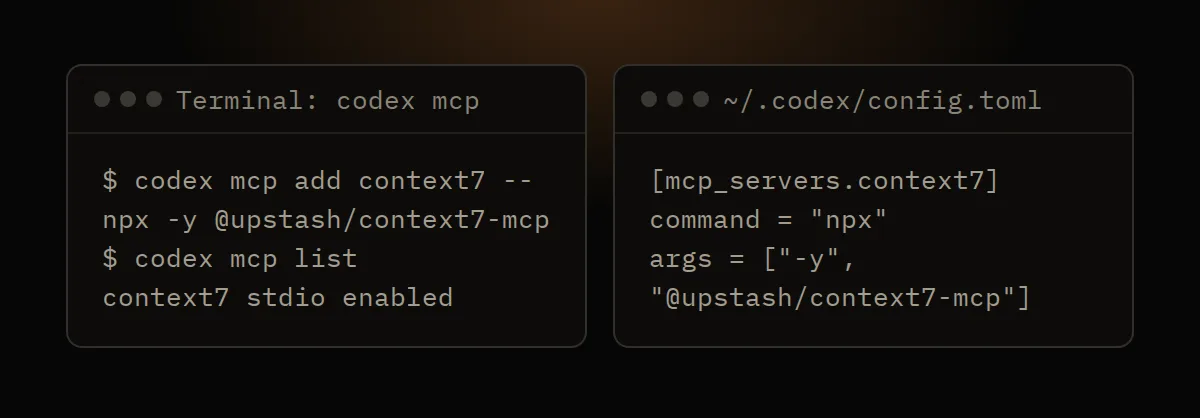
What MCP does in Codex
MCP, the Model Context Protocol, lets Codex use tools and information from other systems. An MCP server describes the tools it offers and handles their requests, such as looking up a ticket, reading documentation or driving a browser. Once a server is connected, its tools appear next to the built-in ones, and Codex calls them when your task needs them.
Codex supports two kinds of server:
- STDIO servers run as a local process that Codex starts with a command. You can pass environment variables to them.
- Streamable HTTP servers live at an address. They can use a bearer token, OAuth sign-in, or, for trusted first-party servers, your ChatGPT session.
Codex also reads the instructions field an MCP server returns when it starts, and uses it as guidance for that server's tools. If you build a server for Codex, keep the first 512 characters of those instructions self-contained, because that is the part Codex relies on when it decides how to use the server.
Source: Model Context Protocol in Codex, OpenAI
Add an MCP server with the Codex CLI
codex mcp add <server-name> --env VAR1=VALUE1 --env VAR2=VALUE2 -- <stdio server command>Everything after the two dashes is the command that starts the server. For example, Context7 is a free MCP server with up-to-date developer documentation:
codex mcp add context7 -- npx -y @upstash/context7-mcpThe other MCP commands manage what you added. codex mcp list shows your configured servers, and codex mcp login signs in to a server that uses OAuth. On a machine with no local browser, add --no-browser: Codex prints an authorisation address, you open it in any browser and sign in, then paste the full redirect address back into the terminal, even if the browser cannot load the page.
codex mcp listcodex mcp login <server-name>codex mcp login <server-name> --no-browsercodex mcp --help
Inside the Codex terminal app, the /mcp command lists the servers active in your session.
Source: Model Context Protocol in Codex, OpenAI
Add an MCP server in the ChatGPT desktop app or IDE extension
- In the ChatGPT desktop app, open Settings and choose MCP servers. In the IDE extension, open the gear menu and choose MCP servers.
- Choose Add server.
- Enter a name, pick STDIO or Streamable HTTP, and give the command or the address.
- Save, then choose Restart in the app, or Restart extension in the IDE.
- If the server needs OAuth, choose Authenticate next to it in the list.
Because these clients share one configuration, a server you add in one of them shows up in the others on the same machine, so you only set it up once. ChatGPT on the web is different: it does not read your local Codex configuration, and uses remote MCP tools through plugins instead.
Source: Model Context Protocol in Codex, OpenAI
Configure Codex MCP servers in config.toml
For finer control, edit ~/.codex/config.toml, or a project file at .codex/config.toml, which Codex only reads in trusted projects. Each server gets its own [mcp_servers.name] table.
STDIO server settings
- command, required: the command that starts the server.
- args: arguments to pass to it.
- env: environment variables to set for the server.
- env_vars: environment variables to allow through from your own environment.
- cwd: the folder to start the server in.
[mcp_servers.context7]
command = "npx"
args = ["-y", "@upstash/context7-mcp"]
env_vars = ["LOCAL_TOKEN"]

[mcp_servers.context7.env]
MY_ENV_VAR = "MY_ENV_VALUE"
Streamable HTTP server settings
- url, required: the server address.
- bearer_token_env_var: the name of an environment variable holding a bearer token to send.
- http_headers: fixed header names and values.
- env_http_headers: headers whose values come from environment variables.
- http_headers_helper: a local command that prints a JSON object of headers, for short-lived tokens.
- auth: oauth, the default, for stored MCP sign-ins, or chatgpt to use your ChatGPT session with the trusted first-party ChatGPT origin.
[mcp_servers.figma]
url = "https://mcp.figma.com/mcp"
bearer_token_env_var = "FIGMA_OAUTH_TOKEN"
http_headers = { "X-Figma-Region" = "us-east-1" }
Keep secrets out of the file itself where you can: name an environment variable with bearer_token_env_var or env_http_headers, and Codex reads the value when it connects.
Source: Model Context Protocol in Codex, OpenAI
Control which MCP tools Codex can use
Every server can be limited and tuned. These settings go in the same table:
| Setting | What it does | Default |
|---|---|---|
| enabled | Set to false to turn a server off without deleting it | true |
| required | Makes Codex fail to start if this server is not ready | false |
| enabled_tools | An allow list of tool names | All tools |
| disabled_tools | A deny list, applied after the allow list | None |
| default_tools_approval_mode | auto, prompt, writes or approve for every tool on the server | Your normal approval policy |
| tools.<name>.approval_mode | An approval override for one tool | Server default |
| tools.<name>.output_token_limit | A token budget for one tool's output | The model's default |
| startup_timeout_sec | How long the server has to start | 10 seconds |
| tool_timeout_sec | How long one tool call may run | 60 seconds |
[mcp_servers.chrome_devtools]
url = "http://localhost:3000/mcp"
enabled_tools = ["open", "screenshot"]
disabled_tools = ["screenshot"]
default_tools_approval_mode = "prompt"
startup_timeout_sec = 20
tool_timeout_sec = 45
enabled = true

[mcp_servers.chrome_devtools.tools.open]
approval_mode = "approve"
output_token_limit = 30000
The writes approval mode is a useful middle ground: Codex asks before running any tool the server does not mark as read-only, and runs read-only lookups without asking. Optional servers get a short grace period at startup, set by mcp_optional_startup_grace_ms, 1000 milliseconds by default, so one slow server does not hold up your session.
Source: Model Context Protocol in Codex, OpenAI
Source: Codex configuration reference, OpenAI
Make a server required, or let it start in the background
By default an MCP server is optional: if it fails to start, Codex carries on without its tools. Set required = true on a server your work depends on, and Codex refuses to start until that server is ready. Readiness has two levels. The default, startup_readiness = "connection", needs a live connection. startup_readiness = "catalog" lets a valid cached list of the server's tools satisfy startup while the connection finishes in the background. Tool calls still need the live connection, so this only speeds up the start.
Set mcp_optional_startup_grace_ms to 0 if you would rather Codex wait the full startup_timeout_sec for every optional server before your first message, at the cost of a slower start.
Short-lived tokens and remote environments
Some servers want a token that expires every few minutes. Rather than pasting a new one each time, point http_headers_helper at a local command that prints the headers as JSON. Codex caches the result for the connection. If the server answers 401 or 403, Codex runs the helper once more and retries only if the helper returns different values. A bearer token or OAuth sign-in you set explicitly always wins over a helper's Authorization header, and the helper only works for HTTP connections made from your own machine.
Each server also has an environment_id, which defaults to local. To reach a server through a remote executor instead, set it to that executor's registered environment ID. In env_vars, a plain name or source = "local" reads the variable from your machine, while source = "remote" reads it from the remote environment.
Source: Model Context Protocol in Codex, OpenAI
Sign in to MCP servers that use OAuth
Codex supports OAuth for HTTP servers, including Client ID Metadata Documents and Dynamic Client Registration, and picks a method automatically. When your authorisation server needs a client registered in advance, pass its client ID when you add the server:
codex mcp add example --url https://mcp.example.com --oauth-client-id my-clientFor a confidential client, also pass --oauth-client-secret, reading the value from an environment variable. Codex saves the secret in config.toml, so keep that file private and out of version control. Register the exact callback address that codex mcp add prints, and set scopes per server with mcp_servers.name.scopes, or for one login with codex mcp login name --scopes read,write.
Source: Model Context Protocol in Codex, OpenAI
MCP servers that come with plugins
Codex plugins can bundle their own MCP servers in the plugin manifest. Codex starts those from the plugin, so you do not set their command, but you can still turn them on or off and set tool policy for them in config.toml:
[plugins."sample@test".mcp_servers.sample]
enabled = true
default_tools_approval_mode = "prompt"
enabled_tools = ["read", "search"]
Source: Model Context Protocol in Codex, OpenAI
Useful MCP servers for Codex
- OpenAI Docs MCP: search and read OpenAI developer documentation.
- Context7: up-to-date documentation for many libraries.
- Figma, local or remote: read your Figma designs.
- Playwright: control and inspect a browser.
- Chrome DevTools: control and inspect Chrome.
- Sentry: read your Sentry logs.
- GitHub: manage pull requests and issues beyond what git can do.
Add servers you trust, and give each one only the tools it needs. An MCP server runs on your machine or receives your requests, so treat it like any other software you install.
Source: Model Context Protocol in Codex, OpenAI
When a Codex MCP server does not work
The server never connects
Run codex mcp list to check it is configured, then try its command by hand in a terminal to see any error. If it starts slowly, raise startup_timeout_sec from the default of 10 seconds.
Tool calls time out
Raise tool_timeout_sec from its default of 60 seconds for servers that do slow work, such as running tests or loading pages.
Sign-in keeps failing
Run codex mcp login name again. If you use a pre-registered client, check that the callback address registered with your provider matches the one codex mcp add printed exactly.
A project server is ignored
Servers in a project .codex/config.toml only load in trusted projects. Trust the project, or move the server to ~/.codex/config.toml.
Source: Model Context Protocol in Codex, OpenAI
Codex MCP and Claude Code MCP
Claude Code supports MCP too, with the same two server types. It adds servers with claude mcp add, keeps project servers in a .mcp.json file you can commit, and asks before using a project's servers the first time. If you use both agents, you can point them at the same servers and keep each tool's configuration in its own file.
Source: Connect Claude Code to tools via MCP, Anthropic
Many agents, one set of tools
Shared MCP configuration means every Codex session on a machine gets the same tools, which helps when several run at once. 10u is an AI coding agent dashboard that shows every Codex and Claude Code session side by side, each in its real terminal, marked Needs you, Working, Waiting or Parked. They do the building. You decide what gets built.

Questions people ask
- How do I add an MCP server to Codex?
- Run codex mcp add name -- command, for example codex mcp add context7 -- npx -y @upstash/context7-mcp, or add it under MCP servers in the ChatGPT desktop app or IDE extension settings.
- Where does Codex store MCP settings?
- In ~/.codex/config.toml, or in a project .codex/config.toml for trusted projects. The CLI, IDE extension and desktop app share it.
- How do I see my MCP servers in Codex?
- Run codex mcp list in your shell, or type /mcp inside the Codex terminal app.
- Does Codex support remote MCP servers?
- Yes. Codex supports Streamable HTTP servers with bearer tokens or OAuth sign-in, as well as local STDIO servers.
- Can I use the same MCP servers in the Codex CLI and the ChatGPT app?
- Yes. The Codex CLI, the IDE extension and the ChatGPT desktop app share one MCP configuration on the same machine, so you set a server up once.
- Can I limit which MCP tools Codex uses?
- Yes. Use enabled_tools and disabled_tools for each server, and set approval modes per server or per tool.