
Codex Linux guide: the Codex CLI, sandbox and desktop app on Linux
OpenAI Codex runs on Linux in two ways. The Codex CLI is a terminal app you install with one command, curl -fsSL https://chatgpt.com/codex/install.sh | sh, and it works on any modern distribution, including servers you reach over SSH. The ChatGPT desktop app for Linux, which includes Codex, is in preview for Ubuntu, Debian, Fedora and Arch Linux on x64 and ARM64. On Linux, Codex sandboxes the commands it runs with bubblewrap, so install that first.
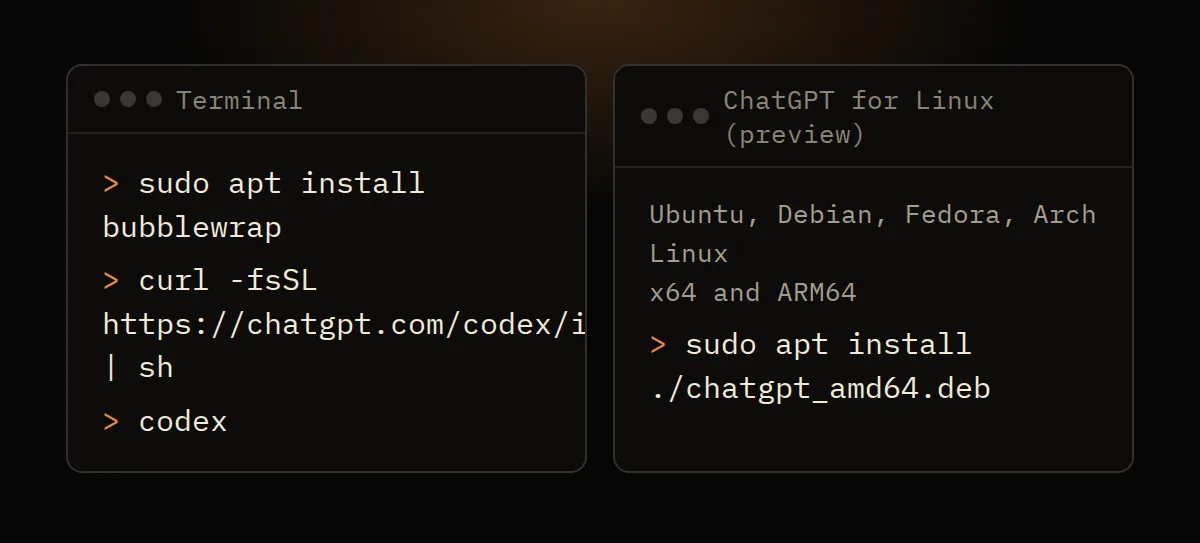
Source: ChatGPT desktop app for Linux, OpenAI
Codex on Linux at a glance
| Codex CLI | ChatGPT desktop app for Linux | |
|---|---|---|
| Status | Generally available | Preview |
| Distributions | Any modern Linux, including servers and WSL2 | Ubuntu 24.04 and 26.04, Debian 13, Fedora 43 and 44, Arch Linux |
| Processors | x64 and ARM64 | x64 and ARM64 |
| Install | curl -fsSL https://chatgpt.com/codex/install.sh | sh, or npm | .deb, .rpm, or an install script for Arch |
| Needs a desktop | No | Yes |
Source: ChatGPT desktop app for Linux, OpenAI
Install the Codex CLI on Linux
OpenAI's standalone installer works on macOS and Linux. Run it in a terminal:
curl -fsSL https://chatgpt.com/codex/install.sh | shRun the same command again to update. If you already use Node.js you can install with npm instead:
npm install -g @openai/codexThen go to a project folder and run codex. The first run asks you to sign in with your ChatGPT account or an OpenAI API key. Codex is included in ChatGPT Plus and higher plans; with an API key you pay API rates instead.
cd ~/code/my-appcodex
Source: Codex CLI, OpenAI
Set up the Codex sandbox on Linux
The sandbox is what lets Codex work on its own safely. It applies to every command Codex starts, including git, package managers and test runners, and keeps them inside the folders and network access you approved, so you are not asked to confirm every low-risk step. On macOS it uses the built-in Seatbelt; on Linux and WSL2 it uses bubblewrap, which you install from your package manager:
| Distribution | Command |
|---|---|
| Ubuntu or Debian | sudo apt install bubblewrap |
| Fedora | sudo dnf install bubblewrap |
Codex uses the first bwrap program it finds on your PATH. Without one, it falls back to a bundled helper that needs unprivileged user namespaces, so installing your distribution's package is the reliable option. Codex shows a warning at startup when bwrap is missing or cannot create the user namespace it needs.
Source: Sandboxing, OpenAI Codex docs
Fix the Ubuntu AppArmor warning
On Ubuntu 25.04, bubblewrap from Ubuntu's repository should work as is. On Ubuntu 24.04, Codex may still warn that it cannot create the user namespace, because AppArmor restricts it. Load the extra AppArmor profile for bwrap:
sudo apt updatesudo apt install apparmor-profiles apparmor-utilssudo install -m 0644 /usr/share/apparmor/extra-profiles/bwrap-userns-restrict /etc/apparmor.d/bwrap-userns-restrictsudo apparmor_parser -r /etc/apparmor.d/bwrap-userns-restrict
apparmor_parser -r loads the profile without a reboot. OpenAI prefers this to turning the restriction off for the whole system; only if the profile is unavailable or does not help, its docs give sudo sysctl -w kernel.apparmor_restrict_unprivileged_userns=0 as the last resort.
Source: Sandboxing, OpenAI Codex docs
Sign in to Codex on a headless Linux server
Codex's normal login opens a browser and returns the token to a local callback on localhost port 1455. On a remote or headless Linux machine that does not work, so OpenAI recommends device code sign-in (in beta):
- Turn on device code login in your ChatGPT security settings, or ask your workspace admin to allow it.
- On the server, run codex login --device-auth, or choose Sign in with Device Code in the login screen.
- Open the link on any device with a browser, sign in, and enter the one-time code.
codex login --device-authIf device code login is not available, there are two fallbacks. Forward the callback over SSH with ssh -L 1455:localhost:1455 user@remote, then run codex login in that session and open the printed address locally. Or sign in on a machine with a browser and copy ~/.codex/auth.json to the same place on the server. Treat that file like a password: it holds access tokens, so never commit it or paste it anywhere. For automation, OpenAI still recommends an API key.
ssh user@remote 'mkdir -p ~/.codex'scp ~/.codex/auth.json user@remote:~/.codex/auth.json
Source: Authentication, OpenAI Codex docs
Install the ChatGPT desktop app for Linux
The ChatGPT desktop app brings Codex to the Linux desktop for working with projects and local files. It is a preview, supported on Ubuntu 24.04 LTS and 26.04 LTS, Debian 13, Fedora 43 and 44, and current Arch Linux, each on x64 and ARM64. Run uname -m to check your processor: x86_64 means x64, and aarch64 or arm64 means ARM64.
Ubuntu or Debian
Download the .deb for your processor from OpenAI's Linux app page, then install it:
cd ~/Downloadssudo apt install ./chatgpt_amd64.deb
Use chatgpt_arm64.deb on ARM64.
Fedora
cd ~/Downloadssudo dnf install ./chatgpt.x86_64.rpm
Use chatgpt.aarch64.rpm on ARM64.
Arch Linux
Arch uses an install script that detects your processor, adds OpenAI's signed package repository and installs the app. It performs a full system upgrade and asks you to confirm.
curl --proto '=https' --tlsv1.2 -fL -o install-arch.sh https://persistent.oaistatic.com/codex-app-prod/linux/install-arch.shsudo bash install-arch.sh
Open ChatGPT from your applications menu, or run chatgpt in a terminal, sign in with your ChatGPT account and follow OpenAI's desktop app quickstart.
Source: ChatGPT desktop app for Linux, OpenAI
Update the Linux app
| Distribution | Update command |
|---|---|
| Ubuntu or Debian | sudo apt update && sudo apt install --only-upgrade chatgpt |
| Fedora | sudo dnf upgrade --refresh chatgpt |
| Arch Linux | sudo pacman -Syu |
Installing the app sets up OpenAI's signed package repository, so updates arrive through your normal package manager.
Linux app limits and Wayland
Other distributions may work but are not formally supported. Some features are not in the Linux preview yet: Computer Use works on macOS and Windows, and OpenAI says a future release will add Linux. Native Wayland support is experimental; in a Wayland session the app uses XWayland when it can. To force native Wayland, quit the app fully and start it with chatgpt --ozone-platform=wayland, knowing floating windows, window positioning, focus and some keyboard shortcuts may not fully work yet.
Source: ChatGPT desktop app for Linux, OpenAI
Codex on Linux machines that share a home folder
If several Linux hosts share one Codex home (~/.codex) over NFS, its SQLite databases can be corrupted when hosts open them in write-ahead-log mode. When Codex detects NFS it now creates databases in rollback-journal mode, which uses file locks instead. To migrate an existing shared home, use a Codex CLI build that includes the command (such as 0.166.0), stop Codex on every host, including background daemons and scheduled jobs, then run this once on one host:
codex migrate-nfs-dbTo stop the CLI's background server restarting during the move, set daemon_auto_start = false under [features] in config.toml, or pass --no-daemon. Afterwards, OpenAI suggests pointing log_dir at a local folder on each host to cut NFS traffic.
Source: Run Codex with an NFS home directory, OpenAI
Codex on Linux problems and fixes
| Problem | Fix |
|---|---|
| Warning that bwrap is missing | Install bubblewrap with apt or dnf |
| Cannot create user namespace on Ubuntu 24.04 | Load the bwrap-userns-restrict AppArmor profile |
| Browser login never finishes on a server | Use codex login --device-auth, or forward port 1455 over SSH |
| Desktop app windows behave oddly on Wayland | Let it run through XWayland, the default, instead of native Wayland |
| Codex databases break on a shared home | Stop Codex everywhere and run codex migrate-nfs-db once |
Source: Sandboxing, OpenAI Codex docs
Run Codex next to Claude Code on Linux
Linux is where many developers run several coding agents at once, often Codex and Claude Code in separate terminals or tmux panes. 10u is an AI coding agent dashboard that shows every Codex and Claude Code session side by side, each in its real terminal, marked Needs you, Working, Waiting or Parked. They do the building. You decide what gets built.

Questions people ask
- Does Codex run on ARM64 Linux computers?
- The ChatGPT desktop app for Linux has ARM64 packages for every supported distribution. Run uname -m: aarch64 or arm64 means ARM64.
- Does Codex work on Linux?
- Yes. The Codex CLI runs on Linux, and the ChatGPT desktop app for Linux, which includes Codex, is in preview for Ubuntu, Debian, Fedora and Arch Linux.
- How do I install Codex on Linux?
- Run curl -fsSL https://chatgpt.com/codex/install.sh | sh, or npm install -g @openai/codex, then run codex in a project folder and sign in.
- Is there a Codex app for Linux?
- Yes, in preview. The ChatGPT desktop app for Linux comes as a .deb for Ubuntu and Debian, an .rpm for Fedora, and an install script for Arch Linux, on x64 and ARM64.
- Why does Codex say it cannot create a user namespace?
- Install bubblewrap, and on Ubuntu 24.04 load the bwrap-userns-restrict AppArmor profile so the sandbox can start.
- How do I log in to Codex over SSH?
- Run codex login --device-auth and enter the one-time code in a browser on another device, after turning on device code login in your ChatGPT security settings.